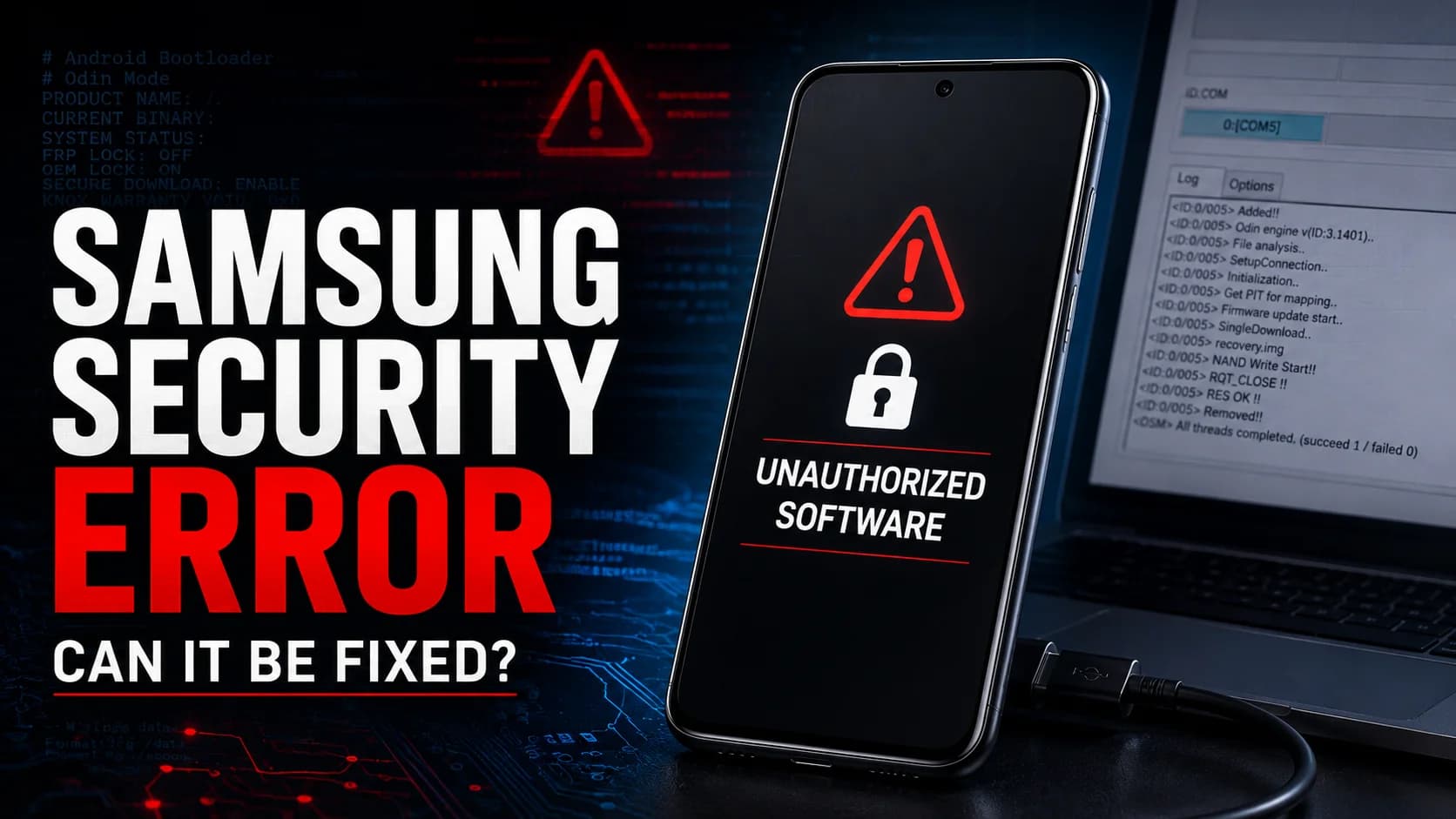
When a Samsung phone displays "Security Error: This phone has been flashed with unauthorized software & is locked," the device is not experiencing a minor glitch. It has been locked out by Samsung's secure-boot verification chain, and it will not function normally until the underlying cause is identified and resolved.
The message is frustrating partly because it is so broad. Several different problems—ranging from a simple firmware mismatch to a permanently triggered security fuse—can produce the same screen. Understanding what the error actually means, and what it does not, is the first step toward a fix that works.
What the error actually means
Samsung's security architecture verifies firmware integrity during every boot cycle. The device's hardware root of trust checks the digital signatures on each firmware partition. If any partition fails verification—because the software is not signed by Samsung, belongs to a different device model, or violates binary version rules—the boot process stops.
Samsung Knox documentation confirms that when this verification fails, the platform either records tampering by flipping a one-time fuse called the Knox Warranty Bit, or it prevents the device from booting entirely. The error message does not tell you which of these happened, because the same verification mechanism covers all of them.
That ambiguity is the core problem. The error message is a security response, not a diagnosis.
Most likely causes
Not all triggers are equally common. The situations that produce this error most often include:
Incorrect regional or carrier firmware. Flashing firmware intended for a different carrier or region is the single most common cause. Every Samsung device has a CSC (Country Specific Code) that must match the installed firmware. A device sold in one country will reject firmware built for another if the CSC configuration is incompatible.
Bootloader or binary mismatch. Each firmware build has a binary revision number. Attempting to flash a version older than the one currently installed often triggers this lock, especially when rollback prevention is active.
Failed or incomplete Odin flash. If a firmware installation is interrupted, corrupted, or only partially completed, the boot chain remains broken and the security check fails on the next restart.
Knox Warranty Void. The Knox fuse is a physical, one-time element on the device's motherboard. If it has been flipped—through bootloader unlock, custom recovery installation, or unauthorized modification—the device may refuse to boot official firmware going forward.
Firmware corruption. A corrupted download, failing storage, or interrupted update can cause the same signature verification failures that an intentional modification would trigger.
What the error is commonly confused with
Several other device restrictions exist in the Samsung and Android ecosystem, but they do not produce this specific message:
Google FRP (Factory Reset Protection) prevents unauthorized use after a factory reset, but it requires the original Google account credentials. It does not display an "unauthorized software" lockout.
Knox Guard or MDM restrictions on enterprise-managed devices can prevent firmware modification, but these typically present different error codes and management prompts rather than this particular security message.
Carrier financing or SIM locks are contractual restrictions, not firmware integrity failures. They block network access or service activation, not the boot process itself.
IMEI blacklisting prevents network connection on a reported or lost device, but it does not lock the device at the firmware level.
Confusing these with the security error leads to wrong diagnostic steps and wasted time.
How to diagnose the device correctly
Download Mode is where the useful information lives. Accessing it varies by model—typically Volume Down + Power + Bixby on older Samsung devices, or Volume Down + Power on newer ones. The exact combination matters, and Samsung has changed it across generations.
Once in Download Mode, the screen displays several fields that narrow the problem:
Current Binary shows the bootloader revision. Any replacement firmware must match or exceed this version.
FRP Lock shows whether Factory Reset Protection is active.
KG State displays the Knox Guard status. "Normal" or "Custom" is expected on personal devices. "Checking" or "Pre-normal" indicates active enterprise management restrictions that complicate recovery.
RMM State indicates Remote Mobile Management status.
Secure Check Fail or SW REV CHECK FAIL confirms that the device has already detected a firmware signature or revision mismatch.
Beyond Download Mode, two additional checks help narrow the diagnosis. Recovery Mode access suggests the core firmware is at least partially intact. Detection by Samsung Smart Switch on a PC strongly indicates a software-fixable issue rather than a hardware failure.
A technician should also verify the exact model number, the original carrier and country, and whether the device was previously rooted, repaired, refurbished, or unlocked. Each of these details changes the appropriate recovery approach.
Recovery options, from safest to most advanced
Recovery should progress from the least invasive option to the most, because each step carries increasing risk of data loss or permanent change.
Forced restart is the starting point. Holding Power + Volume Down for ten to fifteen seconds clears temporary states without data loss. It resolves the error only if the cause was a transient glitch, which is uncommon.
Recovery Mode cache clearing is the next step if Recovery Mode is accessible. Wiping the cache partition is safe and preserves data, but it rarely resolves deep firmware corruption.
Factory reset via Recovery Mode erases all user data. It is appropriate when cache clearing fails, but it will not fix a firmware signature mismatch. This is an important distinction: factory reset solves account-level and software-state issues, not firmware-level security failures.
Samsung Smart Switch recovery is the safest software-level option. If the PC detects the device, Smart Switch can identify the correct firmware and attempt automatic repair. This approach avoids the manual firmware selection errors that cause many Odin-related problems.
Official firmware reinstallation via Odin is the next option when Smart Switch fails. It requires the exact firmware matching the device's model number, region, and carrier. Two file types matter here: CSC performs a full wipe and resets the region code, while HOME_CSC attempts to preserve user data—but does not guarantee it on all Android versions.
Carrier or Samsung service centre becomes necessary when the error stems from financing locks, Knox Guard restrictions, or suspected hardware failure. These are not problems that firmware reinstallation can solve.
Odin is Samsung's internal service utility. While it is widely available and commonly used by experienced technicians, it is not officially supported for consumer use. Incorrect firmware selection, wrong file placement, or an interrupted flash can cause permanent damage. If you are unfamiliar with the firmware flashing process, stop before reaching this step.
When manual firmware flashing should be avoided
Self-repair has clear limits. Stop and seek professional help if any of the following apply:
- The exact model number or binary revision cannot be confirmed.
- Download Mode shows KG State as "Checking" or "Pre-normal."
- The device is company-managed or carrier-financed.
- Ownership cannot be verified with a receipt or carrier account.
- Odin repeatedly fails at the same partition.
- The device cannot enter Download Mode or Recovery Mode at all.
- The Knox Warranty Bit shows status 1, indicating it is permanently triggered.
Each of these conditions suggests a problem that firmware reinstallation will not resolve, and attempting it may make the situation worse.
Recommended action plan
For anyone facing this error, the practical sequence is straightforward:
Record the full model number and every field displayed in Download Mode. This information determines which firmware is correct and whether recovery is even possible.
Verify ownership, carrier status, warranty, FRP, Knox, and KG state before attempting any repair. Skipping this step is how people end up stuck halfway through a flash with an incompatible firmware file.
Attempt official recovery through Smart Switch or Recovery Mode before considering manual flashing. These methods are safer and less likely to introduce new problems.
Flash matching official firmware via Odin only when you have confirmed the exact model, region, carrier, and binary compatibility—and you understand the data-loss implications.
Escalate to Samsung or the original carrier when the diagnostic information points to restrictions, financing locks, or hardware failure. These are not problems that community firmware tools can solve.
Conclusion
Samsung's "unauthorized software" error is a security intervention, not a vague warning. It means the device's boot-level verification has failed, and the cause determines whether the fix is straightforward or impossible without professional help.
Download Mode provides the diagnostic information needed to tell the difference. When the right firmware and the right process are applied to the right cause, many devices recover fully. When the cause is a Knox fuse, an enterprise restriction, or failing hardware, the only responsible path is professional diagnosis.
Sources
- Samsung Knox Developer Documentation — Knox Platform Security Architecture, Boot-time Protections, Hardware Root of Trust, Knox Warranty Bit.
- Samsung Smart Switch User Guide — Firmware recovery and device initialization features.
- XDA Developers Forums — Community-documented cases of SM-series security errors and Odin flashing procedures.
- Samsung Community Support — Discussions on "Security Error" lockouts and CSC/BL binary matching.
- Google Android Security Documentation — Factory Reset Protection (FRP).