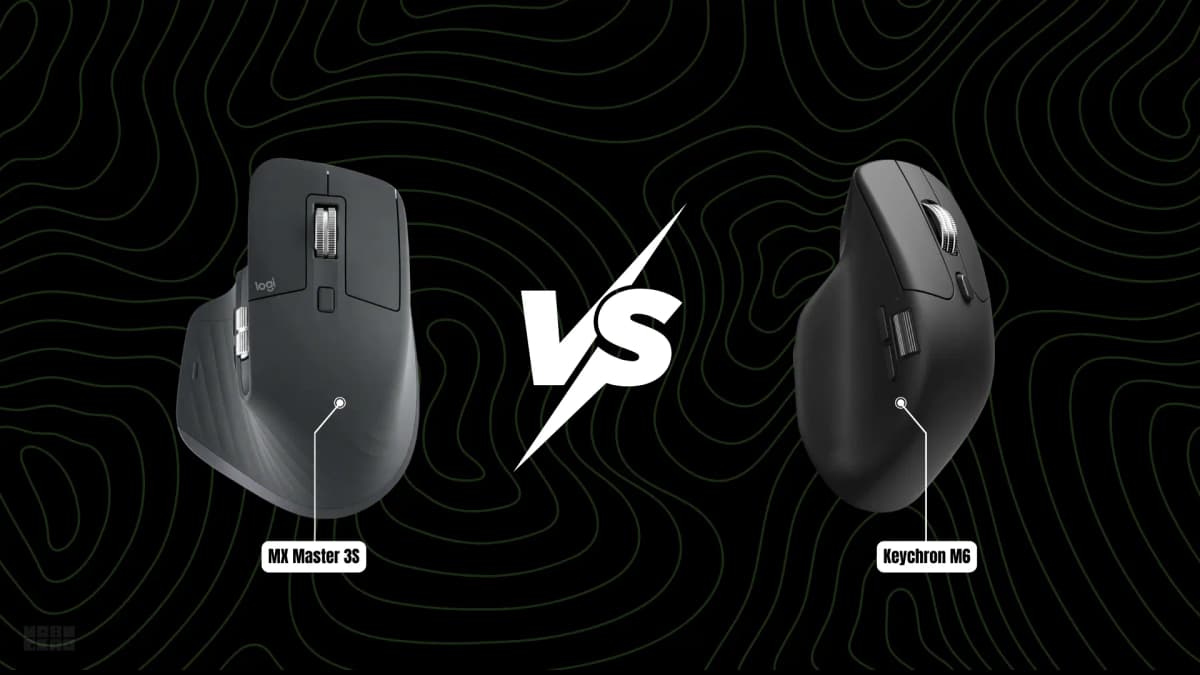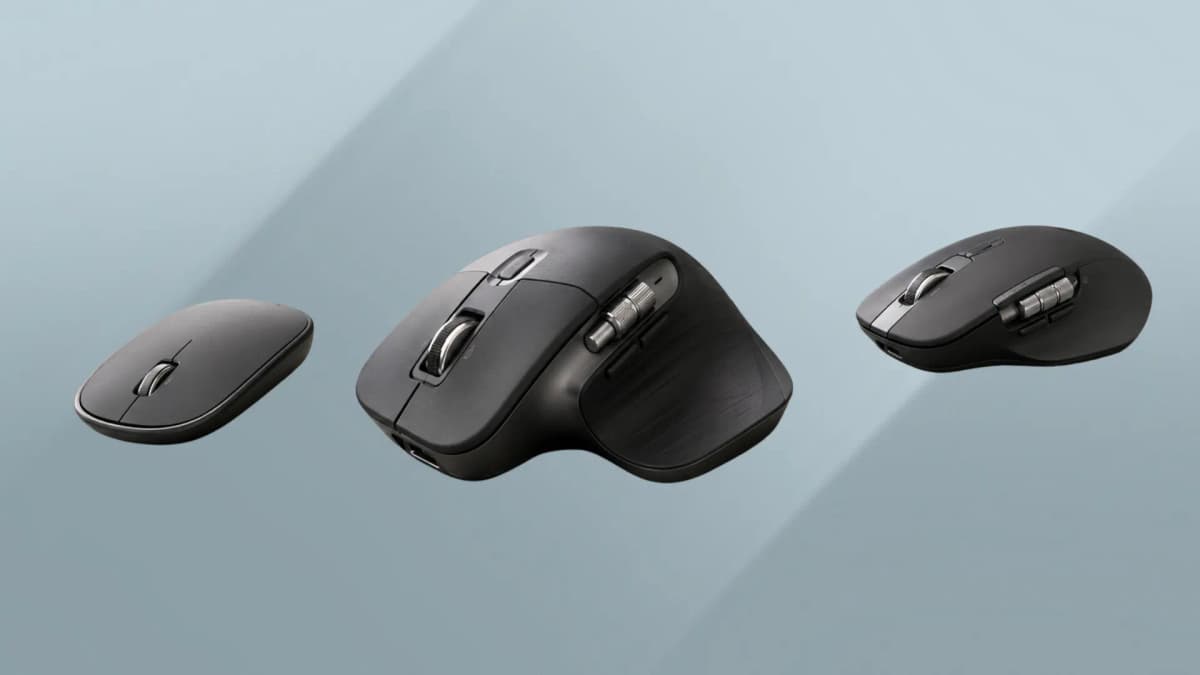

The right productivity mouse doesn't just move a cursor. It changes how fast you navigate a spreadsheet, how smoothly you scrub through a video timeline, and how easily you switch between your desktop and laptop without reaching for a cable.
And in 2026, the options have never been better or more confusing.
The productivity mouse market has quietly become one of the most competitive segments in peripherals. Logitech still dominates with the MX Master line, but Keychron's dual-scroll-wheel M7 has emerged as a credible alternative at half the price. Vertical mice from Logitech and Razer are addressing forearm comfort without requiring users to abandon their existing workflow. And trackballs, once a niche curiosity, are earning genuine followings among professionals who've discovered that eliminating arm movement entirely is the most effective ergonomic fix available.
The problem is that most "best mouse" roundups mix gaming picks alongside work recommendations, which obscures the features that actually matter for daily productivity. A 45K DPI sensor is irrelevant when you're navigating a 10,000-row spreadsheet. A 56g ultralight shell matters less than whether the scroll wheel can switch between free-spin and ratcheted modes. And multi-device switching — the ability to move your cursor between a desktop and laptop with one button press — is a feature that gaming roundups barely mention but productivity users depend on.
This guide focuses exclusively on productivity. No gaming mice. No "also good for gaming" caveats. Just the wireless mice that genuinely improve how you work.
- best overall: Logitech MX Master 4
- best value: Logitech MX Master 3S
- best alternative: Keychron M7
- best for travel: Logitech MX Anywhere 3S
How we chose
We evaluated 14 wireless mice from Logitech, Keychron, Razer, ProtoArc, Kensington, Dell, and Nulea, focusing on products that offer meaningful productivity advantages over a basic wireless mouse. The final eight were selected based on manufacturer specifications, independent testing data from RTINGS and LTT Labs, verified owner feedback from retailers, and software compatibility across Windows and macOS.
Comfort was scored based on dimensional analysis, grip compatibility, and owner reports — not marketing claims about "ergonomic design." Scrolling was evaluated for both vertical and horizontal navigation, with particular attention to free-spin capability and spreadsheet behavior. Connectivity was tested for switching speed, reconnection after sleep, and Bluetooth versus receiver reliability. Software was assessed for feature depth, macOS versus Windows parity, and whether the configuration tool requires a background service or runs independently.
Every recommendation in this article is research-based. Two products — the Razer Pro Click V2 Vertical and ProtoArc EM11 — are included provisionally pending hands-on verification, and this is noted in their individual sections. We do not recommend products we haven't substantiated through multiple independent sources.
For our broader picks across gaming, portable, and budget categories, see The best mice in 2026 for work, gaming, and travel. For Bluetooth troubleshooting, see Bluetooth mouse keeps disconnecting? 10 fixes that actually work.
Best Overall — Logitech MX Master 4

Price: $119.99
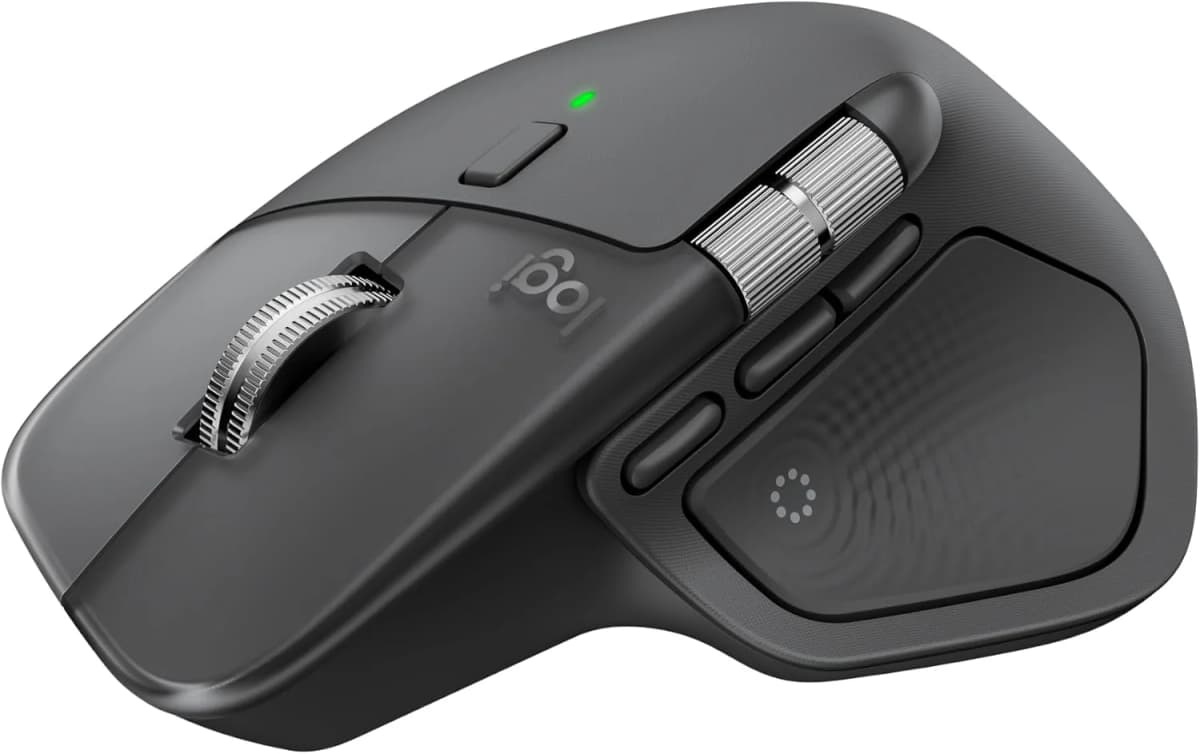
The Logitech MX Master 4 is the most capable productivity mouse you can buy in 2026. It combines every feature that matters for daily work — MagSpeed electromagnetic scrolling, a dedicated horizontal thumb wheel, haptic feedback, a radial shortcut menu, multi-device switching, and glass surface tracking — in a single package that justifies its premium price through genuine workflow improvement rather than spec-sheet padding.
The MagSpeed scroll wheel remains the best scroll mechanism available for productivity work. It switches between precise ratcheted scrolling (for cell-by-cell spreadsheet navigation) and free-spin mode (for scrolling through 1,000-line sheets in seconds) at the press of a button. The electromagnetic mechanism can scroll 1,000 lines per second in free-spin, then stop precisely on a target line when you need to. For long documents, legal contracts, or code reviews, this is a tangible time saver — not a marketing bullet point.
The horizontal thumb wheel is the other headline feature for productivity. In Excel, Google Sheets, and Numbers, it scrolls left and right natively — no holding Shift, no trackpad gesture, no remapping. In Adobe Premiere Pro, DaVinci Resolve, and Final Cut Pro, it scrubs through timelines while the main wheel controls zoom. The wheel clicks horizontally for additional input, and the entire mechanism is silent.
The new Actions Ring — a radial shortcut menu that appears at your cursor — provides one-click access to app-specific tools. Logitech's Ergo Lab study found it reduced mouse movement by up to 63% for common desktop actions. In practice, its value depends entirely on how thoroughly you configure it: out of the box it's a novelty, but with per-app profiles set up in Logi Options+, it becomes a genuine speed improvement for repetitive workflows.
Haptic feedback pulses under your thumb when the mouse connects, when you switch devices, or when you perform a gesture. It's subtle enough to ignore but noticeable enough to provide tactile confirmation that the mouse is responding. On Windows 11, the haptics integrate with native Advanced Haptics. On macOS, the feature works but with fewer customization options.
The 8K DPI sensor tracks on glass surfaces (4mm+), which means conference tables, hotel desks, and glass-topped workspaces don't require a mousepad. Multi-device switching connects to up to three devices simultaneously over Bluetooth or Logitech's Logi Bolt receiver, with switching taking approximately 1–2 seconds. Logitech Flow enables seamless cursor movement between computers — copy on one machine, paste on another.
The downsides are familiar from previous MX Master generations. There's no USB-C charging cable in the box despite a USB-C port, which means you'll need to supply your own. The polling rate caps at 125Hz, which is irrelevant for productivity but means this mouse cannot double as a gaming option after work. At 141g, it's heavier than modern ultralight mice, though the weight contributes to tracking stability on glass surfaces.
Comfort and fit
The MX Master 4 uses the same sculpted right-handed shape that has defined the line since 2017. It's best suited for medium to large hands (18–21cm hand length). Users with small hands may find the thumb rest and side buttons difficult to reach simultaneously. Palm grip is the intended use case; claw grip is possible but less comfortable due to the high hump. There is no left-handed version — left-handed users should consider the Logitech Lift.
Software and connectivity
Logi Options+ is required for full feature access — haptics, Actions Ring, per-app profiles, and gesture configuration. It's available on Windows, macOS, iPadOS, ChromeOS, and basic Linux. Account creation is optional but recommended for cloud profile sync. Some features require macOS Accessibility and Input Monitoring permissions, which some users find invasive but are necessary for per-app profiles.
The Logi Bolt receiver reconnects within 1–2 seconds after computer sleep. Bluetooth reconnection takes 2–4 seconds. Both modes are reliable in independent testing.
Best for: Spreadsheet-heavy users, video editors, programmers, multi-device professionals, anyone who uses a mouse 6+ hours daily.
Skip if: You have small hands (consider MX Anywhere 3S or Lift), you're left-handed (consider Lift Left), or you want the best value (MX Master 3S delivers 85% of the experience at $20 less).
Best Value — Logitech MX Master 3S

Price: $99.99
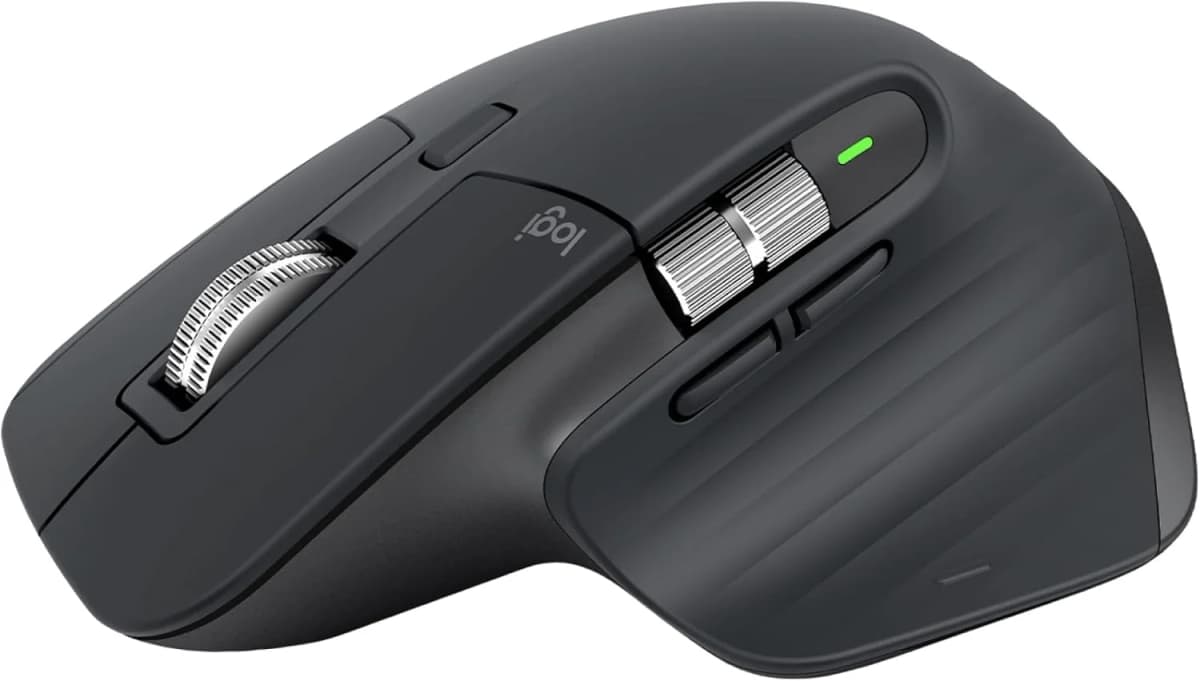
The Logitech MX Master 3S is the smarter buy for most people. It has the same MagSpeed scroll wheel, horizontal thumb wheel, 8K DPI glass-tracking sensor, multi-device switching, and Logi Options+ software as the MX Master 4 — minus the haptic feedback, Actions Ring, and Windows 11 haptic integration — for $20 less. For anyone who doesn't need the newest features, this is the productivity mouse with the strongest track record.
The core experience is identical. The MagSpeed wheel switches between ratcheted and free-spin modes with the same electromagnetic mechanism. The horizontal thumb wheel scrolls spreadsheets and timelines with the same silent precision. Quiet Clicks reduce click noise by approximately 90% compared to the older MX Master 3 — a meaningful improvement for shared offices and library environments.
What you lose versus the MX Master 4 is haptic feedback (the thumb-rest vibration that provides tactile confirmation), the Actions Ring radial shortcut menu, and native Windows 11 haptic integration. For most users, these are nice-to-have rather than essential. The MX Master 3S has 1,800+ verified owner reviews with a 4.5/5 average — one of the most reliable track records in the productivity mouse category.
Why it's still worth buying in 2026
The MX Master 3S launched in 2022 and remains in Logitech's current lineup. It shares the same Logi Bolt receiver compatibility, the same Flow cross-computer feature, the same per-app profiles, and the same software ecosystem as the MX Master 4. The sensor, scroll mechanism, and multi-device switching are functionally identical. The only tangible differences are the haptics and Actions Ring — features that most MX Master 3S owners have never used and therefore don't miss.
At $100, it's the best value in the MX Master line. If you've been using an older MX Master (2, 2S, or 3), the 3S is a meaningful upgrade in click noise, sensor quality, and scroll refinement. If you're buying your first productivity mouse, the 3S delivers the full MX experience at a price that's easier to justify.
Best for: Anyone who wants the MX Master experience without paying $120, users who prefer proven products over the latest features, first-time upgrades from basic wireless mice.
Skip if: You want the Actions Ring and haptic feedback (MX Master 4), you have small hands (MX Anywhere 3S), or you're left-handed (Lift Left).
Best MX Master Alternative — Keychron M7

Price: $49.99–$69.99
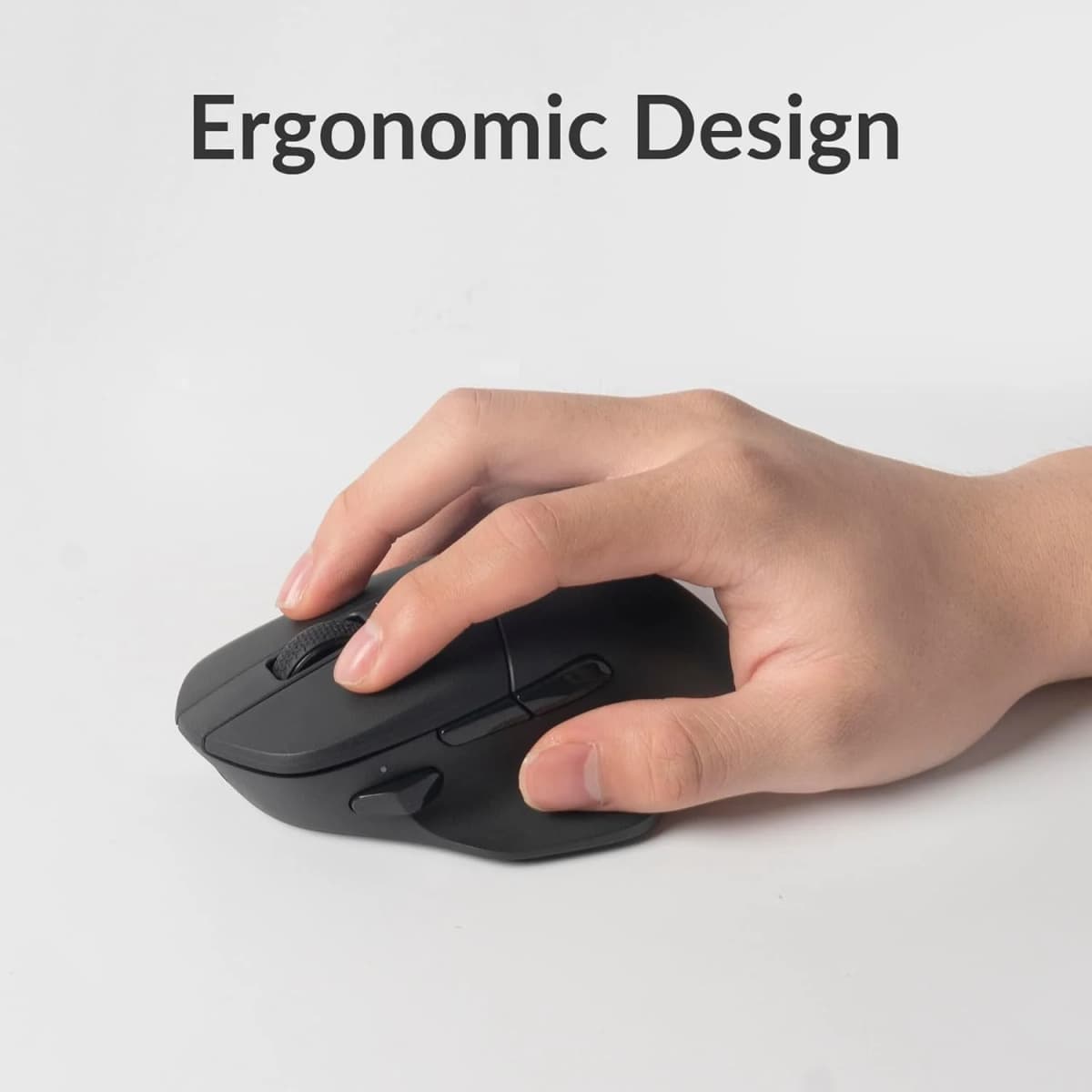
The Keychron M7 is the strongest non-Logitech productivity mouse in 2026. It matches the MX Master line's dual-scroll-wheel layout, adds a web-based configurator that works on any operating system, and costs $50–$70 — roughly half the price of the MX Master 4. The trade-off is build quality consistency and software maturity, but for users who value cross-platform flexibility and lightweight design, the M7 earns its place.
The dual scroll wheels are the headline feature. The top magnetic scroll wheel switches between ratcheted and free-spin modes — similar in concept to Logitech's MagSpeed, though the implementation is less refined. The metal wheel variant (available on 1K Premium and 8K models) provides a premium feel; the plastic wheel variant (1K standard) is lighter but less satisfying. The side horizontal scroll wheel handles spreadsheet and timeline navigation with the same dedicated approach as the MX Master's thumb wheel.
What distinguishes the M7 from the MX Master is the Keychron Launcher — a web-based configurator that runs in Chrome, Edge, or Opera. No software download. No background services. No account creation. Configure button mappings, macros, DPI settings, polling rate, and LOD from any computer with internet access. Settings save to five onboard memory profiles, which means you can switch between computers without reconfiguring.
At 78–86g depending on the wheel variant, the M7 is significantly lighter than the MX Master 4's 141g. For users who find the MX Master heavy during extended sessions, the weight difference is noticeable. The ergonomic right-handed shape accommodates small to medium hands well, though large hands may find it less comfortable than the MX Master's wider body.
Software and platform support
The Keychron Launcher's web-based approach is its biggest advantage for cross-platform users. It works identically on Windows, macOS, Linux, and ChromeOS through a browser — no OS-specific limitations, no macOS Accessibility permissions, no background daemon. The downside is that it requires Chrome, Edge, or Opera; Safari and Firefox are not supported. There's also no native desktop application, which some users prefer for always-available configuration access.
Connectivity covers Bluetooth 5.3 (three devices), 2.4GHz via included USB-A receiver, and USB-C wired — more connection options than any mouse on this list. Switching between devices is slightly slower than Logitech's implementation (2–3 seconds versus 1–2 seconds), and there's no Flow-like cross-computer cursor feature.
Build quality concerns
The M7's weakest point is build quality consistency. Keychron's own site shows a 3.25/5 average rating across 73 reviews as of July 2026, with recurring reports of scroll wheel sensitivity issues and occasional bottom panel warping after drops. These aren't universal problems, but they're more frequent than with Logitech's MX line, which has a stronger track record over multiple product generations. The M7 is a good mouse that occasionally has quality-control outliers — a trade-off worth considering at this price point.
Best for: Value-conscious users who want dual scroll wheels without paying $120, cross-platform users (Windows + macOS + Linux), users who prefer lightweight mice, programmers who want to configure macros without installing software.
Skip if: Build quality consistency is a priority (MX Master 3S), you need Flow cross-computer features (Logitech ecosystem), or you have large hands (MX Master 4).
Best for Travel — Logitech MX Anywhere 3S

Price: $79.99 (on sale from $89.99)
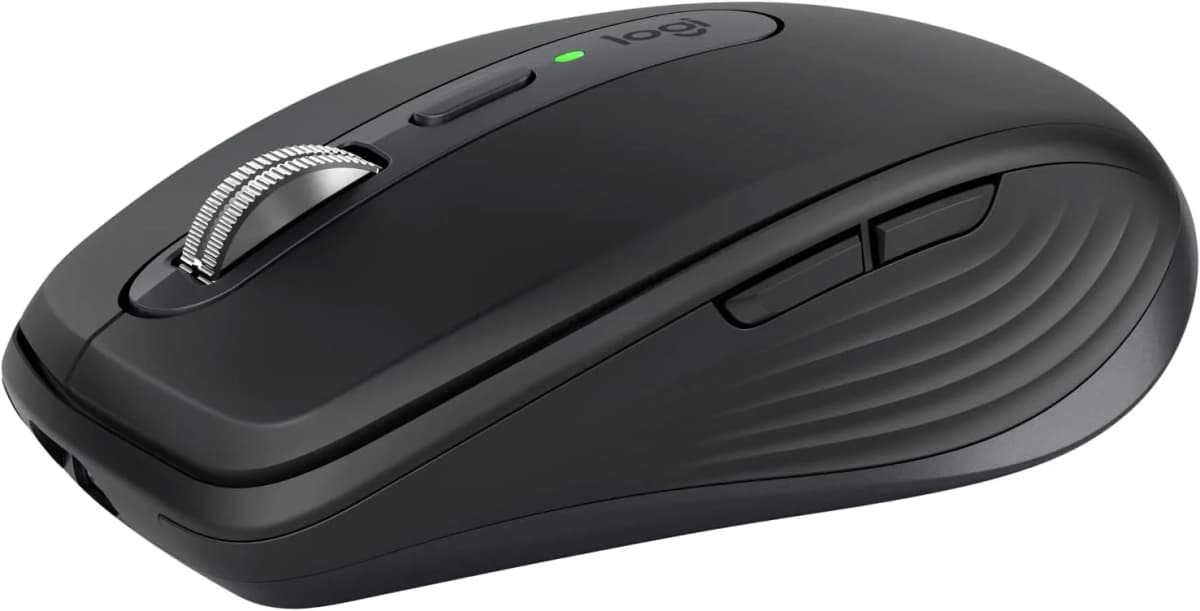
The Logitech MX Anywhere 3S is the travel companion for anyone already invested in the Logitech MX ecosystem. It packs the same MagSpeed scroll wheel, 8K DPI glass-tracking sensor, Quiet Clicks, and multi-device switching into a compact body that fits in a laptop bag without adding bulk. The trade-off: no horizontal scroll wheel and a less comfortable shape for all-day desk sessions.
The MagSpeed scroll wheel in a travel-ready package is the real draw. Business travelers who rely on the MX Master at their desk often find themselves reaching for a less capable mouse on the road. The MX Anywhere 3S eliminates that compromise — the same electromagnetic scroll mechanism, the same free-spin and ratcheted modes, the same glass-surface tracking that works on conference tables, hotel desks, and airplane tray tables.
At 99g, it's light enough to carry without thinking about it. Quiet Clicks reduce noise in shared workspaces, airport lounges, and client meetings. The compact body (99 × 61 × 34mm) suits small to medium hands for palm or claw grip. Large hands may find the shape cramped for extended use.
Connectivity is identical to the MX Master line: Bluetooth (three devices) plus Logi Bolt receiver, with Flow support for cross-computer cursor movement. The MX Anywhere 3S can share a Logi Bolt receiver with other MX-series mice — a genuine convenience for users who carry both a desk mouse and a travel mouse.
What it lacks
The most significant gap is the absence of a horizontal scroll wheel. If you work with spreadsheets or timelines on the road, you'll need to rely on Shift+scroll or a trackpad gesture. For document scrolling, email, and web browsing, the MagSpeed wheel alone is sufficient. For spreadsheet-heavy travel work, the Keychron M7 (which has a horizontal side wheel and weighs only 78g) is a stronger travel option despite being slightly larger.
The compact shape also means fewer programmable buttons — four versus seven or eight on the MX Master. For users who rely on per-app button mappings, this is a meaningful reduction in shortcut availability.
Best for: Business travelers, digital nomads, users who switch between a desk mouse and a travel mouse, anyone who wants MagSpeed scrolling without the full MX Master size.
Skip if: You need horizontal scrolling on the road (MX Master 3S or Keychron M7), you have large hands, or you want the cheapest travel option (Razer Orochi V2 at ~$33 works for basic travel use, though it lacks MagSpeed and multi-device switching).
Best Vertical Mouse — Logitech Lift

Price: $79.99
The Logitech Lift is the vertical mouse most people should try first. At $80, it offers a 57-degree vertical angle that reduces forearm rotation, quiet clicks, multi-device switching, and Logi Options+ software support — including a left-handed version that's rare in this category. The trade-off: no MagSpeed scroll wheel, a learning curve for vertical mouse users, and a size that best fits small to medium hands.
The vertical design positions your hand in what Logitech calls a "natural handshake" angle. This reduces forearm pronation — the inward twisting motion that conventional mice require — which some users find more comfortable during long working sessions. Whether this actually helps depends on your individual comfort. There's no universal answer. But for users who experience forearm discomfort, wrist strain, or numbness after hours of conventional mouse use, trying a vertical mouse is a low-risk experiment — and the Lift is the safest entry point.
The 57-degree angle is less extreme than some competitors, which makes the adaptation period shorter. Expect one to two weeks before movement precision feels natural. The soft rubber texture and thumb rest provide support without heat buildup. At 125g with the AA battery, the weight is appropriate for a vertical mouse that stays on your desk.
Left-handed version
The Lift Left is one of very few vertical mice with a dedicated left-handed model. It's a separate SKU at the same price, with the same specifications and Logi Options+ support. For left-handed users who've been stuck with right-handed vertical mice or conventional shapes, this is a meaningful option that rarely appears in roundups.
What it lacks
The standard scroll wheel is functional but unremarkable — no MagSpeed free-spin, no horizontal wheel, no free-spin mode. Spreadsheet users will need Shift+scroll for horizontal navigation. The 4K DPI sensor is adequate but lower than the MX Master line's 8K DPI. There's no glass-surface tracking.
The Logi Options+ software provides the same per-app profiles, multi-device switching, and Flow support as the MX Master line — a genuine advantage over competing vertical mice that use their own less-mature software ecosystems.
Best for: Users who experience forearm discomfort from conventional mice, left-handed users, shared-office workers who need quiet clicks, small to medium-handed users upgrading from a basic wireless mouse.
Skip if: You have large hands (MX Vertical or conventional mice may be better), you need horizontal scrolling, or you're unwilling to adapt to a vertical angle.
Best Trackball — Logitech MX Ergo S

Price: $119.99
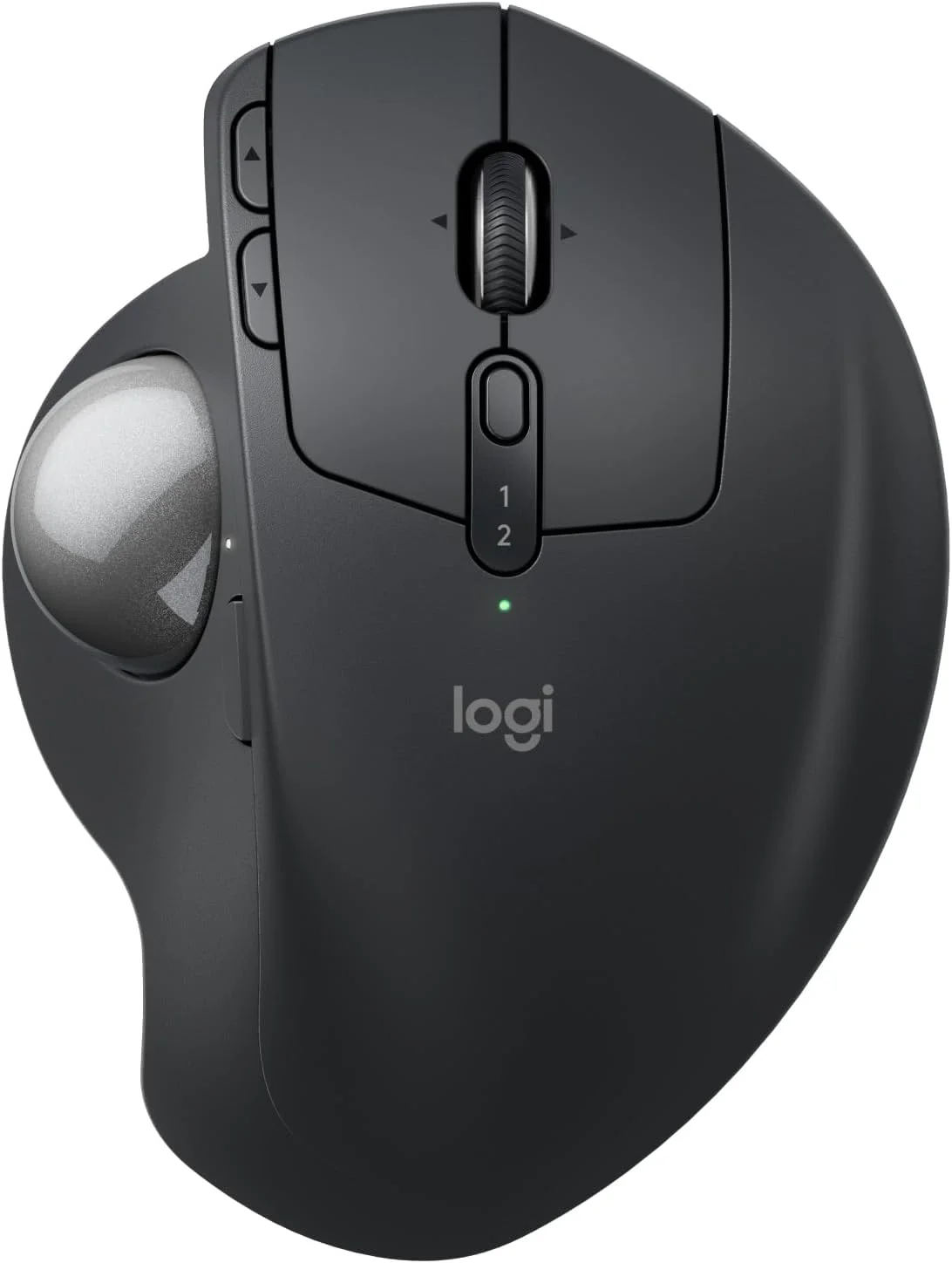
If you experience wrist or forearm discomfort from moving a conventional mouse — or if your desk space is too limited for mouse movement — a trackball eliminates arm movement entirely. The MX Ergo S is the only trackball that combines Logitech's multi-device ecosystem with a modern rechargeable design, USB-C charging, and quiet switches. The learning curve is real — expect one to two weeks — but users who commit to it frequently describe it as the mouse they can't go back from.
You roll the ball with your thumb while your hand stays stationary. This removes the repetitive side-to-side wrist movement that causes strain over time. The base tilts up to 20 degrees for a more neutral hand position — flat mode offers more precision, tilted mode offers more comfort. The adjustment is personal and worth experimenting with over the first week.
Multi-device switching connects to two devices over Bluetooth plus the Logi Bolt receiver — one fewer device slot than the MX Master line's three, but sufficient for most desktop-plus-laptop setups. Flow cross-computer support is included. The USB-C rechargeable battery lasts up to 120 days per charge, one of the longest claims on this list.
Eight programmable buttons with per-app profiles via Logi Options+ provide the same customization depth as the MX Master line. The scroll wheel is standard — no MagSpeed, no free-spin — which is the trackball's most notable productivity gap. For users who rely on rapid free-spin scrolling, this is a meaningful limitation.
Maintenance
The trackball must be removed and cleaned periodically. Dust and skin oils accumulate on the internal sensors over time, which can cause cursor drift or uneven tracking. Logitech recommends cleaning every one to two months — a thirty-second process that involves popping the ball out, wiping the sensors with a dry cloth, and replacing the ball.
Best for: Users with wrist, forearm, or shoulder discomfort, users with limited desk space, professionals who want Logitech's ecosystem in a trackball form, users willing to invest one to two weeks in adaptation.
Skip if: You've never used a trackball and aren't willing to adapt, you're left-handed (no left-handed version exists), you need horizontal scrolling, or you prioritize cursor speed over comfort.
Best for Quiet Offices — Razer Pro Click V2 Vertical (Provisional)
Price: ~$99.99
[URBNGEAR hands-on test required] Based on verified specifications, the Razer Pro Click V2 Vertical offers a vertical ergonomic design with three connectivity modes — Bluetooth, 2.4GHz, and USB-C wired — and Razer's typically solid build quality. It's a potential alternative to the Logitech Lift for users who prefer Razer's ecosystem or want a wired backup option.
The vertical design should reduce forearm rotation similarly to the Lift, though the exact angle and hand-feel haven't been verified through hands-on testing. Razer Synapse provides button customization and per-app profiles, but its macOS support is limited compared to Logi Options+. The AI prompt button is a marketing feature that can be remapped to any shortcut — its value depends on your workflow, not the label.
This recommendation is provisional. We haven't verified the sensor specifications, measured click noise against Logitech's Quiet Clicks, or confirmed Razer Synapse behavior on macOS. Until hands-on testing is completed, consider this a watch-list pick rather than a confirmed recommendation.
Best for: Users who prefer Razer's ecosystem, shared-office workers seeking vertical comfort with a wired backup option.
Skip if: You use macOS primarily (Logi Options+ is more mature), you need horizontal scrolling, or you want a proven product (Logitech Lift has a longer track record).
Best Budget Vertical — ProtoArc EM11 (Provisional)
Price: $22.99–$36.99
[URBNGEAR hands-on test required] At $23–$37, the ProtoArc EM11 is the cheapest vertical mouse from a brand with a visible retail presence. It offers Bluetooth and 2.4GHz connectivity in a vertical design at a price that makes it a low-risk experiment for users curious about vertical mice.
The low price is the primary advantage. If you've been considering a vertical mouse but don't want to commit $80 to the Logitech Lift before knowing whether the vertical form factor works for you, the ProtoArc at $23 is the cheapest way to find out.
The trade-offs are significant. Build quality and long-term durability are unverified. The sensor performance is basic. There's no horizontal scroll wheel, no advanced software, and no per-app profile system. At this price, you're paying for the vertical shape and basic wireless connectivity — nothing more.
This recommendation is provisional. We haven't assessed the sensor quality, tested Bluetooth reliability, or verified how the vertical angle compares to the Lift's 57-degree design. At this price, it's a reasonable impulse purchase, but not a confirmed recommendation for daily work.
Best for: Budget-conscious buyers curious about vertical mice, users who want a low-risk experiment before committing to a premium vertical mouse.
Skip if: You need reliable long-term performance, you want horizontal scrolling, or you're buying a primary work mouse (Logitech Lift is more proven at $80).
Comparison table
| Feature | MX Master 4 | MX Master 3S | Keychron M7 | MX Anywhere 3S | Lift | MX Ergo S |
|---|---|---|---|---|---|---|
| Price | $119.99 | $99.99 | $49.99–$69.99 | $79.99 | $79.99 | $119.99 |
| Dimensions | 141 × 100 × 51mm | 124.9 × 84.2 × 51mm | ~125 × 78 × 42mm | 99 × 61 × 34mm | 108 × 71 × 70mm | 132 × 100 × 51mm |
| Weight | 141g | 141g | 78–86g | 99g | 125g | 259g |
| Hand-size fit | Medium–Large | Medium–Large | Small–Medium | Small–Medium | Small–Medium | Medium–Large |
| Handedness | Right only | Right only | Right only | Right only | Right + Left | Right only |
| Connection | BT + Logi Bolt | BT + Logi Bolt | BT + 2.4GHz + Wired | BT + Logi Bolt | BT + Logi Bolt | BT + Logi Bolt |
| Device count | 3 | 3 | 3 BT + 2.4G + Wired | 3 | 3 | 2 BT + Logi Bolt |
| Scroll system | MagSpeed + Horizontal | MagSpeed + Horizontal | Magnetic + Horizontal side | MagSpeed | Standard + Tilt | Standard |
| Horizontal scrolling | Dedicated wheel | Dedicated wheel | Dedicated side wheel | None | Tilt only | None |
| Programmable controls | 8 | 7 | 10+ | 4 | 4 | 8 |
| Battery | ~70 days (USB-C) | ~70 days (USB-C) | Up to 180 hours (USB-C) | ~70 days (USB-C) | 24 months (AA) | ~120 days (USB-C) |
| Software | Logi Options+ | Logi Options+ | Keychron Launcher | Logi Options+ | Logi Options+ | Logi Options+ |
| Quiet clicks | Yes | Yes | Optional (silent switch) | Yes | Yes | Yes |
| Glass tracking | Yes (4mm+) | Yes (4mm+) | 8K version only | Yes (4mm+) | No | No |
Swipe sideways to compare the full chart.
How to choose based on hand size
Your hand size is the single most important factor in choosing a productivity mouse. A mouse that doesn't fit your hand will cause discomfort regardless of its features.
Measure your hand from the base of your palm (where it meets your wrist) to the tip of your middle finger, and across the widest part of your palm.
| Hand length | Hand width | Recommended size |
|---|---|---|
| Under 17cm | Under 7.5cm | Small |
| 17–19cm | 7.5–8.5cm | Medium |
| 19–21cm | 8.5–9.5cm | Large |
| Over 21cm | Over 9.5cm | Extra large |
Swipe sideways to compare the full chart.
- Small hands: Logitech MX Anywhere 3S, Logitech Lift, Keychron M7
- Medium hands: All mice on this list
- Large hands: Logitech MX Master 4, MX Master 3S, MX Ergo S
- Extra large hands: Logitech MX Master 4 (may still feel snug)
Conventional versus vertical
A conventional mouse requires your forearm to rotate inward (pronation), which can cause discomfort over long sessions. A vertical mouse positions your hand in a "handshake" angle that reduces this rotation.
Try a vertical mouse if you experience forearm discomfort, wrist pain, or numbness after long mouse sessions. Stick with a conventional mouse if you're comfortable, you need horizontal scrolling, or you're unwilling to adapt (one to two weeks).
The Logitech Lift is the safest first vertical mouse. Its 57-degree angle is less extreme than some competitors, the left-handed version is rare in this category, and Logi Options+ provides the same software ecosystem as the MX Master line.
Trackball learning curve
A trackball eliminates arm movement entirely — you control the cursor with your thumb while your hand stays stationary. The MX Ergo S is the only premium trackball on this list. Expect one to two weeks to adapt. Initial cursor precision will be lower than a conventional mouse. Most committed trackball users report they can't go back.
Trackballs require periodic maintenance — the ball must be removed and cleaned every one to two months to prevent dust buildup on internal sensors.
Scroll wheel
The scroll wheel is the second most important productivity feature after comfort.
- MagSpeed electromagnetic (MX Master 4, MX Master 3S, MX Anywhere 3S): The best scroll mechanism for productivity. Switches between precise ratcheted and free-spin modes. Scrolls 1,000 lines per second.
- Magnetic metal (Keychron M7 Premium): Similar free-spin capability. Slightly less refined than MagSpeed but functionally comparable.
- Standard with tilt (Lift): Functional but lacks free-spin. Tilt enables horizontal scrolling but is less precise than a dedicated wheel.
- Standard (MX Ergo S): Basic scrolling. No free-spin, no horizontal. Adequate for documents, limiting for spreadsheets.
Horizontal scrolling
Horizontal scrolling is essential for spreadsheet users, video editors, and anyone working with wide documents.
- Dedicated horizontal wheel: MX Master 4, MX Master 3S, Keychron M7 — the best option for frequent horizontal scrolling
- Tilt wheel: Logitech Lift — functional but requires holding the wheel at an angle; less precise
- No horizontal scrolling: MX Anywhere 3S, MX Ergo S — rely on Shift+scroll or trackpad gestures
Bluetooth versus receiver
See our detailed comparison: Bluetooth vs 2.4GHz wireless mouse: which is better?
- Bluetooth: No USB port required. Works with tablets and phones. Slightly higher latency. Better for travel.
- Logi Bolt receiver: More stable in RF-congested offices. Lower latency. Requires a USB-A port (or adapter for USB-C).
- 2.4GHz generic receiver (Keychron M7): Similar to Logi Bolt but uses a standard protocol. Not cross-compatible with Logitech receivers.
Recommendation: Use Bluetooth for travel and casual work. Use the receiver at your primary desk for maximum stability.
Multi-device switching
If you work across multiple computers — desktop and laptop, Windows and macOS — multi-device switching is essential.
- Logitech Flow: Available on all Logitech MX mice. Enables seamless cursor movement between computers — copy on one, paste on another. Requires Logi Options+ software.
- Keychron M7: Switch between devices via bottom button. No Flow-like cross-computer feature. Five onboard profiles.
- Switching speed: Logitech mice switch in one to two seconds. Keychron M7 switches in two to three seconds.
Battery and charging
- Rechargeable (USB-C): MX Master 4, MX Master 3S, MX Anywhere 3S, Keychron M7, MX Ergo S. Convenient but require periodic charging. Use while charging.
- Replaceable AA battery: Logitech Lift. 24-month battery life. No charging cable needed. Heavier due to battery.
- Battery claims are manufacturer-stated. Independent testing typically shows 60–80% of claimed battery life under heavy use. A realistic expectation for a rechargeable productivity mouse is 40–60 days per charge with eight or more hours of daily use.
Noise
- Quiet Clicks: MX Master 4, MX Master 3S, MX Anywhere 3S, Lift, MX Ergo S. Logitech's Quiet Clicks reduce click noise by approximately 90% compared to the MX Master 3.
- Keychron M7 silent switch option: Available on select variants. Quieter than the standard switch but not verified against Logitech's Quiet Clicks.
- For shared offices: Any mouse with Quiet Clicks or silent switches is suitable. The Lift and MX Master 3S are the quietest options.
macOS versus Windows
- Logi Options+: Available on both Windows and macOS. Some features — haptic customization, Actions Ring settings, advanced Flow controls — have more options on Windows.
- macOS permissions: Logi Options+ requires Accessibility and Input Monitoring permissions on macOS. Some users find this invasive. The permissions are necessary for per-app profiles and gesture controls.
- Keychron Launcher: Web-based, works identically on all operating systems via browser. No OS-specific limitations.
- Razer Synapse: Windows-focused. macOS support is limited. Not recommended for Mac-first users.
Budget guide
| Budget | Recommendation |
|---|---|
| Under $40 | ProtoArc EM11 (vertical, provisional) |
| $50–$70 | Keychron M7 1K — best value with dual scroll wheels |
| $70–$90 | Logitech MX Anywhere 3S (travel) or Logitech Lift (vertical) |
| $90–$120 | Logitech MX Master 3S (best value premium) or MX Master 4 (best overall) |
Swipe sideways to compare the full chart.
FAQ
What is the best wireless mouse for productivity in 2026?
The Logitech MX Master 4 ($119.99) is the best wireless productivity mouse available in 2026. It combines MagSpeed electromagnetic scrolling, a horizontal thumb wheel, haptic feedback, a radial shortcut menu, multi-device switching, and glass tracking in one package. For most users who don't need the latest features, the Logitech MX Master 3S ($99.99) delivers 85% of the experience at $20 less.
Is the MX Master 4 worth it for office work?
Yes, if you spend several hours daily working with documents, spreadsheets, or creative timelines. The MagSpeed scroll wheel and horizontal thumb wheel are genuinely useful for spreadsheet navigation. The Actions Ring and per-application shortcuts save time for power users. If you use a mouse for basic web browsing and email, the MX Master 3S or a cheaper alternative is sufficient.
Is an MX Master 3S still worth buying?
Absolutely. The MX Master 3S shares the same MagSpeed scroll wheel, horizontal thumb wheel, 8K DPI sensor, multi-device switching, and Logi Options+ software as the MX Master 4. It lacks haptic feedback and the Actions Ring, but for most users these are nice-to-have rather than essential. At $100, it's the best value in the MX Master line.
What is the best cheaper MX Master alternative?
The Keychron M7 (1K PixArt 3395) ($49.99–$69.99) offers dual scroll wheels, a web-based configurator, and Bluetooth + 2.4GHz + wired connectivity at roughly half the MX Master price. Build quality and software maturity are the trade-offs. If you don't need horizontal scrolling, the Logitech G305 at ~$31 is the cheapest quality wireless mouse, though it lacks productivity-specific features.
Is Bluetooth or a USB receiver better for productivity?
Bluetooth is better for travel (no USB port needed) and casual work. A USB receiver (Logi Bolt, 2.4GHz) is more stable in RF-congested offices, reconnects faster after sleep, and provides marginally lower latency. For a primary desk setup, use the receiver. For travel, use Bluetooth. Most mice on this list support both. See our detailed comparison: Bluetooth vs 2.4GHz wireless mouse.
What is the best mouse for spreadsheets?
The Logitech MX Master 4 or MX Master 3S — both have a dedicated horizontal thumb wheel that scrolls left and right in Excel, Google Sheets, and Numbers without holding Shift. The MagSpeed wheel's free-spin mode enables rapid navigation through large sheets. The Keychron M7 also offers a horizontal side wheel at a lower price.
What is the best mouse for programmers?
The Keychron M7 is a strong choice: its web-based Keychron Launcher configures button mappings and macros without installing software — useful on work-issued machines with restricted admin access — and five onboard profiles let you switch between coding, browser, and terminal configurations. The MX Master 4 is better if you need Logitech Flow for cross-computer workflows (desktop development machine plus laptop).
What is the best mouse for video editing?
The Logitech MX Master 4 — the horizontal thumb wheel scrubs through timelines in Premiere Pro, DaVinci Resolve, and Final Cut Pro while the MagSpeed wheel controls zoom. The haptic feedback provides tactile confirmation during scrubbing. Per-application profiles in Logi Options+ can map buttons to specific editing actions.
What is the best productivity mouse for Mac?
The Logitech MX Master 4 or MX Master 3S — both work with macOS via Bluetooth or Logi Bolt receiver. Logi Options+ is available for macOS. Note: some features (haptic customization, advanced Flow settings) are more limited on macOS than Windows. The Keychron M7 is also cross-platform, and its web-based configurator works identically in Safari, Chrome, or Edge on macOS.
What is the best productivity mouse for Windows?
The Logitech MX Master 4 — it takes full advantage of Windows 11's native Advanced Haptics integration and offers the complete Logi Options+ feature set including Actions Ring, per-app profiles, and gesture controls.
Are vertical mice better for office work?
Vertical mice position your hand in a "handshake" angle that reduces forearm rotation compared to conventional mice. Whether this is "better" depends on your individual comfort — there is no universal answer. Some users find vertical mice reduce discomfort during long sessions; others find them unfamiliar and less precise. The Logitech Lift ($80) is the safest first vertical mouse to try.
Is a trackball good for productivity?
A trackball eliminates arm movement entirely — you control the cursor with your thumb. This can be beneficial for users who experience wrist or forearm discomfort, or who have limited desk space. The learning curve is one to two weeks. The Logitech MX Ergo S ($120) is the only premium trackball on this list with multi-device switching, USB-C charging, and Logi Options+ support.
How many programmable buttons are useful?
For most productivity users, four to six programmable buttons are sufficient: back/forward (for browser navigation), a gesture button, and one to two app-specific shortcuts (copy/paste, undo/redo). More buttons are useful only if you actively configure them — unused buttons are wasted space. The MX Master 4 (8 buttons) and Keychron M7 (10+ buttons) offer the most, but the MX Anywhere 3S (4 buttons) covers the essentials.
Does polling rate matter for office work?
No. A 125Hz polling rate updates the cursor position 125 times per second — more than sufficient for any office task. 1000Hz is standard for gaming mice. 8000Hz is a competitive gaming feature with no productivity benefit. The MX Master line's 125Hz polling rate is not a limitation for work use.
What mouse is best for small hands?
The Logitech MX Anywhere 3S (99 × 61 × 34mm, 99g) and Logitech Lift (108 × 71 × 70mm, 125g) are the best options for small hands. The MX Anywhere 3S is better for travel; the Lift is better for all-day desk use due to its vertical angle. The Keychron M7 (~125 × 78 × 42mm, 78–86g) is also suitable for small to medium hands.
What mouse is best for large hands?
The Logitech MX Master 4 (141 × 100 × 51mm, 141g) has the most accommodating shape for large hands. The MX Ergo S (132 × 100 × 51mm) is also suitable for large hands but requires trackball adaptation. Users with extra-large hands (over 21cm length) may still find the MX Master 4 slightly snug.
What is the best left-handed productivity mouse?
The Logitech Lift Left ($79.99) is the only dedicated left-handed vertical productivity mouse with multi-device switching, Logi Options+ software, and quiet clicks. For a conventional (non-vertical) left-handed mouse, the market remains underserved — this is a gap in the industry.
What is the quietest productivity mouse?
The Logitech MX Master 3S and Logitech Lift are the quietest options. Both use Logitech's Quiet Clicks technology, which reduces click noise by approximately 90% compared to the MX Master 3. The MX Anywhere 3S also uses Quiet Clicks.
Can one mouse control several computers?
Yes. All Logitech MX mice support Logi Options+ Flow, which enables seamless cursor movement between up to three computers — copy on one machine, paste on another. The Keychron M7 supports three Bluetooth devices plus 2.4GHz and wired, but lacks Flow-like cross-computer clipboard support. See our guide: How to share one keyboard, mouse, webcam, and mic between two computers without friction.
How long should a wireless mouse battery last?
Manufacturer claims range from 70 days (MX Master line) to 24 months (Logitech Lift with AA battery). Independent testing typically shows 60–80% of claimed battery life under heavy daily use. A realistic expectation for a rechargeable productivity mouse is 40–60 days per charge with eight or more hours of daily use.
Is a rechargeable mouse better than an AA-powered mouse?
Both have trade-offs. Rechargeable (USB-C): Convenient, no battery purchases, but requires periodic charging and eventually the battery degrades (typically after two to three years). AA-powered: 24-month battery life, no charging cable needed, heavier due to battery, but requires replacement cells. The Logitech Lift's 24-month AA battery life is the longest on this list.
Can a productivity mouse also be used for gaming?
Technically yes, but with limitations. Productivity mice typically have 125Hz polling rates (versus 1000–8000Hz for gaming mice), which produces slightly less smooth cursor movement in fast-paced games. For casual gaming after work, any mouse on this list works fine. For competitive FPS gaming, a dedicated gaming mouse with higher polling rates is recommended. See our best mice roundup for gaming-specific picks.
Why does a wireless mouse lag after sleep?
Wireless mice enter a low-power sleep mode after periods of inactivity to conserve battery. When you move the mouse, it must re-establish the wireless connection before the cursor responds — this causes a brief delay (typically one to three seconds). Bluetooth connections tend to have slightly longer wake delays than proprietary receiver connections (Logi Bolt, 2.4GHz). See our detailed guide: Why your wireless keyboard misses the first key after sleep — the same principles apply to mice.
Is proprietary mouse software safe or necessary?
Logi Options+: Safe, widely used, and necessary for full feature access (per-app profiles, haptics, Actions Ring, Flow). Required for initial setup of advanced features; after configuration, settings are saved to onboard memory and the software can be minimized. Keychron Launcher: Web-based, runs in browser, no installation required. No background services. Razer Synapse: Windows-focused, requires account creation for full features. macOS support is limited.
How often should this roundup be updated?
We recommend updating every six months or whenever a major new productivity mouse is released. Productivity mice have longer product cycles than gaming mice — the MX Master 3S has been current for over two years. Key triggers for updates include new Logitech MX Master generations, new Keychron M mice, significant price changes, product discontinuations, or major software updates.
Final verdict
| Reader type | Recommendation |
|---|---|
| Best overall | Logitech MX Master 4 ($119.99) — the most capable productivity mouse, period |
| Best for most people | Logitech MX Master 3S ($99.99) — 85% of the MX Master 4 at 83% of the price |
| Best value | Keychron M7 1K ($49.99–$69.99) — dual scroll wheels and web configurator at half the MX Master price |
| Best ergonomic option | Logitech Lift ($79.99) — vertical design, left-handed version, quiet clicks |
| Best travel option | Logitech MX Anywhere 3S ($79.99) — compact, glass tracking, same MX ecosystem |
| Best for spreadsheets | MX Master 4 or MX Master 3S — dedicated horizontal scroll wheel |
| Best for Mac | MX Master 4 or MX Master 3S — full Logi Options+ support on macOS |
| Best without proprietary software | Keychron M7 — web-based configurator, no install required |
| Best trackball | Logitech MX Ergo S ($119.99) — zero arm movement, 120-day battery |
| Best budget vertical | ProtoArc EM11 ($23–$37) — provisional, needs hands-on verification |
Swipe sideways to compare the full chart.
Finding the right productivity mouse comes down to which compromises you're willing to make. The MX Master 4 has no serious weaknesses for right-handed users with medium-to-large hands — it's the default recommendation for a reason. But if you have small hands, prefer a vertical angle, want to eliminate arm movement with a trackball, or simply don't want to spend $120, the alternatives on this list are genuinely good rather than just cheaper. The best mouse is the one that fits your hand, matches your workflow, and disappears from your attention while you work.