
A Bluetooth mouse that keeps disconnecting can wreck your focus. One minute it works; the next, the pointer freezes in the middle of a task. You toggle Bluetooth, get moving again, and then it happens all over again.
The timing can feel random. Your mouse may drop out after sitting idle, disappear when the computer wakes up, or start stuttering whenever you connect a dock or external drive.
The mouse itself is not always to blame. A tired battery, damaged pairing data, nearby USB equipment, a hidden antenna, an outdated driver, or a Windows power setting can all cause the same irritating behavior.
This guide covers Windows 11 and starts with quick, low-risk checks before moving to drivers and power settings. Windows menus differ slightly across computers and adapters, but the same troubleshooting approach still works.
Charge or replace the battery, move the mouse close to the computer, unplug nearby USB hubs and drives for a moment, and restart Bluetooth. If it still disconnects, pair it again, install the computer manufacturer’s Bluetooth driver, and then check power management.
Spot the pattern before changing settings
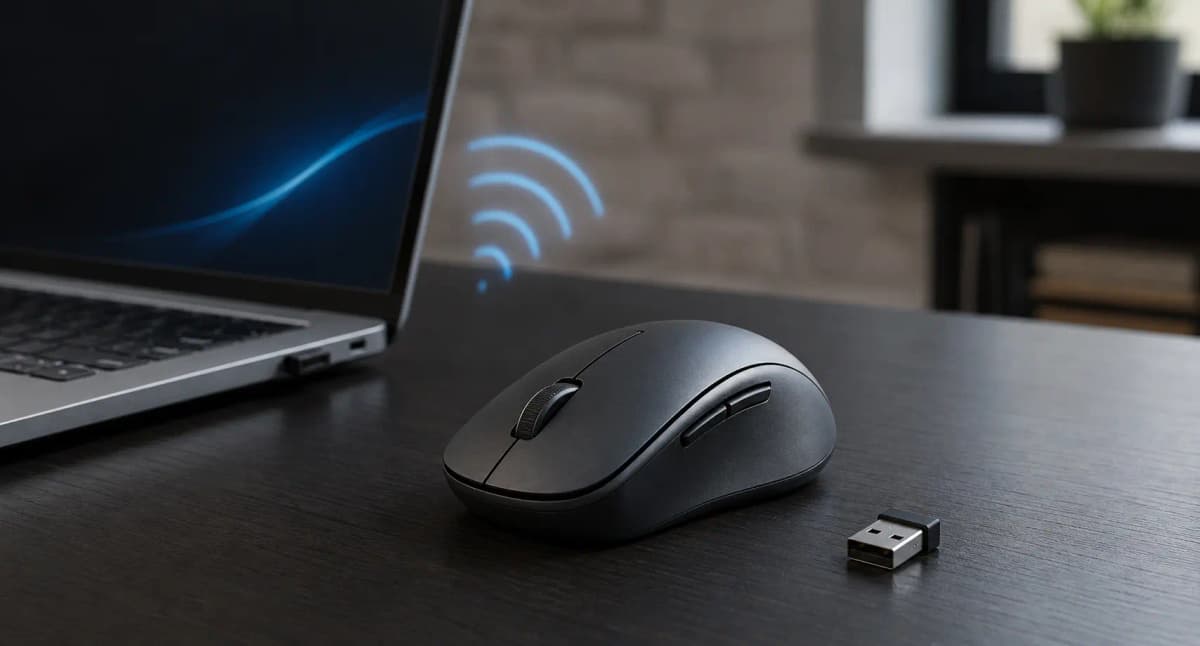
First, confirm that the mouse is really connected by Bluetooth. Many “wireless” mice use a Logitech Bolt, Logitech Unifying, or another 2.4GHz USB receiver instead. Some models support both methods, depending on the device slot you select.
Open Settings → Bluetooth & devices → Devices and look for the mouse in the list. Also check the computer for a tiny USB receiver, then inspect the mouse for a switch marked Bluetooth, 2.4G, Bolt, USB, or 1, 2, and 3.
This distinction matters. A USB receiver uses a different connection path, so Bluetooth fixes will not solve a receiver problem. If the mouse works with its receiver but not with Bluetooth, the problem sits somewhere in the Bluetooth path: the mouse’s Bluetooth radio or saved pairing, the computer’s adapter or driver, or interference around your desk.
Pay attention to when the connection drops. That pattern usually gives you the best first clue.
| What you notice | Where to look first |
|---|---|
| Only the mouse drops at random | Battery, battery contact, range, or mouse hardware |
| The pointer lags near a dock or drive | USB or wireless interference |
| It drops after sitting idle | Energy Saver or Bluetooth power management |
| It drops after the computer wakes | Bluetooth driver, firmware, or sleep behavior |
| Windows keeps asking you to pair it | Damaged pairing data or the wrong device slot |
| All Bluetooth devices disconnect | Computer adapter, driver, or antenna |
| Wi-Fi and Bluetooth fail together | Shared wireless card, firmware, or antenna |
| It works with its USB receiver | A problem in the Bluetooth connection path |
| It works only next to the computer | Antenna position, an obstruction, or interference |
| It fails on several computers | Mouse battery, firmware, or hardware |
Swipe sideways to compare the full chart.
A weak battery or loose battery contact is common, but so are interference, missing desktop antennas, broken pairing data, power-saving settings, and driver trouble.
Start with the row that best matches your problem. Change one thing at a time, then test again. Otherwise, you will not know which fix worked—or which change made things worse.
1.Rule out battery, switch, and range problems
A weak battery can still power the mouse’s light while failing to keep its Bluetooth connection stable. So begin with the hardware, not Windows settings.
Charge the mouse fully or fit a fresh set of batteries. Switch it off, wait about 10 seconds, and switch it back on. Test it within roughly one metre of the computer, with no large metal object in between.
If it uses removable batteries, make sure they sit firmly in place. Check the visible contacts for dirt, dust, or corrosion. Do not pour cleaner into the mouse, scrape the contacts, or open a sealed rechargeable model.
These simple checks are easy to overlook, but Microsoft recommends them before any driver or system work: make sure the device has power, enough charge, and a clear connection at close range.
Treat the battery percentage in Windows or the mouse app as an estimate. An old rechargeable cell or loose contact can cut power to the radio even when the software says there is charge left.
After charging or replacing the batteries, use the mouse normally for 20 to 30 minutes. If it stays connected, the battery or its contact was probably the culprit. If it works only beside the computer, check the antenna and nearby interference next.
2.Remove interference and check the antenna path
Bluetooth uses the busy 2.4GHz radio band, along with plenty of everyday devices. Distance and metal can weaken the signal, but so can equipment sitting just a few centimetres away.
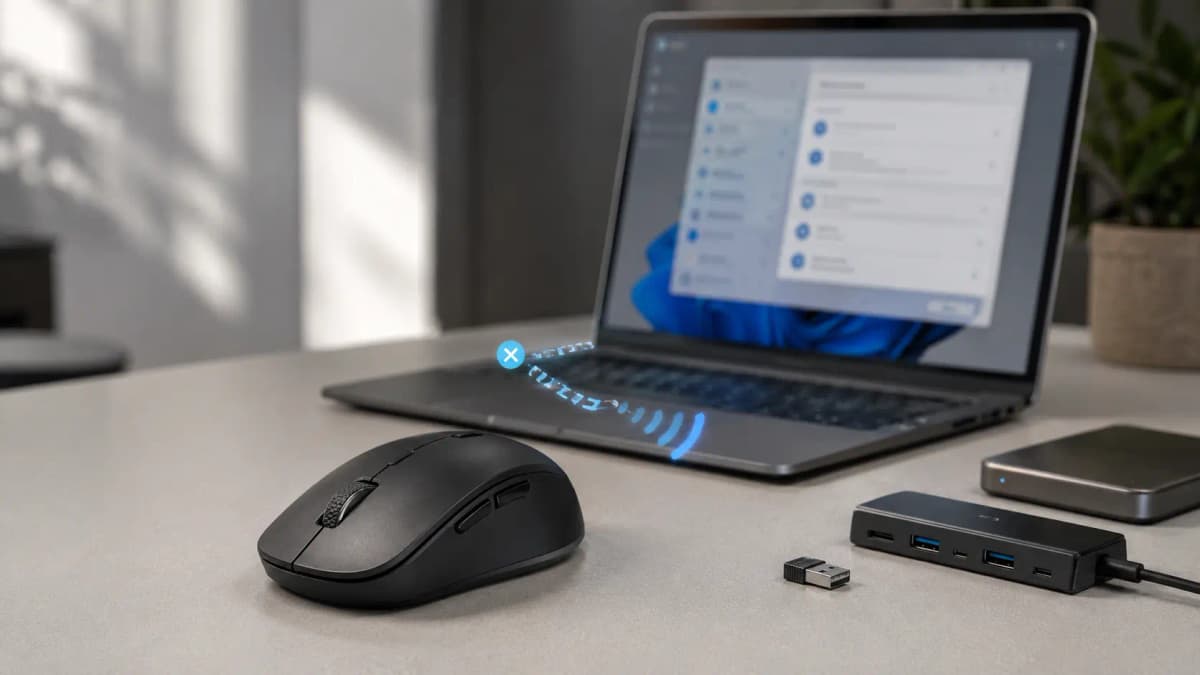
Microsoft notes that some poorly shielded USB devices connected to USB 3.0 ports can interfere with Bluetooth. Your dock or external SSD does not have to be faulty. Its cable, port, or position may simply create enough radio noise to disrupt the mouse.
Unplug nonessential hubs, docks, external drives, webcams, USB Wi-Fi adapters, wireless receivers, other Bluetooth accessories, and unused USB 3.x cables. Test the mouse with only the equipment the computer needs. If it becomes stable, reconnect each item one at a time until the problem comes back.
On a desktop PC, check the external antennas. Many motherboards and PCIe wireless cards share them between Wi-Fi and Bluetooth. Attach both antennas securely and move them out from behind the metal case or cabinet. Windows may still show Bluetooth without them, but the usable range can become extremely short.
If you use a USB Bluetooth adapter, do not hide it behind a large metal tower. A short, properly shielded USB extension cable can move it into the open and improve reception.
Leave the router settings alone for now. Distance, metal objects, USB equipment, antenna placement, and cable position are quicker and more useful tests.
Check what may be blocking the Bluetooth signal
Think about what sits between the mouse and the Bluetooth antenna.
- Metal objects: A metal desk, computer case, or shelf can block or reflect the signal. Move the computer or its antenna into a more open position.
- USB 3.0 equipment: Busy USB 3.0 ports, docks, cables, and drives can create radio noise in the same 2.4GHz band. Move them away from the mouse or antenna and test again.
- Your position: Your body can weaken a 2.4GHz signal. If the pointer stutters when your arm crosses the signal path, reposition the adapter or antenna.
3.Restart the entire connection, not just the mouse
The stuck connection may be in the mouse, the Bluetooth adapter, its driver, or Windows itself. Restarting only the mouse may leave the real problem untouched.
Turn off the mouse. Open Settings → Bluetooth & devices, switch Bluetooth off, and wait about 10 seconds. Then choose Start → Power → Restart. When Windows starts again, turn Bluetooth and the mouse back on.
Choose Restart, not Shut down. On some computers, a restart clears the active driver state more completely than shutting down and switching the machine back on.
Now watch what happens. If the problem disappears, the adapter or software may simply have been stuck. If it returns after the next sleep cycle, focus on power management, firmware, and wake behavior. If you must keep toggling Bluetooth, check the pairing record, driver, and Bluetooth Support Service.
4.Remove the pairing record and start fresh
Windows saves pairing information for every Bluetooth device. If that record becomes damaged or confused, the mouse may keep disconnecting, fail to reconnect after a restart, or repeatedly ask to be paired.
Before removing the mouse, look for a device button labelled 1, 2, or 3, Easy-Switch, Bluetooth, or a small computer icon. A multi-device mouse can jump to another saved computer without making the reason obvious. Temporarily turn off Bluetooth on any other computer or tablet paired with that slot.
To rebuild the pairing:
- Open Settings → Bluetooth & devices → Devices.
- Find the mouse, open its three-dot menu, and choose Remove device.
- Put the mouse into pairing mode using the manufacturer’s documented procedure.
- Select Add device → Bluetooth and choose the mouse when it appears.
If the mouse stores several devices, pair it on an unused slot instead of reusing the old one. If the new slot works reliably, the old pairing or unwanted device switching was probably involved.
Restart Windows after pairing. The mouse should now reconnect by itself without asking you to pair it again.
5.Use Windows diagnostics, updates, and optional drivers
Windows has built-in checks for common Bluetooth service, setup, and driver problems. They will not catch everything, but they are a safe next step.
Open Get Help from Start, search for Bluetooth troubleshooter, and follow the prompts. On some Windows 11 versions, you can also go to Settings → System → Troubleshoot → Other troubleshooters and select Run beside Bluetooth.
Next, open Settings → Windows Update → Check for updates. Install the available cumulative and security updates, then restart. Also check Windows Update → Advanced options → Optional updates for Bluetooth, wireless, chipset, firmware, or computer-maker packages. Windows does not always install optional drivers automatically.
Before changing a driver, note your Windows version and build, recent updates, Bluetooth adapter name, and current driver provider, date, and version. If the connection gets worse, you will know exactly what changed and what you may need to roll back.
6.Install the Bluetooth driver made for the computer
Your mouse relies on the computer’s Bluetooth radio, not only the mouse entry shown in Device Manager. A damaged, outdated, incompatible, or overly generic adapter driver can cause short range, repeated dropouts, and failed reconnection after sleep.
Right-click Start, open Device Manager, and expand Bluetooth. Find the radio or adapter. Its name may include Intel, Realtek, MediaTek, Qualcomm, Broadcom, Bluetooth Adapter, or Wireless Bluetooth. To update the computer’s Bluetooth radio, do not select only the mouse.
Open the adapter’s Properties → Driver tab and note the provider, date, and version. You can try Update driver → Search automatically for drivers. If Windows says “the best drivers are already installed,” it only means that Windows did not find a newer suitable package through that search.
For a laptop or prebuilt desktop, use the computer manufacturer’s official support page first. Search for the exact model, serial number, or service tag. Choose the correct Windows version, install the listed Bluetooth package, and restart.
The manufacturer’s driver may include fixes tailored to the computer’s wireless card, antennas, firmware, and power settings. A generic Intel, Realtek, or MediaTek driver is not automatically better just because it has a higher version number.
Avoid download sites, unofficial mirrors, pop-up “driver scans,” and automatic driver-updater apps. Get drivers from Windows Update or the official computer, motherboard, or Bluetooth-adapter manufacturer.
7.Roll back a bad update or reinstall a damaged driver
Use the timing to choose your next move. Update an old or incompatible driver. Roll it back if the mouse worked properly until a recent Windows or Bluetooth driver update.
To roll back: open the Bluetooth adapter in Device Manager, select Properties → Driver → Roll Back Driver, follow the prompts, and restart. If the button is unavailable, Windows probably did not keep the previous driver. The timing alone does not prove the update caused the problem, but a successful rollback is a strong clue.
To reinstall: first download the correct replacement driver from the computer manufacturer and save it locally. Then open Device Manager, expand Bluetooth, right-click the adapter, choose Uninstall device, and restart Windows. In most cases, Windows will reinstall the adapter automatically.
If the adapter does not return, select Action → Scan for hardware changes in Device Manager, then install the official driver you saved.
Do not delete files from the DriverStore or run an unverified “Bluetooth cleaner” script. A normal reinstall is enough for this test and much easier to reverse.
8.Test power management only when the timing fits
Power management is worth checking when the mouse drops after sitting idle, while the laptop runs on battery, or just after the computer wakes. If the timing does not match, this setting is unlikely to help.
First, note whether the problem happens on battery power, AC power, or both. Turn off Energy Saver temporarily, leave the computer idle for the usual amount of time, and test again. Restore the original setting unless the change clearly works and you are comfortable with shorter battery life.
You can also open the Bluetooth adapter’s Properties in Device Manager and look for a Power Management tab. If you see it, clear Allow the computer to turn off this device to save power, restart, and repeat the same idle or sleep test.
Some adapters do not show that tab; this does not mean the driver is broken. Keeping the adapter awake can also use more battery, so select the checkbox again if the change makes no difference.
Microsoft strongly recommends leaving this feature on. Turning it off across the computer rarely fixes a Bluetooth mouse and can increase power use. Test it only if the manufacturer or a qualified support engineer recommends it for your specific USB Bluetooth adapter.
9.Restart the Bluetooth Support Service
Windows runs Bluetooth discovery and connections through background services. If toggling Bluetooth or restarting Windows brings the mouse back, try restarting the Bluetooth Support Service directly.
Press Windows key + R, type services.msc, and select OK. Find Bluetooth Support Service, right-click it, choose Restart, and test the mouse.
Microsoft recommends this step for repeated Bluetooth disconnections. If it helps only for a while, some part of Windows Bluetooth, the adapter, or its driver may be getting stuck. That does not prove the service itself is set up incorrectly.
Keep this test simple. Do not change several Bluetooth services at once, force unfamiliar startup modes, delete registry entries, or run a service-reset script from a forum.
10.Separate a mouse fault from a computer fault
If the first nine fixes did not stick, stop changing Windows settings. Now find out whether the problem follows the mouse or the computer.
Pair the mouse with a second computer and use it beyond the point when it normally disconnects. If it drops from both computers, the mouse is the main suspect. Possible causes include a worn battery, damaged contacts, a bad power switch, radio or firmware trouble, unwanted device switching, or internal damage.
Then reverse the test: connect a different Bluetooth mouse to the original computer. If both mice drop there, focus on that computer’s adapter, driver, antenna, chipset, BIOS or firmware, power settings, USB equipment, or dock.
These two tests tell you far more than another round of random settings changes.
Still disconnecting? Test the hardware around it
Once you know which side looks suspicious, use the equipment around it to narrow the cause further.
| Controlled test | What the result suggests |
|---|---|
| A keyboard or headphones drop at the same time | The mouse is probably not the only cause |
| Wi-Fi and Bluetooth fail together | Check the shared wireless card, official drivers, firmware, and antennas |
| The mouse works when the dock is unplugged | Reconnect dock devices one at a time; check interference, cables, storage, dock firmware, and power delivery |
| An external Bluetooth adapter works reliably | Suspect the internal adapter, antenna, driver, firmware, or its connection to the computer |
| Closing the mouse app fixes the problem | Reopen it and repeat the test; profiles, remapping, device switching, or firmware features may be involved |
Swipe sideways to compare the full chart.
When you test an external Bluetooth adapter, make sure you know which adapter Windows is using. Leaving both active can make the result impossible to interpret.
Avoid fixes that are bigger than the problem
Online Bluetooth advice can become extreme very quickly. One unreliable mouse is not a good reason to edit the registry, disable security features, or reset Windows.
Avoid third-party driver updaters, unofficial drivers, random registry edits, unverified PowerShell or batch scripts, and manual DriverStore cleanup. Do not disable USB selective suspend or Wi-Fi across the entire computer, change several power options or Bluetooth services at once, or remove a Windows update without identifying it first.
Be just as careful with the hardware. Never update the BIOS with instructions for a different computer model, reset Windows as an early fix, replace the mouse before testing it on another computer, or open a sealed rechargeable mouse.
Large, unrelated changes can create a second problem and hide what caused the first one.
Save firmware updates and manufacturer support for later
Consider a BIOS, system firmware, or mouse firmware update only when the manufacturer lists a relevant Bluetooth fix, the failure always follows sleep, Bluetooth disappears after wake, Wi-Fi fails at the same time, or support recommends a package for your exact model.
Confirm the exact computer model, download the update from its official support page, connect AC power, and save your work. Make sure you can access the BitLocker recovery key, then follow the manufacturer’s instructions exactly. The wrong BIOS update—or an interrupted one—can stop the computer from starting.
Contact the manufacturer when the mouse fails on several computers, several Bluetooth devices fail on one computer, Bluetooth disappears from Device Manager, or the adapter shows an error code. Get help as well if Wi-Fi and Bluetooth drop together, the issue began after a firmware update, the mouse needs pairing after every restart, an official driver reinstall failed, or you are considering a BIOS update.
Stop using the mouse and contact its manufacturer if the rechargeable battery looks swollen or damaged, or becomes unusually hot.
Give support the computer’s exact model; Windows edition, version, and build; Bluetooth adapter and driver details; mouse model and connection mode; and battery type and charge. Explain whether the failure follows sleep, battery use, AC power, or another Bluetooth device. List any connected docks, hubs, and USB equipment, plus the fixes you have already tried.
That history gives support something useful to work with. “Bluetooth is broken” does not.
Common Bluetooth mouse questions
The short version
Work through these checks in order so each result tells you what to try next:
- Make sure the mouse is actually using Bluetooth.
- Charge or replace the battery, then test at close range.
- Unplug nearby USB equipment and check the antenna position.
- Restart the mouse, Bluetooth, and Windows.
- Remove and pair the mouse again, using a fresh device slot if possible.
- Run Windows diagnostics and install relevant updates.
- Install the computer manufacturer’s official Bluetooth driver.
- Roll back or reinstall the driver if the timing points to it.
- Check power management and restart the Bluetooth Support Service.
- Test the mouse on another computer—and another mouse on this one—to see which side the problem follows.
Do not start with registry edits, unofficial drivers, sweeping power changes, or a Windows reset.
The best fix comes from finding the pattern. Once you know whether the failure follows the mouse, computer, Bluetooth connection, power state, or nearby equipment, you can fix the right thing instead of guessing.
How URBNGEAR researched this guide
URBNGEAR compared current Microsoft Windows troubleshooting documents with guidance from Bluetooth, computer, wireless-adapter, and mouse manufacturers.
We kept steps that came from reliable sources, were safe to reverse, matched the symptoms, and worked across a wide range of hardware. We left out third-party driver tools, unsupported registry changes, and needlessly destructive procedures.
No single test works on every mouse, Bluetooth adapter, and Windows computer. Hardware differs, so follow instructions for your exact computer or mouse whenever they conflict with general advice.
Sources
- Microsoft Support: Bluetooth keeps disconnecting in Windows
- Microsoft Support: Fix Bluetooth problems in Windows
- Microsoft Support: Update Bluetooth drivers in Windows
- Microsoft Learn: USB selective suspend
- Bluetooth SIG: Understanding Bluetooth range
- Intel: How to perform a clean installation of Bluetooth drivers
Still no luck? It may be time to replace the mouse
If you have tried every step and the mouse still disconnects—especially on more than one computer—its Bluetooth radio or pairing hardware may be failing. At that point, replacing it is usually more practical than repeating the same checks.
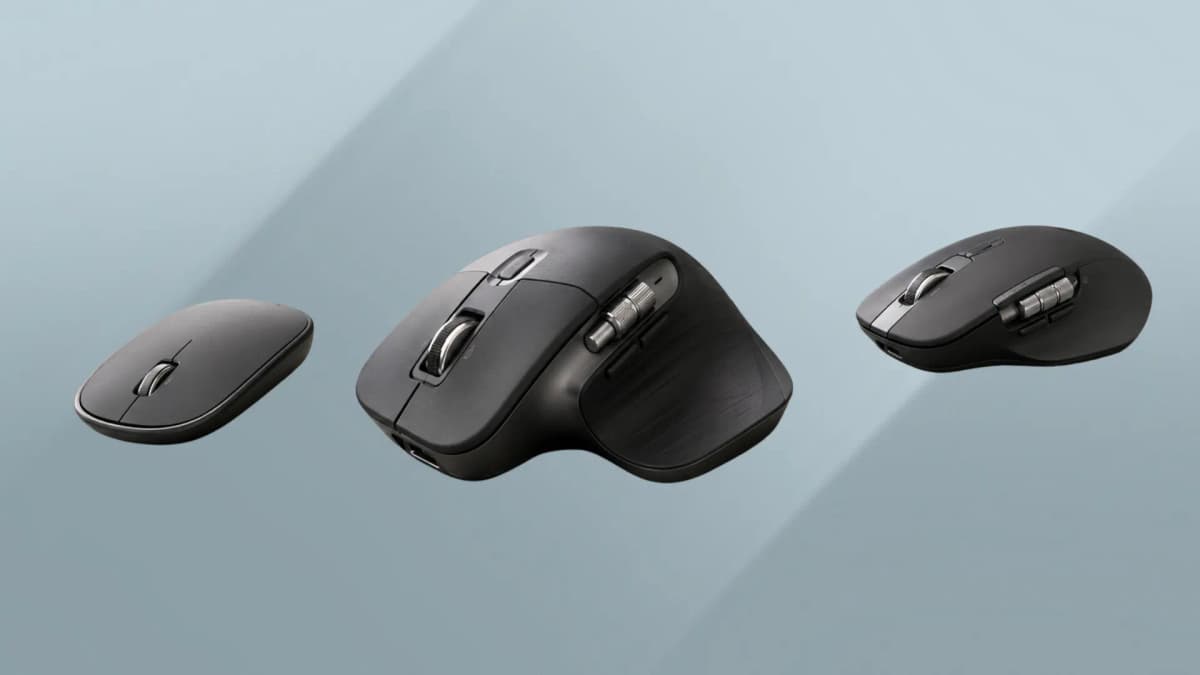
A mouse with both Bluetooth and a 2.4GHz USB receiver gives you a useful backup connection if Bluetooth interference or adapter trouble returns.
Quiet clicks, 8K DPI tracking on any surface, USB-C charging, and both Bluetooth + Logi Bolt receiver for a reliable fallback connection.
- Dual connectivity: Bluetooth and 2.4GHz Logi Bolt
- Works on glass and most surfaces
- 40-day battery life on full charge
Lightweight ergonomic wireless mouse with Bluetooth and 2.4GHz switching, 8K DPI sensor, and a shape that works well for medium to large hands.
- Dual connectivity: Bluetooth and 2.4GHz dongle
- 8K DPI optical sensor
- 60g lightweight design