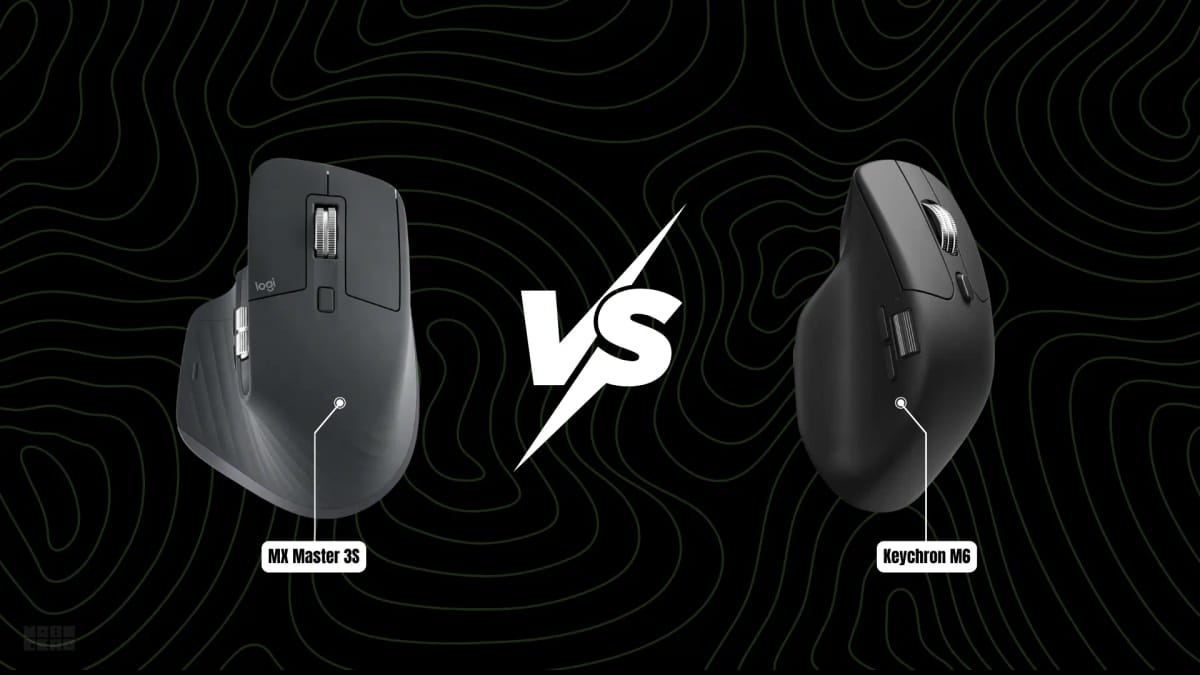

The Logitech MX Master 3S and Keychron M6 are two of the most talked-about right-handed ergonomic productivity mice in 2026. Both offer a dedicated side wheel for horizontal scrolling. Both aim at users who spend long hours in spreadsheets, documents, or creative timelines.
But they come at the same problem from very different directions.
The MX Master 3S is the refined version of a design Logitech has iterated on for nearly a decade. It is heavy, precise, and built around a software ecosystem that rewards patience. The Keychron M6 is a newer, lighter challenger that packs a higher-spec sensor, a faster polling rate, and a web-based configurator into a body that weighs nearly half as much.
Neither is universally better. The right choice depends on what you actually do with a mouse all day.
Quick verdict
Logitech MX Master 3S | Keychron M6 (8K) | |
|---|---|---|
Best for | Scrolling-heavy workflows, Logitech ecosystem users, multi-device switching | Light feel, high-performance sensor, budget-conscious buyers |
Skip if | You want a lightweight mouse or the fastest sensor | You depend on Logi Options+ or Logitech Flow |
Weight | 141g | 86g |
Sensor | 8,000 DPI Darkfield | PixArt 3950 — 30,000 DPI |
Polling rate | 125 Hz | Up to 8,000 Hz |
Battery | Up to 70 days | Up to 120 hours (varies by polling rate) |
Swipe sideways to compare the full chart.
The refined MX formula: MagSpeed electromagnetic scroll wheel, dedicated thumb wheel, Quiet Clicks, and 70-day battery life in a 141g right-handed body.
- MagSpeed electromagnetic scroll — 1000 lines/sec
- Dedicated horizontal thumb wheel
- 70-day battery, USB-C rechargeable
- Quiet Clicks — 90% less noise than MX Master 3
A lightweight dual-wheel ergonomic mouse with PixArt 3950 sensor, 8000 Hz polling, up to 120-hour battery, and web-based Keychron Launcher configuration.
- PixArt 3950 — 30,000 DPI, 750 IPS, tracks on glass
- 8,000 Hz polling rate via 2.4 GHz receiver
- 86g weight with ergonomic right-handed shape
- Dual scroll: standard wheel + dedicated side wheel
1.Design and ergonomics: heavy comfort vs light agility
The most immediate difference is weight.
The MX Master 3S weighs 141g. It is a large mouse — Logitech lists dimensions of 124.9 × 84.3 × 51mm — with a sculpted right-handed thumb rest and a shape that fills the palm. If you are used to a traditional desktop mouse, the 3S will feel familiar but substantial. It stays planted on the desk and rewards a relaxed palm grip.
The Keychron M6 8K weighs 86g. It has a similar right-handed ergonomic silhouette with a thumb rest, but the lighter body moves faster and feels less anchored. For users who find the MX Master line fatiguing over a full workday, the M6's weight reduction is a genuine advantage. It is closer to a gaming mouse in feel than a traditional productivity tool.
Both mice are strictly right-handed. Neither offers a left-handed version.
Fit note: If you have small hands (under 7 inches from wrist to middle fingertip), the M6 may feel more manageable. The MX Master 3S is built for average-to-large hands. Neither shape is ideal for a fingertip grip — both are designed for palm or relaxed claw.
2.Sensor and performance: Darkfield precision vs PixArt 3950 firepower
This is where the two mice diverge most sharply.
The MX Master 3S uses Logitech's 8,000 DPI Darkfield optical sensor. It is designed for one purpose: tracking reliably on virtually any surface, including glass (minimum 4mm thick). For a productivity mouse, 8,000 DPI is more than sufficient. You will never run out of resolution in a spreadsheet or document. The sensor is smooth, predictable, and well-tuned for the kinds of slow, deliberate movements that productivity work demands.
The Keychron M6 8K uses a PixArt 3950 — the same sensor found in many 2026 flagship gaming mice. It supports up to 30,000 DPI, 750 IPS tracking speed, and glass tracking. On paper, it is dramatically more capable than the MX Master 3S sensor.
In practice, that extra headroom matters for one specific audience: people who occasionally game on the same machine they work on. The M6 can switch from a spreadsheet to a fast-paced game without feeling like a compromise. The MX Master 3S will feel sluggish in comparison at high cursor speeds.
For pure productivity, the difference is negligible. Both sensors track accurately at the slow, controlled speeds that document work requires. The M6 has more ceiling. The 3S has more than enough floor.
3.Scrolling: MagSpeed vs dual-mode wheel
Both mice offer two scrolling axes, but the experience is quite different.
MX Master 3S — MagSpeed electromagnetic scroll
The MX Master 3S uses Logitech's MagSpeed electromagnetic scroll wheel. It can shift between precise ratcheted scrolling and free-spin mode automatically. In free-spin, Logitech claims it can scroll 1,000 lines per second. The wheel is machined steel, and the transition between modes is controlled by how fast you flick it.
Below the main wheel is a dedicated thumb wheel for horizontal scrolling. It is always visible and always accessible — no modifier keys required. For wide spreadsheets, video timelines, or panoramic documents, this is the most direct implementation of dual-axis scrolling available in a productivity mouse.
The main wheel also tilts left and right for additional horizontal input, though most people use the thumb wheel instead.
Keychron M6 — dual-mode main wheel plus side wheel
The Keychron M6 takes a different approach. Its main wheel supports two modes: a standard tactile ratchet and an infinite free-spin mode. You switch between them with a button press — not automatically based on flick speed. The free-spin mode is smooth and functional, though the mechanism feels lighter and less refined than MagSpeed.
The M6 also has a dedicated side wheel for horizontal scrolling, located where the thumb rests. In practice, this provides the same basic functionality as the MX Master 3S thumb wheel: scroll sideways through timelines, sheets, or wide documents without modifier keys.
The key difference is tuning. Logitech's MagSpeed has been refined over three generations and handles the automatic mode-switching seamlessly. The M6 requires a conscious button press to enter free-spin. If you scroll through long documents many times a day, that small friction adds up. If you mostly use ratcheted scrolling and only occasionally free-spin, the difference is minor.
4.Connectivity: receiver ecosystem vs wired flexibility
Both mice support Bluetooth and a 2.4 GHz wireless receiver. The M6 adds USB wired as a third option.
MX Master 3S | Keychron M6 (8K) | |
|---|---|---|
Bluetooth | Yes (3 devices) | Yes — Bluetooth 5.3 (3 devices) |
2.4 GHz receiver | Logi Bolt | Included USB-A receiver |
Wired mode | No | Yes (USB-C) |
Multi-device switching | 3 devices, Easy-Switch button | 3 devices, bottom button |
Swipe sideways to compare the full chart.
The MX Master 3S uses Logi Bolt, Logitech's proprietary USB receiver. It is compact and reliable, but it occupies a USB port. Bluetooth handles the other two device slots. Switching between devices is done via a button on the bottom of the mouse.
The M6 offers Bluetooth 5.3, a 2.4 GHz USB receiver, and wired USB-C — giving you three connection methods simultaneously. The 2.4 GHz receiver supports the full 8,000 Hz polling rate; Bluetooth caps at a lower rate. Device switching uses a bottom button, similar to the MX Master 3S.
The wired option on the M6 is a genuine advantage for users who occasionally need zero-latency input or who want to charge and use the mouse simultaneously without wireless interference. The MX Master 3S cannot do this — it charges via USB-C but does not function as a wired mouse while charging.
The Flow question: If you move your cursor across multiple computers as part of your workflow, Logitech's Flow feature (via Logi Options+) lets you seamlessly transition between machines, including clipboard sharing. The Keychron M6 does not offer an equivalent. If multi-computer cursor movement is part of your daily routine, the MX Master 3S has a clear software advantage here.
5.Battery life: 70 days vs 120 hours
The MX Master 3S claims up to 70 days on a single charge. That figure assumes Bluetooth usage at the default polling rate. With the Logi Bolt receiver, battery life is shorter but still measured in weeks, not hours. Charging is via USB-C, and a one-minute quick charge provides roughly three hours of use.
The Keychron M6 8K claims up to 120 hours at 1,000 Hz polling over 2.4 GHz. At the full 8,000 Hz rate, battery drops to approximately 35 hours. At 4,000 Hz, it is around 50 hours. Over Bluetooth, battery extends further.
These are very different use profiles. The MX Master 3S is designed to be charged once every couple of months and then forgotten. The M6 at 8K polling will need charging more frequently — roughly every few days of heavy use. If you choose the M6 for its high polling rate, battery life becomes a genuine consideration. At 1,000 Hz, it is competitive with the MX Master 3S.
6.Software: Logi Options+ vs Keychron Launcher
This is the most significant ecosystem difference between the two mice.
Logi Options+ (Windows and macOS) is a full-featured desktop application. It provides per-app button remapping, pointer speed customization, scrolling behavior, gesture controls, and Flow multi-computer integration. It is polished and deeply integrated with Logitech's product line. The downside: it is a background application, and not everyone wants another always-running utility. Advanced customization requires it. Basic pointer functions work without it on most operating systems.
Keychron Launcher is a browser-based configurator. It runs in Chrome, Edge, or Opera and connects to the mouse via the 2.4 GHz receiver or wired mode. You can remap buttons, set macros, adjust LOD (lift-off distance), configure DPI steps, and set polling rate — all without installing anything. It works across Windows, macOS, and Linux. The trade-off is depth: Keychron Launcher does not offer per-app profiles, Flow-like multi-computer features, or the same level of gesture customization.
If you are the kind of user who sets up a mouse once and never touches the settings again, the difference is irrelevant. If you reconfigure your mouse per application, or if you rely on cross-computer clipboard workflows, Logi Options+ is the stronger platform.
7.Price and value
The MX Master 3S typically sells for around $99 at major retailers, though it frequently drops below $80 during sales. Logitech also offers a Bluetooth-only edition at a slightly lower price.
The Keychron M6 8K sells for around $70. The 4K version is less expensive, and the 1K version even more so. Keychron's variant structure means you need to check the exact model before buying — the 1K PixArt 3311 version, for example, has a weaker sensor and shorter battery life than the 8K PixArt 3950 model.
At equal sale prices, the MX Master 3S offers a more polished overall experience. At full retail, the M6 8K delivers dramatically more sensor performance for $30 less. If sensor headroom and polling rate matter to you, the M6 is the better raw-value proposition. If scrolling refinement and ecosystem integration matter more, the 3S justifies its premium.
Verdict: which one should you buy?
Choose the Logitech MX Master 3S if:
You scroll through long documents, spreadsheets, or timelines constantly
You use Logitech Flow to move between multiple computers
You want a "set it and forget it" battery life of 70 days
You value MagSpeed's automatic free-spin over button-switched modes
You are already invested in the Logitech ecosystem
Choose the Keychron M6 (8K) if:
You want the lightest possible ergonomic productivity mouse (86g)
You occasionally game on the same machine you work on
You want web-based configuration without installing desktop software
You need wired mode as a backup or for zero-latency input
You want a high-spec PixArt 3950 sensor at a lower price
The MX Master 3S is the more refined tool for scrolling-centric productivity. The Keychron M6 is the more capable all-rounder at a lower price. If your workday is mostly documents and spreadsheets, the 3S is the better daily driver. If you want one mouse that handles work, casual gaming, and fast cursor movement, the M6 gives you more for less.
Related reading
Best wireless mice for productivity in 2026 — our full research-backed guide covering MX Master 4, MX Master 3S, Keychron M6, and more
Best mouse 2026 — gaming, productivity, ergonomic, and portable picks with hands-on analysis
Bluetooth vs 2.4GHz wireless mouse — Bluetooth for travel and scarce ports; receiver when this computer’s Bluetooth is the problem
Do you actually need a full-size keyboard for work? — desk space measurements for keyboard and mouse combinations