
Shoulder discomfort at a desk often gets blamed on the wrong thing.
People blame the chair, the monitor, or the fact that they have been "sitting too long." Sometimes those are part of the problem, but a very common cause is simpler: the keyboard and mouse are forcing the arms into a bad position.
That usually looks like shoulders lifted to reach a desk that is too high, elbows drifting outward because the mouse sits too far away, wrists bent up because the keyboard sits too high, or forearms hovering because there is no comfortable place to rest.
The good news is that keyboard and mouse placement is one of the fastest workstation problems to improve.
The official guidance from OSHA and Mayo Clinic stays very consistent here: shoulders should stay relaxed, elbows should remain close to the body, wrists should stay straight and neutral, and the mouse should sit on the same surface and within easy reach of the keyboard.
Once you build around those rules, most setups get clearer very quickly.
Quick answer
For shoulder comfort, the keyboard and mouse should usually be set up like this: keyboard directly in front of you, elbows near your sides and roughly at keyboard height, wrists straight rather than bent up or down, the mouse immediately beside the keyboard on the same surface, and shoulders relaxed rather than shrugged or reaching outward.
If using the mouse makes your elbow drift away from your torso or makes your shoulder feel slightly lifted, the mouse is probably too far out.
If typing makes your shoulders rise or your wrists bend upward, the keyboard is probably too high.
That is the short answer.
The longer answer is that keyboard and mouse position only works properly when the chair and desk height make sense too.
Start with chair and desk height first
You cannot position the keyboard well if the desk height is forcing your arms into the wrong place.
OSHA's keyboard guidance is explicit about the relationship: the chair and work surface should be adjusted so elbows are about the same height as the keyboard, shoulders stay relaxed, and wrists do not bend up, down, or to either side. Mayo Clinic gives the same practical target, saying hands should be at or slightly below elbow level while typing or using the mouse.
That means the first check is not the keyboard itself.
It is this: sit back in the chair, support your feet on the floor or on a footrest, let your shoulders drop, and bend your elbows comfortably at your sides.
Now look at where your hands naturally land.
If the keyboard is higher than that resting arm position, you will often compensate by lifting the shoulders. If it is much lower, you may drop the forearms and bend the wrists up.
This is why a desk that is too high can create shoulder tension even when the keyboard placement looks tidy.
If the desk height cannot change, the usual fixes are to raise the chair and add a footrest, use a keyboard tray, or remove anything under the desk that blocks leg position.
OSHA also notes that thick work surfaces and center drawers can interfere with getting the keyboard low enough, which is why some conventional desks feel worse than their measurements suggest.
If the real issue is that the desk and chair only feel compatible when one half of your body loses support, go next to What to do when your desk and chair height don't match.
The best keyboard position for calmer shoulders
The keyboard should sit directly in front of you, not off to one side.
That sounds obvious, but a lot of people center the entire desk visually instead of centering the actual typing zone. If the letter keys are shifted off-center because the keyboard is pushed sideways or because the desk is crowded with other gear, the shoulders and upper back often pick up that asymmetry over time.
A good practical rule is to center the main typing area in front of your body, keep the keyboard close enough that you do not have to reach forward, and keep enough room in front of it so your hands can approach it without hinging sharply at the wrists.
OSHA also recommends a horizontal or slightly negative keyboard slope when that helps you keep neutral wrists. In practical terms, that usually means you should not assume the keyboard feet need to be popped up. For many people, a flatter keyboard position makes it easier to keep the wrists quieter.
The simplest check is this:
- Place your hands on the keyboard.
- Let your elbows stay near your torso.
- Notice whether your shoulders stay relaxed.
- Notice whether your wrists stay roughly straight.
If you fail either of those last two checks, the keyboard position is still off.
The mouse should sit right next to the keyboard
This is one of the clearest OSHA recommendations in the whole workstation guide.
OSHA says the input device should be:
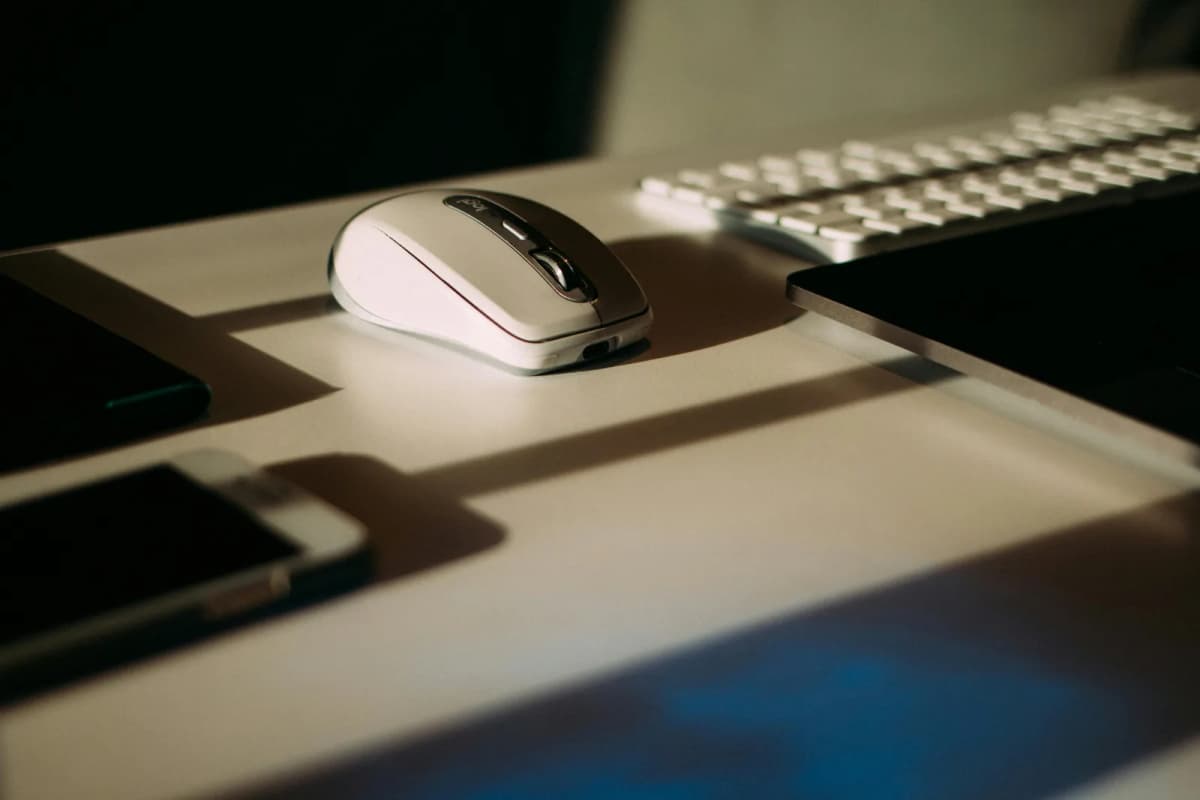
located right next to the keyboard; on the same level as the keyboard; as close to the body's midline as possible.
That matters because long reaches for the mouse quietly load the shoulder and upper arm. Even a small outward reach repeated all day can create the kind of upper-trap and rear-shoulder fatigue people blame on "desk work" in general.
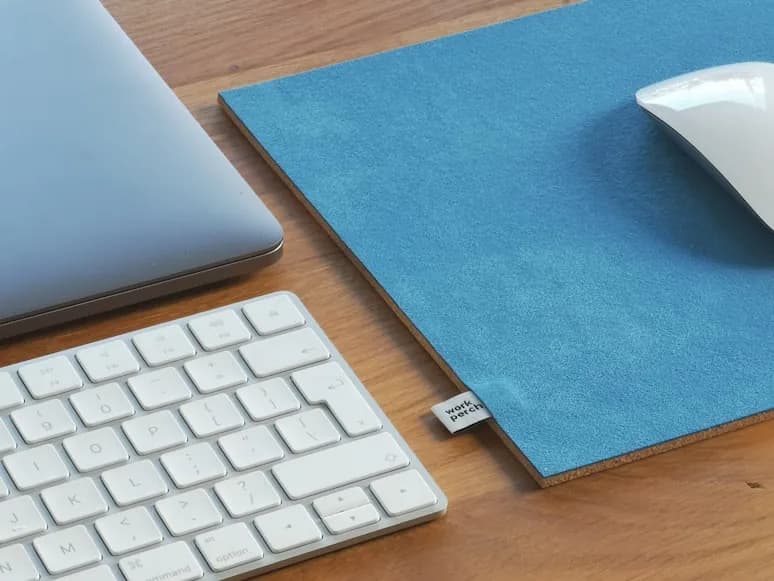
If you use a standard full-width keyboard with a numeric keypad, the mouse naturally ends up farther to the right. That is one reason OSHA's workstation purchasing guide notes that keyboards without numeric keypads can help bring the mouse closer.
So for mouse placement, keep it beside the keyboard rather than out on open desk space, keep it on the same surface rather than higher or lower, and keep it close enough that the elbow stays comfortably near the body.
If you have to reach, abduct the shoulder, or slide the whole arm away from your torso to mouse comfortably, the mouse is too far out.
What shoulder comfort should actually feel like
Good keyboard and mouse placement usually feels almost boring.
That is a good sign.
You should not feel like you are "holding" your arms in place. The shoulders should feel quiet, not braced. The elbows should not drift wide unless the task specifically requires it. The forearms should not feel like they are floating without support.
Mayo Clinic frames the goal well: upper arms close to the body, wrists straight, and hands at or slightly below elbow level.
Translated into normal desk language, that means no shrugging, no side reach, and no wrist cocked upward at the keyboard.
If your posture feels controlled but not forced, you are probably close.
Common reasons the mouse causes more shoulder strain than the keyboard
For a lot of people, the mouse is the real problem.
Typing uses both hands in a more centered position. Mousing often creates a one-sided posture that lasts for hours.
That is why OSHA also recommends choosing a mouse that fits the hand well, reducing excessive force, and adjusting pointer sensitivity so you can use a light touch.
If the mouse is too large, too awkward, or set too slow, you may compensate by gripping harder and moving from the shoulder more than necessary.
Mayo Clinic also suggests reducing extended mouse use with keyboard shortcuts and, if practical, occasionally moving the mouse to the other side of the keyboard to give one side of the body a rest.
That does not mean everyone needs to become ambidextrous overnight. It just means the mouse should not automatically own the same shoulder all day without a break.
Laptop setups make this harder
Laptop setups create the same old problem: the screen and keyboard are attached.
If you place the laptop so the screen is comfortable, the keyboard usually becomes too high. If you place the keyboard in the right position, the screen usually becomes too low.
That is why Mayo Clinic recommends using an external keyboard and mouse with a laptop stand when the laptop is used at a desk for longer sessions.
If your shoulder discomfort mainly happens on a laptop, raise the screen, add an external keyboard, and add an external mouse or trackball.
Trying to make the built-in laptop keyboard and screen work perfectly at the same time is usually what creates the compromise posture.
Compact desks need more deliberate placement
Smaller desks make keyboard and mouse setup more sensitive because there is less room to solve mistakes with brute force.
If the desk is shallow or crowded, keep the keyboard and mouse on the same main working surface, avoid pushing the keyboard too close to the front edge, avoid using decorative items that steal the mouse zone, and consider whether the monitor stand is eating space that your hands need.
This is exactly where How deep should a desk be for one monitor vs two? becomes relevant. If the desk is too shallow, the keyboard, mouse, and monitor start competing for the same front-to-back space.
And if your monitor stand is the thing eating that space, Monitor arms that work on small desks is the better next step.
Common keyboard and mouse mistakes
1. Reaching to the mouse
This is the classic one.
If the mouse lives in a wide empty area to the side of the keyboard, the shoulder usually pays for it.
2. Letting the desk height decide everything
If the desk is too high and you never adapt the chair or add a footrest, the shoulders often stay slightly elevated all day.
3. Using a full-size keyboard when space is already tight
This is not always wrong, but it often pushes the mouse farther outward than the desk can comfortably support.
4. Popping up the keyboard feet without checking the wrists
For many people, this increases wrist extension instead of improving comfort.
5. Treating the mouse as a separate zone
Keyboard and mouse should work as one unit. If they do not, the body ends up twisting or reaching to connect them.
A simple five-minute reset
If you want to reset the setup quickly, do this:
- Sit back in the chair with your feet supported.
- Let your shoulders drop naturally.
- Set the keyboard directly in front of you.
- Bring the mouse immediately beside it on the same surface.
- Place your hands on both devices and check whether elbows stay close to the torso.
- Check whether wrists stay straight and whether the shoulders feel quiet.
- Adjust desk height, chair height, or mouse sensitivity if one side still feels tense.
That quick reset catches most workstation problems faster than trying to diagnose "shoulder pain" in the abstract.
Bottom line
For shoulder comfort, the keyboard and mouse should let your arms stay close to your body, your shoulders stay relaxed, and your wrists stay neutral.
That usually means the keyboard centered in front of you, the keyboard at about elbow height, the mouse right beside it, both on the same surface, and no reaching, no shrugging, and no bent wrists.
If your shoulders are still tense after that, the next place to look is usually the desk height, chair height, or monitor distance rather than the keyboard itself.
If you want to keep tightening the workstation around that setup, continue with:
What makes a home office comfortable enough to use all day?; How high should your monitor be for good posture?; How to set up one monitor and a laptop on a small desk; How deep should a desk be for one monitor vs two?; Wrist rests that fit compact setups; Monitor arms that work on small desks; Do you actually need a footrest at your desk?; Footrests that improve desk posture and circulation; Ergonomic chair settings that actually improve comfort; What to do when your desk and chair height don't match.