
One monitor plus one laptop is one of the most common real-world desk setups.
It is also one of the easiest ones to make awkward.
The problem is not that two screens are automatically bad. The problem is that a small desk has very little spare space for compromise. If the monitor is too far off-center, the laptop sits flat, or the keyboard gets pushed to the front edge, the setup starts asking your neck, shoulders, and wrists to work around the furniture instead of the other way around.
That is why the useful goal is not “fit two screens somehow.”
The useful goal is to keep the main screen directly in front of you, keep the keyboard and mouse in a calm centered zone, keep the secondary screen easy to glance at without turning your whole body, and avoid letting the laptop steal the best working space on the desk.
That direction lines up with the workstation guidance from OSHA and Mayo Clinic. Both emphasize the same fundamentals: monitor directly in front of you, shoulders relaxed, keyboard and mouse at a workable height, and laptops paired with external peripherals when they are being used like desktop computers.
The layout rule that saves the most space
For most small desks, the cleanest one-monitor-plus-laptop setup is making the external monitor the primary screen, centering that monitor directly in front of you, placing the laptop off to one side as the secondary screen, raising the laptop on a stand instead of leaving it flat, using an external keyboard and mouse in the middle of the desk, and simplifying to one active screen instead of forcing a cramped two-screen layout if both screens do not fit comfortably.
Everything else is just making that work on a small surface.
Start by deciding which screen actually matters most
Most bad dual-screen setups start with a simple mistake:
people try to treat both screens as equally important when the workflow does not actually require that.
On a small desk, that usually creates one of two bad outcomes: the external monitor shifts too far off-center, or the laptop stays flat in front of the body and pulls the head downward.
For most people, the better move is to choose a clear hierarchy.
Usually that means the external monitor becomes the main screen for primary work while the laptop becomes the supporting screen for chat, email, notes, music, calendar, or reference material.
That setup is easier to keep comfortable because the main screen can stay centered. The laptop then becomes a side reference instead of a second boss fighting for the middle of the desk.
If the laptop is actually doing the main work and the monitor is secondary, you can reverse the layout. But you still need one screen to own the center.
On a small desk, visual symmetry matters less than body position.
The best layout for most people on a small desk
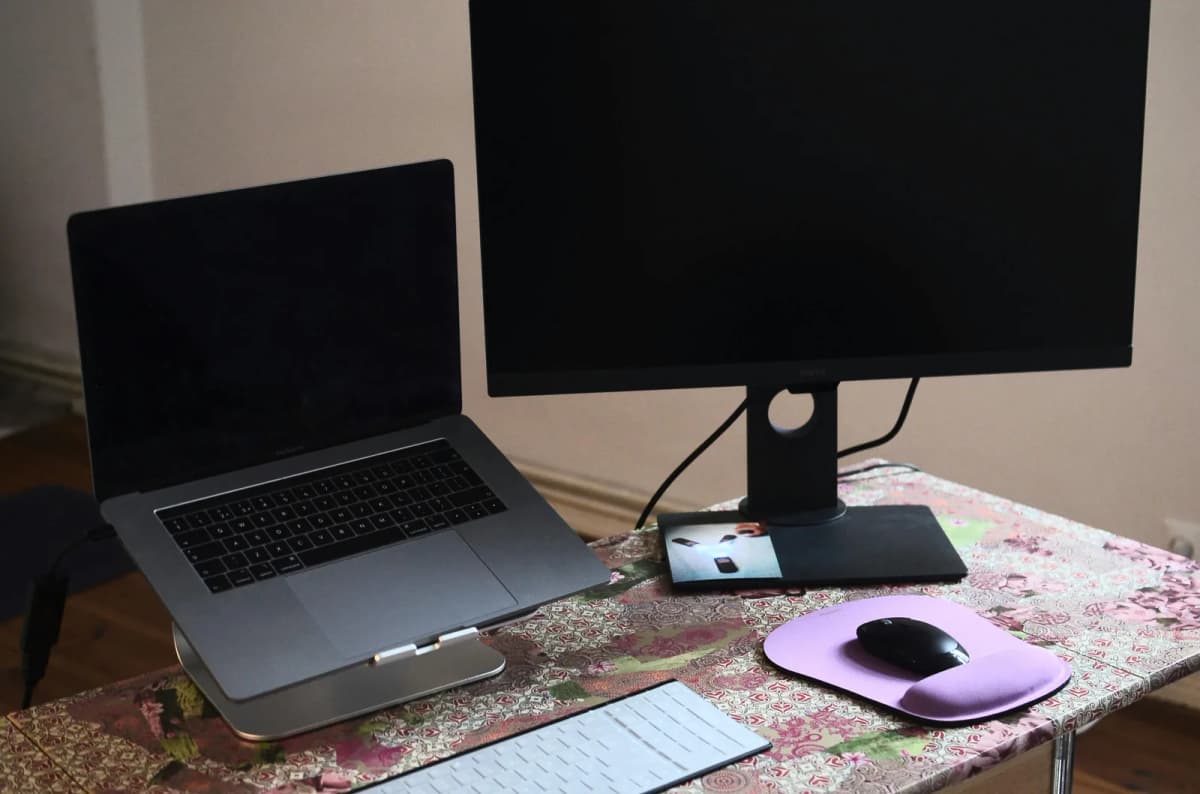
The most workable layout usually looks like the external monitor centered directly in front of you, the laptop on a stand beside it, the external keyboard centered in front of the body, and the mouse immediately beside the keyboard.
That arrangement follows the same logic OSHA and Mayo Clinic use for any workstation:
the main monitor belongs in front of you; the screen should not force constant neck rotation; the keyboard and mouse should stay on the same usable surface; the shoulders should not have to lift or reach.
The biggest practical decision is which side should hold the laptop.
A simple rule works well: place the laptop on the side that interferes least with your mouse hand.
For most right-handed people, that often means the laptop on the left and the mouse on the right.
For many left-handed users, the reverse will feel more natural.
The point is not left-versus-right as a moral rule. The point is protecting the main keyboard-and-mouse zone so the daily work feels centered and stable.
If your laptop forces the mouse too far away from the keyboard, the setup is already drifting in the wrong direction.
Do not leave the laptop flat on the desk
This is one of the easiest ways to ruin the whole layout.
When the laptop sits flat:
the screen is too low; the keyboard attached to it becomes tempting to use; the body ends up alternating between looking straight ahead at the monitor and looking down at the laptop.
That is exactly the compromise Mayo Clinic warns against. If the laptop is used for extended desk work, the cleaner solution is a laptop stand plus an external keyboard and mouse.
On a small desk, raising the laptop also does something else that matters: it turns the laptop into a cleaner vertical side screen instead of a low object spreading across the main work surface.
If the laptop must stay open, treat it like a secondary monitor: raise it, angle it slightly toward you, keep the top of the screen in a sensible viewing zone, and stop using the built-in keyboard as the main typing surface.
If you do not need the laptop screen at all, the simplest setup is often even better: close the laptop, dock it, and use the monitor as the only active display.
On a small desk, fewer active surfaces often creates a better workstation than “more screen” on paper.
If that is your real day-to-day setup, a vertical laptop stand for clamshell setups often reclaims more usable space than any open laptop riser. If the cable side of that setup still feels messy, Laptop docks that keep small desks cleaner is the direct follow-up.
Protect the keyboard-and-mouse zone first
This is the part people skip because they get distracted by screen placement.
But on a small desk, the working zone in front of you matters more than the arrangement in the back corners.
If the keyboard and mouse do not fit calmly, the whole setup is wrong even if the screens technically fit.
That means the keyboard centered in front of you, the mouse immediately beside it, no laptop edge pushing the keyboard forward, and no notebook, dock, or charger stealing the mouse zone.
OSHA is very consistent on this point: the keyboard and pointing device should be on the same surface and close together. That is especially important on compact desks because a laptop beside the monitor can quietly eat the exact area your mouse needs.
If this is already happening, fix the input zone before you buy another accessory.
For the deeper ergonomics of that part, go next to How to position your keyboard and mouse for shoulder comfort.
Depth matters more than width
People often think the main problem is not enough width.
Sometimes it is. But on small desks, depth is often the real limiter.
If you are still trying to choose the desk itself, How wide should a desk be for one monitor and a laptop? is the cleaner width-specific companion.
If the desk is too shallow, the monitor sits too close, the laptop stand pushes inward, the keyboard gets forced toward the front edge, and the mouse ends up trapped in a narrow strip.
That is why one monitor plus one laptop can feel cramped even on a desk that looks “wide enough” in photos.
The real question is whether the desk has enough front-to-back room to hold the monitor at a reasonable distance, the laptop off to the side, and a proper keyboard-and-mouse zone.
If the screen already feels too close, an accessory organizer is not the answer. You usually need one of these instead: a monitor arm, a slimmer laptop stand, a deeper desk, or a simpler one-screen setup.
If you have not checked that dimension yet, How deep should a desk be for one monitor vs two? is the best next guide.
A monitor arm helps more than most people expect
For this specific setup, a monitor arm is often one of the cleanest upgrades.
That is because it solves two problems at once: it lets you place the external monitor at a better height and distance, and it clears space underneath and around the original monitor stand.
On a small desk, that recovered area matters.
It can become room for the laptop stand, cleaner cable routing, more mouse space, and a calmer writing zone.
A riser can help too, but an arm is usually stronger when the problem is depth control rather than just height.
If you are already fighting a shallow surface, Monitor arms that work on small desks is the more relevant category than a simple riser.
Keep the laptop secondary, not decorative
A lot of small-desk setups get visually arranged instead of functionally arranged.
That usually looks like the monitor and laptop spread in a neat V shape, the keyboard sitting slightly off-center to match, the laptop looking “balanced” on the desk, and the neck and shoulders doing all the hidden work.
That is the wrong priority.
If the laptop is secondary, let it look secondary.
In practice, that means it can sit a little farther to the side, it does not need to mirror the monitor perfectly, and it should be easy to glance at rather than positioned as the main focal point.
The desk should be arranged around the work, not around what looks symmetrical from across the room.
Use one side zone, not two
This setup already asks one side of the desk to carry more than usual because the laptop occupies that zone.
That means you need to be stricter about everything else.
Once the laptop is in place, avoid loading both side areas with extra items like notebooks, chargers, speakers, large lamp bases, cups and bottles, or decorative trays.
The small-desk rule still applies:
one active side zone is usually enough.
If the laptop is taking that role, everything else should move upward, underneath, or off the desk.
This is where monitor light bars, under-desk drawers, and under-desk cable routing make so much more sense than bulky surface-level accessories.
If you want the broader layout logic around that, How to set up a small desk without losing usable space is the cleaner companion guide.
When one monitor plus a laptop is not worth it
This is the part more desk guides should say out loud:
sometimes the better setup is fewer screens.
One monitor plus one laptop is not automatically more productive if it causes a bad neck angle, a cramped keyboard position, constant mouse compromise, or an always-crowded desk.
If the desk is very small, the better workflow may be laptop closed with the monitor only, laptop only but raised with an external keyboard and mouse, or monitor only during focused work with the laptop moved off-desk when not needed.
That is not settling. It is choosing a layout your body can actually sustain.
Small desks reward disciplined setups more than feature-stacked ones.
Mistakes that make the setup feel smaller
Centering the space between the screens instead of the main screen only works well when both screens are used equally. On a small desk, one screen is usually doing more of the work. Center that one instead.
Leaving the laptop flat creates a second low screen and tempts you into typing on the built-in keyboard.
Letting the laptop steal the mouse zone is another quiet failure. If the mouse has to drift outward or forward to fit, the layout is already asking too much from the shoulder.
Using both screens at full importance on a shallow desk is a fast way to make the whole setup feel busy. Two screens are only helpful if the setup still feels calm. If not, simplify.
Trying to organize before solving the core geometry is the last mistake. Do not buy trays, hubs, or decorative organizers before fixing primary screen position, laptop height, keyboard centerline, and mouse reach. That is where the real comfort comes from.
A simple five-minute reset
If your current setup feels awkward, do this:
- Put the external monitor directly in front of you.
- Decide whether it is the main screen.
- Move the laptop to the side and raise it on a stand.
- Center the external keyboard in front of your body.
- Bring the mouse immediately beside it.
- Remove anything else that steals space from that zone.
- Read and type for five minutes without adjusting anything else.
That reset usually reveals the real problem quickly.
If the setup suddenly feels calmer, the issue was layout. If it still feels cramped, the issue is probably desk depth, desk width, or trying to fit too many active objects on one surface.
Bottom line
The best one-monitor-and-laptop setup on a small desk is usually not the prettiest or the most symmetrical.
It is the one that keeps the main monitor directly in front of you, raises the laptop into a usable side-screen position, protects the keyboard-and-mouse zone, and refuses to let a small surface pretend it can support every accessory at once.
In most cases, that means the external monitor centered, the laptop raised on the side, and the external keyboard and mouse in the middle. minimal clutter in the working zone.
If the desk still feels crowded after that, the answer is usually not another product. It is a simpler screen setup, better depth control, or a desk that matches the workflow more honestly.
Related reading
- Ergotron LX vs Branch Monitor Arm
- How far should a monitor be from your eyes on a small desk?
- How high should your monitor be for good posture?
- How deep should a desk be for one monitor vs two?
- How to position your keyboard and mouse for shoulder comfort
- How to set up a small desk without losing usable space
- Monitor arms that work on small desks
- Under-desk drawers that work on small desks