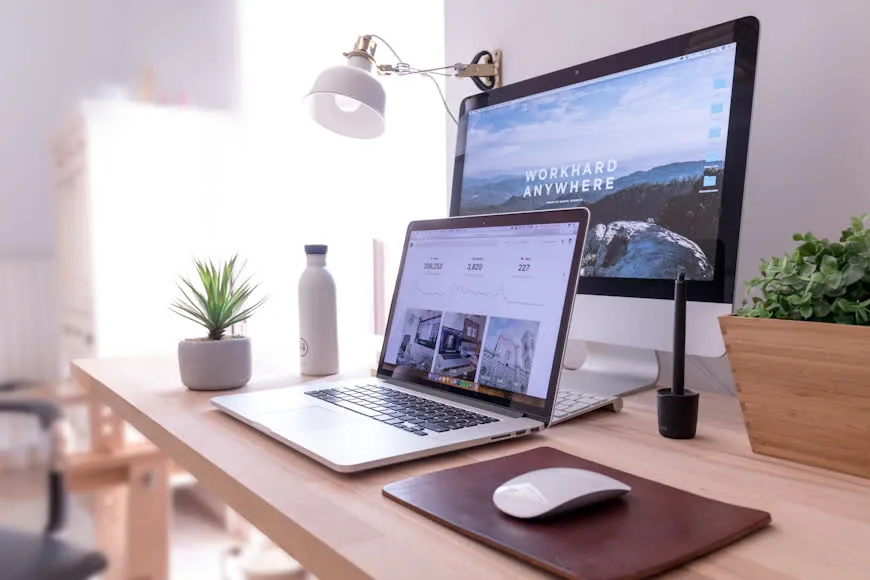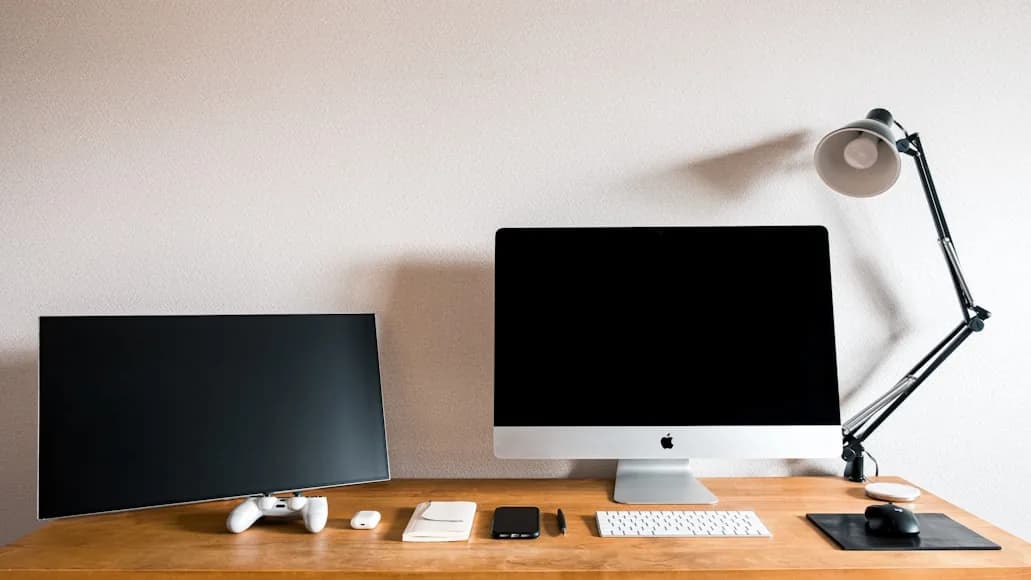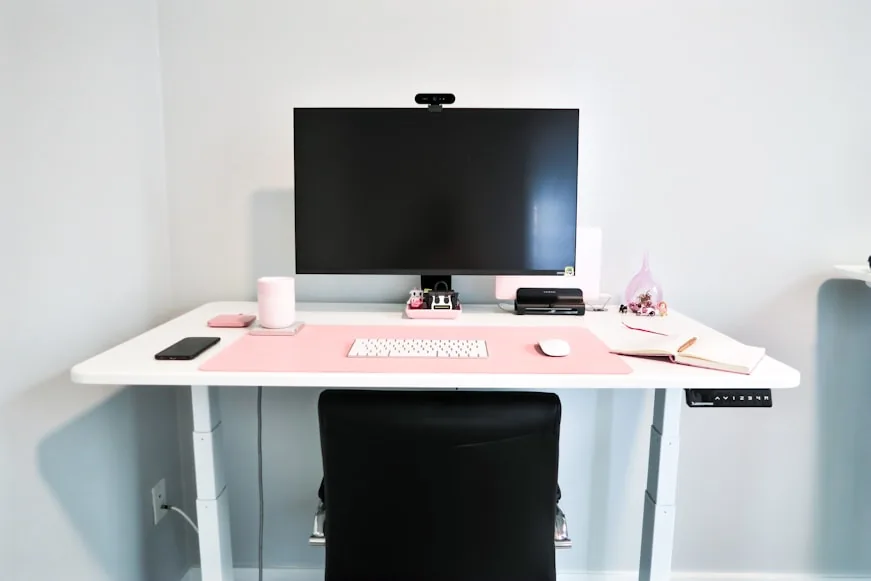

Small desks usually do not fail because they are small.
They fail because too many things are trying to live in the same zone.
That is the useful way to think about this category. A small desk can still work well if the setup is built around the things your body actually needs first: one clear monitor position, one clear keyboard-and-mouse zone, enough space for your forearms to rest naturally, enough depth to keep the screen at a comfortable distance, and enough leg and foot support to keep the shoulders from creeping upward.
That is exactly where the official workstation guidance from OSHA and Mayo Clinic points. Feet supported. Shoulders relaxed. Elbows close to the body. Wrists neutral. Monitor in front of you, not looming over the front edge of the desk.
The part they do not spell out in “small desk” language is this:
every object that steals space from those basics makes the desk feel smaller than it really is.
That is the problem we are solving here.
Quick answer
If you want a small desk to stay usable, build it in this order: protect a clear keyboard-and-mouse zone first, place the monitor so it uses as little desk depth as possible, move storage upward or underneath instead of sideways, keep only one active side zone for daily items, and route cables before the desk fills up.
That is the whole logic.
Most small-desk setups become frustrating when the surface turns into a collection of separate islands: one for the monitor stand, one for notebooks, one for chargers, one for decor, one for a lamp base, and one for the mouse trying to survive between them.
Small desks work better when the surface acts like one disciplined workspace instead of a shelf.
Start by protecting the working zone
The most important part of a small desk is not the back corners.
It is the area directly in front of you.
OSHA and Mayo Clinic both center the same body mechanics here: elbows close to the body, shoulders relaxed, wrists straight rather than bent up or out, and keyboard and mouse on the same surface and within easy reach.
That means your first design rule should be:
nothing gets to steal space from the keyboard-and-mouse zone.
On a small desk, that usually means no decorative object between you and the monitor, no notebook permanently parked beside the mouse, no oversized lamp base eating the main corner, and no storage tray forcing the keyboard too close to the desk edge.
If the keyboard and mouse no longer fit in a calm, centered way, the desk is already overfilled, even if there is technically still empty space elsewhere.
If you want the detailed ergonomics for that part, pair this guide with How to position your keyboard and mouse for shoulder comfort.
Push the monitor back before adding anything else
The next thing that decides whether a small desk feels usable is monitor depth.
This is where people often over-organize the desk before solving the real problem. They buy organizers, trays, and accessories while the monitor stand is still eating the best working space on the surface.
A small desk usually improves fastest when you:
move the monitor farther back; raise it cleanly; reclaim the space underneath or in front of it.
That can happen in two different ways: a monitor arm if the desk can take a clamp and you need depth control, or a monitor riser if the screen distance is already fine and you mostly want height plus under-screen storage.
This is why small desks often benefit from monitor accessories sooner than larger desks do. On a larger desk, a bulky stand is annoying. On a smaller desk, it can decide the entire front-to-back layout.
If your screen already feels too close, start with Monitor arms that work on small desks. If the distance is acceptable and the real issue is organization, Monitor risers that improve posture and desk organization is usually the better follow-up.
Use layers instead of spread
The easiest way to lose usable space is to let everything compete on the same horizontal plane.
That is where a small desk starts feeling like a tray table.
The better move is to use layers: a top layer for the monitor or monitor light bar, a main layer for the keyboard, mouse, and notebook if needed, an under-monitor layer for low-profile storage, a dock, keyboard parking space, or a compact headphone stand, and an under-desk layer for a cable tray, power strip, headphone hook, or small basket.
This matters because horizontal spread is what kills small desks fastest.
If your main workflow is one monitor plus one laptop, How wide should a desk be for one monitor and a laptop? is the most direct sizing follow-up.
Vertical layering lets the desk hold the same number of functions without forcing everything into the same reach area.
If the storage already exists but the drawer itself has become a junk zone, Desk drawer organizers for shallow desks is the cleaner fix before you add yet another accessory on top of the desk.
A few practical examples make the point clearly. A monitor light bar usually beats a normal lamp on a small desk because it does not take a back corner. An under-desk cable tray usually beats a desktop charging hub because it frees the surface. A riser with storage underneath usually beats a separate organizer beside the monitor. A desk shelf can work better than multiple small organizers when the back edge of the desk needs one cleaner second layer. A vertical laptop stand can reclaim more space than an open stand when the laptop usually stays closed, and a compact desk mat can define the main working zone without taking over the entire desktop.
That is not about minimalism for its own sake. It is just better space economics.
Keep only one side zone
Most small desks can support one secondary side zone comfortably.
They usually cannot support two.
A secondary side zone is where you keep the one or two things that need to stay in reach but do not belong in the main working area, like a notebook and pen, a coaster or bottle, a charging pad, or a task lamp if it cannot be replaced by a light bar.
The mistake is letting both sides of the desk turn into storage margins.
Once that happens, the workspace narrows inward and the keyboard-and-mouse zone feels trapped in the center. This is one of the quiet reasons people end up working with the mouse half-off the desk or the keyboard too close to the front edge.
Pick one side and keep the other side visually open whenever possible.
That single decision often makes a small setup feel much calmer.
Match desk depth to the setup you actually use
Some desks are not cluttered.
They are simply too shallow for the monitor and input setup you want.
This is why desk depth matters so much more than people expect. If the desk is too shallow, no amount of tidy cable routing or accessory discipline will stop it from feeling cramped. The screen, keyboard, and mouse will always be negotiating for the same front-to-back space.
As a practical rule:
a shallower desk demands stricter monitor placement; larger monitors demand more careful depth control; dual-monitor setups hit the wall faster than single-monitor setups.
If you want the exact reasoning there, How deep should a desk be for one monitor vs two? is the better deep dive.
If the answer is “my current desk is just too shallow,” then the next move is not another accessory. It is a better-sized desk or a more aggressive monitor-arm strategy.
Solve lighting without giving away a corner
Lighting is one of the fastest ways to accidentally waste a small desk.
A traditional lamp base can eat the exact corner that should have been available for:
the monitor to sit farther back; a notebook to open cleanly; the mouse to move without bumping something.
That is why lighting needs to be chosen more carefully on a small desk than on a wider workstation.
The cleanest options are usually monitor light bars, slim clamp lights, or wall or shelf lighting above the desk. The least efficient options are usually large table lamps with wide shades or deep bases.
If good task lighting is the real need, Desk lamps for eye strain and late-night work and BenQ ScreenBar Halo vs ScreenBar Pro are the best next reads. If the lamp itself is the layout problem, How to place a desk lamp on a small desk is the more specific follow-up.
Plan cable routing before the desk fills up
Cable management is not a finishing touch on a small desk.
It is part of the layout.
If you ignore cables until the desk is already full, you usually end up with:
chargers parked on the surface; adapters living beside the monitor; wires forcing objects farther forward than they should sit.
That costs real usable space.
A small desk stays cleaner when the power strip goes under the desk, extra cable length is anchored underneath instead of behind the monitor, and one charging route is defined for a laptop or phone instead of multiple loose cables wandering across the surface.
This is why even very simple under-desk cable gear can make a compact setup feel dramatically better. It removes the visual spill and the literal objects that keep creeping into the work zone.
If you want the product side of that cleanup, go next to Cable management products for cleaner desk setups.
Let storage happen off the main plane
A small desk should not be asked to store everything.
It should only hold what you use while working.
That usually means the keyboard and mouse, the monitor, one note-taking item, one drink, and one light source.
Everything else should be pushed off the primary plane if possible, whether that means a drawer, riser shelf, under-desk tray, nearby rolling cart, or wall shelf.
This is where a lot of “desk setup” content gets backwards. It shows surfaces packed with accessories and still calls them clean because the items match visually.
On a small desk, real cleanliness is about how much uninterrupted working surface still exists, not how coordinated the objects look.
Know when the desk is the problem
There is a point where a setup stops being badly organized and starts being undersized.
That usually shows up when:
the keyboard has to sit at the very front edge; the mouse has almost no room to move; the monitor is always too close; a notebook cannot open without overlapping another essential item; the chair, feet, or knees cannot fit comfortably under the desk.
When that happens, the answer is not always a better organizer.
Sometimes the answer is a deeper desk, a wider desk, a monitor arm, a simpler single-monitor setup, or fewer permanent desktop accessories.
That is especially true if you are trying to fit a dual-monitor workflow on a desk that only barely supports one monitor comfortably. In that case, Compact desks that work for dual-monitor setups is the better next move.
A simple small-desk reset
If your desk feels crowded and you do not want to rethink everything at once, do this:
- clear the whole front half of the desk
- place the monitor in its correct position first
- center the keyboard directly in front of you
- bring the mouse immediately beside it
- choose one side zone only
- move everything else either upward, underneath, or off the desk
- route the charging and monitor cables so they stop taking surface space
That reset usually reveals the real problem within ten minutes.
Either the desk becomes workable again, or it becomes obvious that one object, one cable mess, or one bad dimension has been stealing the whole setup.
Bottom line
A small desk stays usable when the setup is built around body mechanics first and accessories second.
Protect the keyboard-and-mouse zone. Push the monitor back. Use layers instead of spread. Keep only one side zone active. Route cables early. Move storage off the main surface whenever possible.
That is the real formula.
Once you do that, a small desk can feel much more capable than it looks on paper. And when it still does not work, the problem becomes clearer faster: it is usually monitor depth, accessory sprawl, or a desk that is simply too small for the workflow.
Related reading
- How to plan a workspace in a small room before you buy anything
- Why your small desk setup still feels cramped
- How to set up one monitor and a laptop on a small desk
- How to place a cable tray under a small desk without losing knee room
- Wrist rests that fit compact setups
- Desk mats that fit compact setups
- How deep should a desk be for one monitor vs two?
- How to position your keyboard and mouse for shoulder comfort
- Monitor arms that work on small desks
- Monitor risers that improve posture and desk organization
- Under-desk drawers that work on small desks
- Cable management products for cleaner desk setups