
Cramped setups are usually a layout problem before they are a storage problem.
What people often miss is that a desk can look tidy and still feel wrong in real use. The keyboard drifts toward the edge, the monitor creeps forward, the laptop steals the center, and the working zone keeps shrinking even though nothing looks chaotic.
That is why the fix is rarely “more organizers.” It is almost always one of a few pressure points stealing the usable space.
If your desk feels cramped, it usually shows up in the same ways: the mouse keeps drifting outward, the keyboard sits on the edge, your writing space disappears, or your knees keep bumping into something underneath. Those are layout signals, not storage signals.
The myth that keeps you stuck
If the desk feels tight, the instinct is to buy storage or add accessories.
That can help later, but it rarely fixes the core issue first. A shallow desk stays shallow no matter how many trays you add. A cramped front‑center zone stays cramped even if the sides look cleaner.
The three pressure points that usually shrink a desk
Depth collapses first
Most small desks feel cramped because the monitor is too close. Mayo Clinic’s guidance puts the screen about an arm’s length away, roughly 20 to 40 inches for most people. If the desk cannot support that distance, the monitor moves forward and everything else gets pushed into a narrow strip.
If this sounds familiar, start with How deep should a desk be for one monitor vs two? and How far should a monitor be from your eyes on a small desk?.
The front‑center zone is being treated like leftover space
CCOHS makes this simple: the keyboard should be directly in front of you, with the mouse nearby on the same surface, close to the front edge but not hanging off it. That zone is the most important real estate on the desk. When it gets invaded by a lamp base, an always‑open notebook, a charging dock, or a big desk mat, the setup feels cramped even if the rest of the desk looks clean.
If this is your issue, How to position your keyboard and mouse for shoulder comfort is the direct fix.
Two screens are trying to own the center
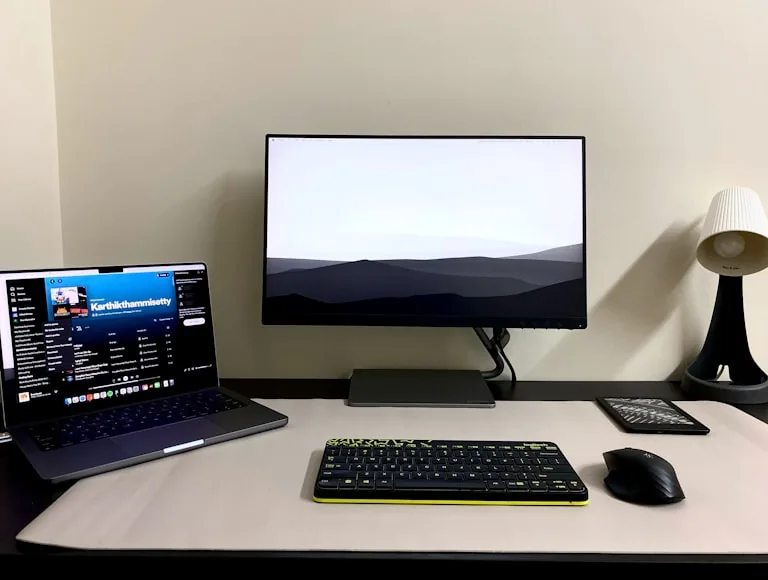
One monitor plus one laptop is common, and it is also one of the easiest ways to make a desk feel smaller than it is. The moment both screens act like primary screens, the center gets stretched, the keyboard moves forward, and the whole layout starts negotiating with itself.
The clean rule is simple: one screen owns the center. If the external monitor is the main screen, the laptop becomes secondary. If the laptop is the main screen, the monitor should stop pretending to be equal.
How to set up one monitor and a laptop on a small desk walks through that layout in more detail.
The underside is quietly stealing space
Sometimes the top of the desk looks fine, but the setup still feels tight because the area underneath is crowded. A tray, drawer, power strip, or brace that lives exactly where your knees and feet want to go can make the whole desk feel smaller, even if the surface looks tidy.
If your legs keep searching for a comfortable position, this is worth checking before you buy anything else.
A reset that works before you buy anything
Push the monitor back to the farthest workable distance. Clear the front‑center zone so the keyboard and mouse sit calmly in front of you. Move anything that does not get used constantly off the main plane. Then check whether the desk still feels tight. If it does, the constraint is likely the desk itself, not the accessories.
That is why How to set up a small desk without losing usable space stays relevant even when the desk already looks neat.
When accessories actually help
Accessories are useful once the desk is working. They are rarely the fix that makes it work.
If the main constraint is depth, screen distance, or a blocked front‑center zone, another accessory will just add one more object to negotiate around. If those constraints are solved, organizers finally make sense.
That is the point where storage upgrades feel like relief instead of more clutter.
Why more desk accessories rarely fix the real problem is the best follow‑up when you are not sure which side you are on.
The cable tangle multiplier
Cable clutter makes small desks feel even smaller. Visible power cables, USB runs, and monitor cables that loop across the back of the desk turn a tight surface into a visually noisy one, even if the top is technically clear.
A cable tray under the desk edge, a few clips to route cables behind the legs, or even just gathering loose cables with velcro ties will make the same surface feel more open. It is one of the highest-return improvements on a small desk and one of the cheapest.
If you want to go further, cable management products for cleaner desk setups covers what actually works at different price points.
The monitor riser trap
Monitor risers seem like a layout solution — lift the screen, create storage underneath, solve two problems at once.
In practice, a riser on a shallow desk often makes things worse. The riser consumes depth, which pushes the monitor forward, which compresses the working zone. If the riser also holds accessories, you end up with a busy front-center area that should be clear.
A monitor arm usually solves this better. It lifts the screen, keeps the desk surface free, and lets you push the monitor back to its correct distance. That recovered depth is more valuable on a small desk than any organizer underneath a riser.
What to try before replacing the desk
Before concluding the desk is just too small, run through this in order:
- Push the monitor as far back as it can go while staying at the correct viewing distance.
- Clear the front-center zone completely — keyboard and mouse only.
- Move anything that does not get used every day off the main surface and onto a shelf, drawer, or the floor temporarily.
- Check the underside for anything blocking your knees.
Work from that cleared state for one day. If it still feels cramped after that, the desk itself is the constraint. If it feels noticeably better, the accessories were the problem, not the desk.
Related reading
- How to set up a small desk without losing usable space
- How deep should a desk be for one monitor vs two?
- How far should a monitor be from your eyes on a small desk?
- How to position your keyboard and mouse for shoulder comfort
- How to set up one monitor and a laptop on a small desk
- Why more desk accessories rarely fix the real problem