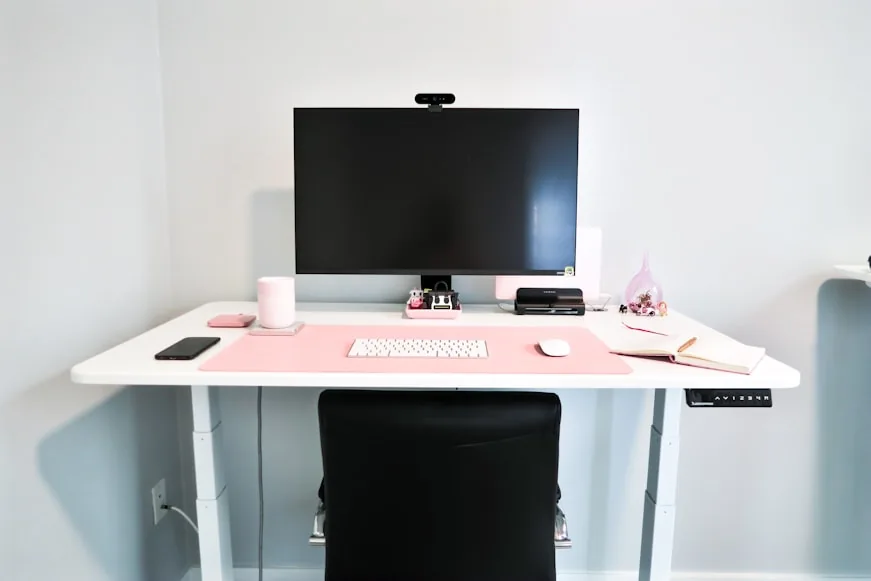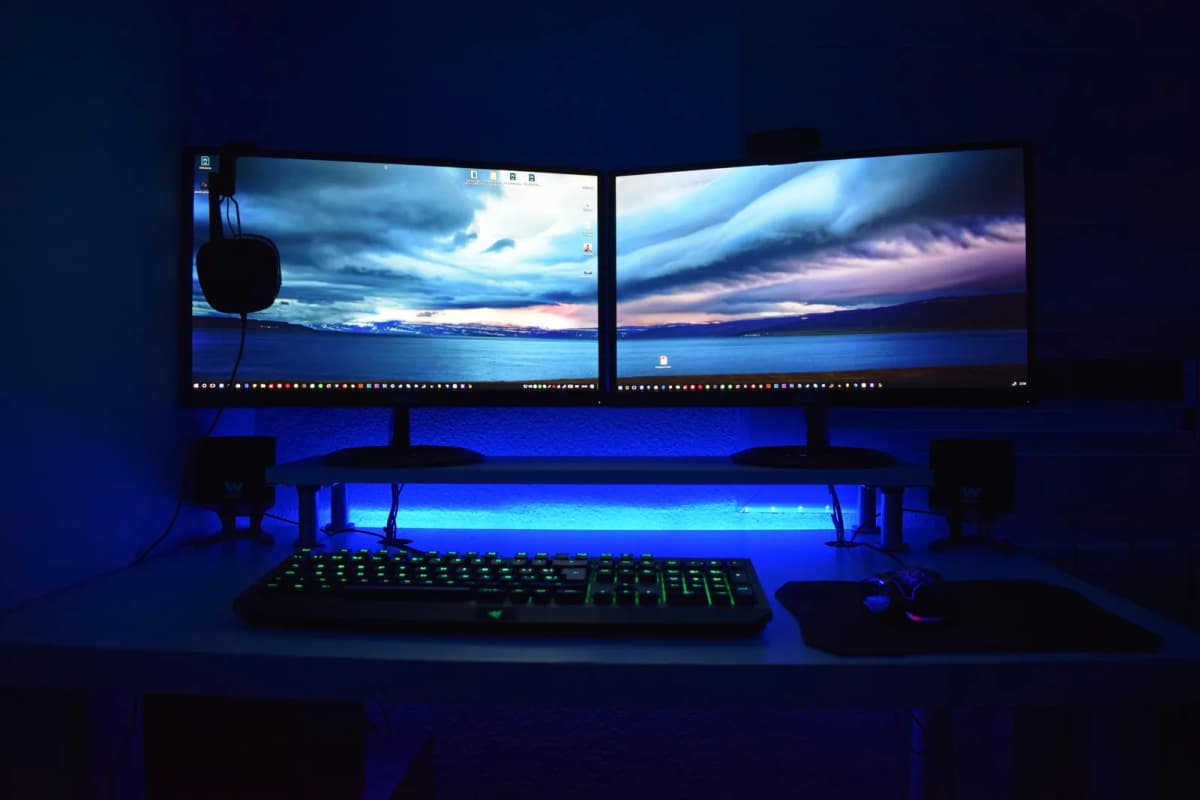

Most monitor-height advice is technically correct and still not very helpful.
You will hear the same line everywhere: put the top of the screen at eye level. That is a good starting point, but it is not the whole setup. Monitor height only works when your chair, keyboard, and viewing distance already make sense. If any one of those is off, the screen can feel "wrong" even when it is sitting in a perfectly reasonable spot.
The useful version is simpler:
sit in a supported position first; place the monitor directly in front of you; keep it about an arm's length away; adjust the height so the top of the visible screen is at or slightly below eye level.
That lines up with the workstation guidance from Mayo Clinic and OSHA. In practice, it means your eyes should land near the top third of the screen, not at the center and definitely not above it.
If you want the one-page version before you work through the full explanation, Monitor ergonomics quick reference: height and distance chart for small desks pulls the key rules into one place.
Start with posture, not the monitor
Before touching the screen, fix your sitting position.
Your monitor cannot create good posture if the rest of the workstation is forcing you into a bad one. Mayo Clinic and OSHA both start with the same basics:
feet supported on the floor or on a stable footrest; back supported by the chair; shoulders relaxed rather than lifted; elbows close to the body; keyboard at a height that lets wrists stay neutral.
If your desk is too high, you may raise your shoulders and then lower the monitor to compensate. If your chair is too low, you may crane your neck upward even though the monitor is not especially high. That is why monitor positioning works best as the second or third adjustment, not the first one.
If your feet only stay supported when the chair goes up, Footrests that improve desk posture and circulation is the cleanest next category to check.
If you have not dialed in your chair yet, fix that first with Ergonomic chair settings that actually improve comfort.
Proper monitor height for most people
For a desktop monitor, the best default is this:
place the top of the screen at or slightly below eye level; keep the center of the screen comfortably below your straight-ahead line of sight; avoid any setup that makes you tip your chin upward to read normal content.
OSHA's workstation guidance describes the same basic target a little more precisely: the top line of the screen should be at or just below eye height, and the center of the monitor should sit far enough below eye level that you can view the main work area with a slight downward gaze.
That slight downward gaze matters.
Reading with your eyes and head angled a little down is usually easier to sustain than reading with the chin lifted. When screens sit too high, people often do not notice it immediately because the setup can look neat and "ergonomic." After an hour or two, though, the upper traps and the back of the neck usually tell the truth.
So if you want the short answer:
Your monitor is probably high enough when your eyes naturally meet the upper portion of the screen and you can read without lifting your chin.
Set distance before finalizing height
Height and distance work together. If one is wrong, the other often gets blamed.
Mayo Clinic recommends keeping the monitor about an arm's length away, with a practical range of roughly 20 to 40 inches depending on screen size and your visual comfort. OSHA also advises keeping the screen at least 20 inches away.
That is why a monitor can feel "too high" when the real problem is that it is too close. A screen that sits too close often makes you lean back, pull the head away, or tilt the chin to keep the whole panel in view. A screen that sits too far away creates the opposite problem: you lean forward and start reading with your face instead of your eyes.
Use this quick distance test before you touch the height again:
- Sit back fully in the chair.
- Put your hands where they normally rest on the keyboard.
- Read a normal paragraph of body text.
- Notice whether you lean in, lean back, or squint.
If you are drifting toward the screen, it is probably too far away or the text is too small. If you feel like the whole screen is looming over you, it may be too close or too high.
Why larger monitors usually need to sit a little lower
This is where the one-line advice starts to break down.
A 24-inch monitor and a 32-inch monitor do not behave the same way, even if both have their top edge exactly at eye level. As the screen gets taller, more of the usable area rises above your natural downward viewing zone. That usually means bigger screens feel better when they sit slightly lower than people expect.
In practical terms:
24-inch monitors: the standard rule usually works well; 27-inch monitors: still straightforward, but many people prefer the top edge a touch below eye level rather than dead even; 32-inch monitors and larger displays: often feel better when the entire screen sits lower so the upper corners do not pull your gaze upward; Ultrawides: the width matters, but the height is what usually decides comfort; if the panel is tall, lower it a bit.
You do not need to obsess over a perfect measurement. The real question is whether the top rows of content feel easy to read without your head lifting off its neutral position.
Laptop screens are different
Laptop setups cause problems because the screen and keyboard are attached.
If you raise the laptop so the screen reaches a good height, the keyboard usually becomes too high for comfortable typing. If you leave the keyboard where it belongs, the screen usually ends up too low.
That is why Mayo Clinic specifically suggests using an external keyboard and mouse with a laptop stand when the laptop is acting as your main desk computer.
If you work from a laptop for several hours at a desk:
raise the laptop screen to a comfortable height; use an external keyboard; use an external mouse or trackball.
Without those extra pieces, you usually end up choosing between neck comfort and arm comfort, and neither option is great.
If you wear bifocals or progressive lenses, go lower
This is one of the most common exceptions to the standard advice.
Mayo Clinic explicitly notes that people who wear bifocals may need the monitor lowered an additional 1 to 2 inches. The same idea often helps with progressives too. If the monitor sits too high, you may tip your head backward to find the right part of the lens, which quickly turns a decent workstation into a neck problem.
If that sounds familiar, try this:
keep the monitor directly in front of you; lower it slightly; sit back and read for several minutes; notice whether your chin stays quieter.
The right setup is the one that lets your eyes find the screen without forcing your head to hunt for the lens sweet spot.
How to handle one monitor versus two
Single-monitor setups are easy: center the screen directly in front of you.
Dual-monitor setups are where people start creating unnecessary strain.
The cleanest rule is:
if one monitor gets most of the work, center that one in front of you and place the second beside it; if you use both equally, center the space between them in front of you and angle them slightly inward.
What you do not want is a setup where your head lives turned to one side all day. The farther your main work area drifts off-center, the more likely you are to build neck rotation into every task.
For one primary and one secondary screen:
primary monitor straight ahead; secondary monitor close beside it; secondary used for reference, chat, or supporting material.
For two equal-use monitors:
screens close together; slight inward angle; shared center line in front of you.
The goal is not visual symmetry for its own sake. The goal is reducing constant head turning.
Should you use a monitor riser or a monitor arm?
Both can fix monitor height, but they solve slightly different problems.
Use a monitor riser when:
your screen mainly needs more height; your current distance already feels okay; you want a simple fix with extra desk storage underneath.
Use a monitor arm when:
you need height and depth adjustment; your desk depth is limited; you switch between tasks or positions often; you use multiple screens and need more precise placement.
This is where many people buy the wrong thing. They think the monitor needs to go higher, but the real need is bringing the screen closer or pushing it a little farther back. A riser cannot do much for that. An arm can.
If your desk is specifically 24 inches deep, that distinction gets sharper. Do you need a monitor riser on a 24-inch deep desk? breaks down when the riser still works and when it just makes a shallow desk feel more crowded.
If you are still deciding whether a simple lift is enough, start with Monitor risers that improve posture and desk organization. If you already know your desk is tight and you need better depth control, Monitor arms that work on small desks is the more useful next read.
Common monitor-height mistakes
These show up constantly in home setups:
1. Placing the monitor too high because it looks tidy
A high monitor can photograph well and still feel terrible after a full workday. If you have to raise your chin to read the top toolbar or the first lines of text, lower the screen.
2. Leaving a laptop flat on the desk for full-day work
This pulls the head downward and forward. If the laptop is your main computer, treat it like a screen that needs a stand and peripherals.
3. Fixing a desk or chair problem with the monitor alone
If your shoulders are elevated because the desk is too high, lowering the monitor will not solve the real strain.
4. Setting the monitor by the bezel instead of by the content
What matters is where your eyes land when you read, not where the frame happens to sit.
5. Spreading dual monitors too wide
Two screens that are too far apart force more head movement than most people realize.
A simple five-minute monitor check
If you want to reset the whole thing quickly, do this:
- Sit all the way back in the chair with your feet supported.
- Relax your shoulders and place your hands on the keyboard.
- Center the monitor directly in front of you.
- Move it to roughly an arm's length away.
- Adjust height until your eyes meet the top portion of the screen without lifting your chin.
- Read for a minute and notice whether you lean, squint, or tip your head.
If you are still uncomfortable after that, the next place to look is usually desk height, chair height, text scaling, or glasses, not just the monitor stand.
Bottom line
For most people, the best monitor height is not "as high as possible." It is high enough that the top of the screen sits at or slightly below eye level and low enough that your eyes naturally travel a little downward as you read.
That keeps the neck calmer, the shoulders quieter, and the screen working with your posture instead of against it.
If you want to improve the rest of the setup around it, keep going with:
What makes a home office comfortable enough to use all day?; How far should a monitor be from your eyes on a small desk?; How to position your keyboard and mouse for shoulder comfort; How to set up one monitor and a laptop on a small desk; Monitor risers that improve posture and desk organization; Standing desks that fit small spaces; How to choose an ergonomic office chair.