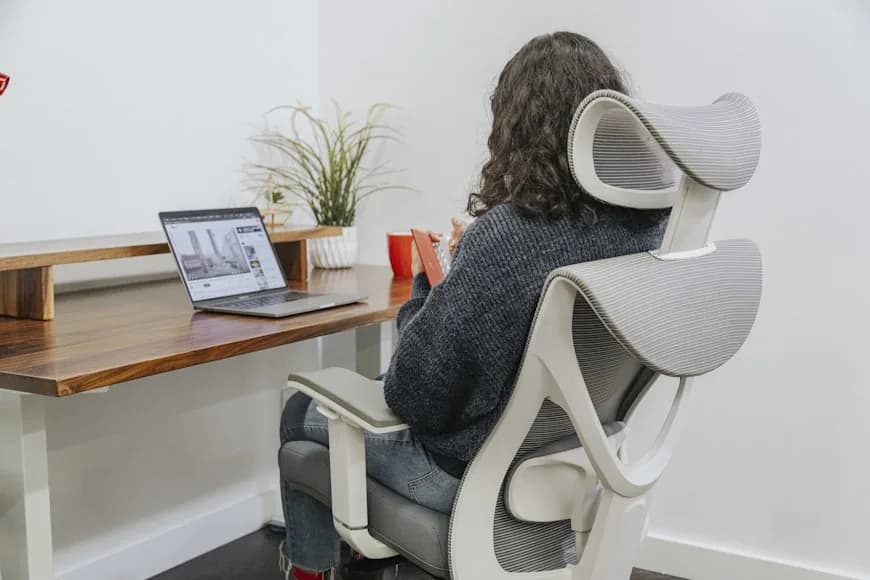

Most chair discomfort comes from a setup problem, not from a missing feature badge.
That is the useful mindset for this guide. If your chair already has basic adjustments, the biggest comfort gains usually come from setting those controls in the right order instead of chasing random knobs one by one.
Official workstation guidance from OSHA and Mayo Clinic starts with the same core picture: feet supported, shoulders relaxed, elbows close to the body, and the lower back supported by the chair rather than hanging in space. Cornell's ergonomic chair guidance adds another important point: supported recline and correct seat fit matter more than trying to hold one rigid "perfect posture" all day.
So instead of treating chair setup like a mystery, work through it in this order.
1. Set seat height first
Seat height is the foundation because every other setting depends on it.
Your goal:
feet flat on the floor or on a stable footrest; thighs roughly parallel to the floor; knees not forced sharply above hip level; shoulders relaxed while your hands reach the keyboard.
If you have to raise the chair so high that your feet dangle, the desk is probably too tall for your body. In that case, use a footrest or lower the work surface if possible. If your thighs are jammed under the desk, the desk may be too low or the center drawer may be stealing clearance.
Do not move to armrests or recline before this is right. A bad seat height can make the whole chair feel wrong.
2. Set seat depth so your back can actually use the backrest
Seat depth is one of the most important settings for real comfort and one of the most ignored.
Slide the seat so you can sit all the way back with your lower back touching the backrest while still leaving a little space between the front edge of the seat and the back of your knees. OSHA specifically points out that shorter users need enough adjustment to sit against the backrest without the seat pan contacting the knees, and taller users still need full thigh support.
As a practical check:
if the seat presses into the back of your knees, it is too deep; if too much of your thigh feels unsupported, it is too shallow.
This one setting often decides whether lumbar support feels helpful or annoying, because lumbar cannot land in the right place if your body is being pushed forward by the seat pan.
3. Bring lumbar support to your lower back
Good lumbar support should meet your body. It should not feel like a hard bump forcing you into a shape that does not match your spine.
Adjust the lumbar height so the curve sits in the small of your back. If the chair lets you adjust depth or firmness, start in the middle rather than maxing it out. The aim is support, not pressure.
Use this test:
sit fully back; relax your shoulders; breathe normally; notice whether your lower back feels supported without being shoved forward.
If you still collapse backward or lose the curve of your lower back, raise or deepen the support a little. If it feels aggressive or tiring, back it off.
4. Set the backrest and recline for supported movement
One of the biggest ergonomic mistakes is trying to sit bolt upright all day.
Cornell's seating guidance notes that supported recline is often more comfortable than an aggressively upright position, and OSHA recommends a backrest that reclines at least 15 degrees from vertical with tension or lock control. In practice, that means your chair should support movement instead of fighting it.
For desk work, a good starting point is:
upright enough that you can type comfortably; open enough that your torso is not compressed; tension set so leaning back feels controlled, not loose.
If your chair has multiple lock points, the best one is usually not the most upright one. Pick the position that keeps your back supported while allowing you to move between focused typing and lighter reading or thinking.
5. Adjust armrests last, not first
Armrests should support your forearms lightly. They should not push your shoulders up, force your elbows outward, or block you from getting close to the desk.
Set them so:
shoulders stay relaxed; elbows rest close to your torso; forearms are supported without shrugging; the chair can still tuck under the desk cleanly.
Mayo Clinic and OSHA both emphasize the same outcome here: arms should rest gently, elbows should stay close to the body, and shoulders should not be elevated.
If your armrests are too high, lower them. If they force you wide, narrow them if possible. If they constantly hit the desk and stop you from getting close enough to the keyboard, lower them or move them back. On some smaller desks, even a good chair can feel clumsy until the armrests are adjusted out of the way.
6. Check your keyboard relationship before blaming the chair
This is where people often misdiagnose the problem.
If the keyboard is too high, you may lift your shoulders and think the chair lacks support. If it is too low, you may bend the wrists upward and think the armrests are wrong. OSHA's keyboard guidance is straightforward: elbows should be about keyboard height, shoulders relaxed, and wrists kept in a straight, neutral position.
So after your chair is adjusted:
sit back in the chair; place your hands on the keyboard; confirm elbows stay near your sides; confirm wrists are not bent up or down.
If that does not happen, the issue may be the desk or keyboard tray, not the chair.
If you want to work through that part of the setup more directly, How to position your keyboard and mouse for shoulder comfort is the next guide to pair with this section.
7. Make small changes, then live with them for a day
Good chair setup is rarely one big adjustment. It is a series of small corrections.
After you set height, depth, lumbar, recline, and armrests, use the chair for a full work session before deciding something is wrong. If one area still feels off, change only one control at a time. That makes it much easier to identify what actually improved comfort.
This is especially important with lumbar and recline. Both can feel strange for a day if you are used to unsupported slouching, but that does not automatically mean the adjustment is wrong.
Common setup mistakes
seat too high, which leaves feet unsupported; seat too deep, which prevents you from sitting back fully; lumbar support set too high; armrests adjusted for appearance instead of shoulder relaxation; recline locked too upright; trying to solve a desk-height problem with chair settings alone.
A simple five-minute reset
If your chair has drifted out of place, reset it in this order:
- feet supported
- thighs level and knees comfortable
- seat depth leaves space behind the knees
- lumbar meets the lower back
- recline supports movement
- armrests keep shoulders relaxed
That sequence is more useful than randomly turning levers and hoping the chair starts to feel better.
Where to go next
If you are still deciding whether your chair is the wrong model or just poorly adjusted, start with:
What makes a home office comfortable enough to use all day?; How to choose an ergonomic office chair; Why your expensive ergonomic chair still feels wrong.
If lower-back support is the main concern, continue with:
Ergonomic office chairs for lower back support.
And if your workstation is cramped enough that the chair still cannot fit correctly at the desk, pair this guide with:
Office chairs that fit small home offices; What to do when your desk and chair height don't match; Do you actually need a footrest at your desk?; Monitor risers that improve posture and desk organization; Footrests that improve desk posture and circulation.
Sources
- OSHA Computer Workstations eTool — chair height, seat depth, lumbar support, armrest position, keyboard height, and backrest recline guidance
- Mayo Clinic: Office ergonomics — seated posture fundamentals including foot support, thigh position, and shoulder relaxation
- Cornell University Ergonomics: Seating and Chair Guidance — supported recline, seat fit, and the case for dynamic rather than static upright posture