
A home office feels comfortable all day when the setup stops asking your body to make little compromises every few minutes.
That is usually the real difference. The chair does not quite fit, so you shift forward. The monitor is a little too close, so your neck stiffens. The keyboard sits a little too high, so your shoulders lift. The lighting is a little wrong, so your eyes stay tense.
None of those problems looks dramatic in isolation, but together they are exactly what makes a setup feel tiring even when it looks tidy.
The main workstation guidance from Mayo Clinic and OSHA keeps returning to the same core picture: feet supported, shoulders relaxed, elbows near the body, monitor at a comfortable distance, and enough space for the things you use most often to sit directly in front of you. That is not a checklist for “perfect posture.” It is the baseline that keeps ordinary work from becoming a constant low-grade strain.
So the right question is not:
what product makes a home office comfortable?
It is:
what conditions make a home office stop fighting you?
The short version
A workspace usually becomes comfortable enough for full workdays when the chair fits both your body and your desk, the monitor sits at a usable height and distance, the keyboard and mouse live in a calm natural reach zone, the desk is large enough for the workflow without overwhelming the room, the underside still leaves room for your legs and feet, the lighting supports the task without adding glare or stealing space, and the setup allows movement instead of locking you into one rigid position.
If one or two of those are off, you can still work.
If several are off, the setup starts draining you.
What comfort is not
This matters because a lot of buying mistakes begin with the wrong definition.
A comfortable workspace is not necessarily the most expensive setup, the chair with the longest feature list, the desk with the biggest footprint, the cleanest-looking desk photo, or the most accessorized workstation.
Comfort usually looks simpler than people expect.
It usually looks like a setup where your body is not being asked to keep correcting around one bad decision all day long.
That is why comfort often improves more from one right adjustment than from three new products.
1. Chair fit is the foundation, not a finishing touch
People often treat the chair like just one item in the room.
In practice, it is the foundation for all-day comfort.
If the seat height is wrong, your feet dangle or your knees rise too high. If the seat depth is wrong, you either lose thigh support or cannot sit back properly. If the lumbar support lands badly, your lower back either collapses or gets pushed into an uncomfortable shape.
This is why comfort usually starts with feet supported, thighs comfortable, the lower back supported, armrests that do not force the shoulders upward, and a chair that tucks into the desk without a fight.
If the chair itself still feels like the main unknown, How to choose an ergonomic office chair and Ergonomic chair settings that actually improve comfort are the two best next reads. One solves chair selection. The other solves chair setup.
2. Monitor distance and height change more than people expect
A surprising number of bad workdays are really monitor-position problems.
When the screen is too close, your head drifts forward, the keyboard gets pushed toward the edge, and the whole desk feels shallower than it is.
When the screen is too low or too high, the neck starts compensating, reading becomes more tiring, and the shoulders and upper back often follow.
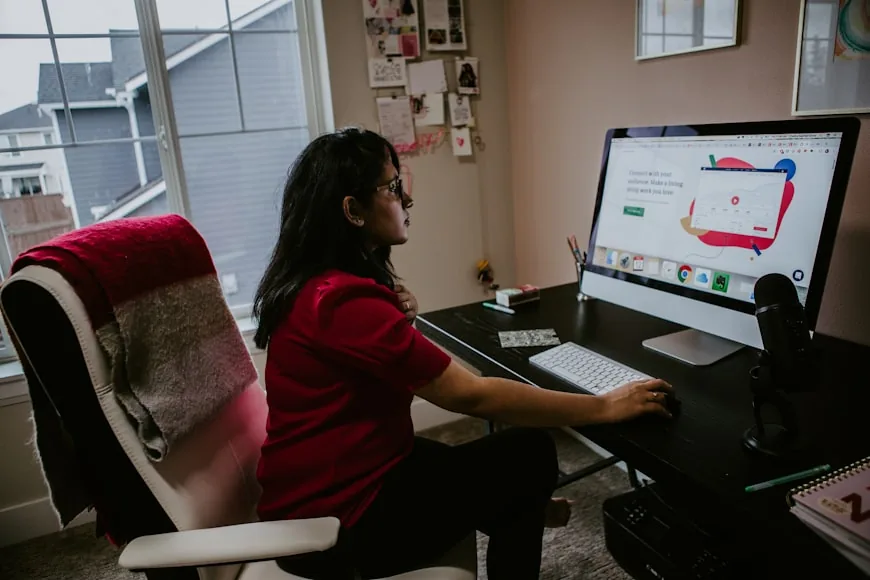
Mayo Clinic's office-ergonomics guidance is still a useful anchor here: the monitor should usually sit about an arm's length away, and the top of the screen should sit at or slightly below eye level.
That is why monitor comfort is not just about posture aesthetics. It changes how the whole workstation behaves around you.
If the screen still feels like the main problem, go next to How far should a monitor be from your eyes on a small desk? and How high should your monitor be for good posture?.
3. Keyboard and mouse position decide whether the setup stays relaxed
This is where a lot of setups quietly lose comfort.
The keyboard and mouse are used constantly, so even small positioning mistakes repeat all day:
reaching too far for the mouse; shoulders drifting outward; wrists bending upward; elbows floating away from the body.
OSHA's purchasing guide and related workstation guidance keep this simple: the surface should allow the monitor, keyboard, and input device to sit directly in front of the user, with enough room for the items used most often.
That is why a setup can have a good chair and decent monitor placement and still feel bad if the front-center zone is crowded, too high, or too narrow.
If that part sounds familiar, How to position your keyboard and mouse for shoulder comfort is the more specific fix.
4. Desk comfort is really about fit, not just size
People often think desk comfort means “bigger is better.”
That is too simple.
A desk becomes comfortable when it is deep enough for the monitor distance you need, wide enough for the workflow you actually use, and not so oversized that it makes the room heavier or harder to move through.
OSHA is explicit that the work surface should be deep enough for the monitor to sit at least 20 inches away and large enough for the monitor, keyboard, and input device. That is why all-day comfort often depends more on honest fit than on ambition.
A desk that is too shallow will make the whole setup feel compressed. A desk that is too large for the room can make the whole room feel stressful.
That is exactly where these pages connect: How deep should a desk be for one monitor vs two?, How wide should a desk be for one monitor and a laptop?, and 7 questions to ask before buying a desk for a small room.
5. Under-desk clearance matters more than people think
Comfort is not just what happens on top of the desk.
It is also what happens underneath it.
If the underside is crowded with drawers, trays, power hardware, or frame elements, the setup may never feel fully relaxed no matter how clean the desktop looks.
OSHA's purchasing guide spells this out clearly: the desk needs enough clearance for knees and feet while sitting in a variety of positions.
That matters because once legroom disappears:
the chair cannot sit where it should; your feet lose natural support; posture starts compensating upward through the hips, back, and shoulders.
That is why under-desk organization has to stay restrained on tighter setups. Hardware that looks tidy can still make the workstation feel worse.
6. Good lighting reduces strain without creating a new problem
Lighting is one of the easiest comfort categories to misunderstand.
People often think of it only as brightness.
But the real comfort question is whether the lighting supports the task you are doing, avoids glare and reflections, does not force the screen into a worse position, and does not steal a big chunk of usable space.
OSHA's desk-lighting guidance is straightforward: good lighting depends on the task, and the light source should be adjustable for location, angle, and intensity.
That means the “comfortable” choice is not always the prettiest lamp.
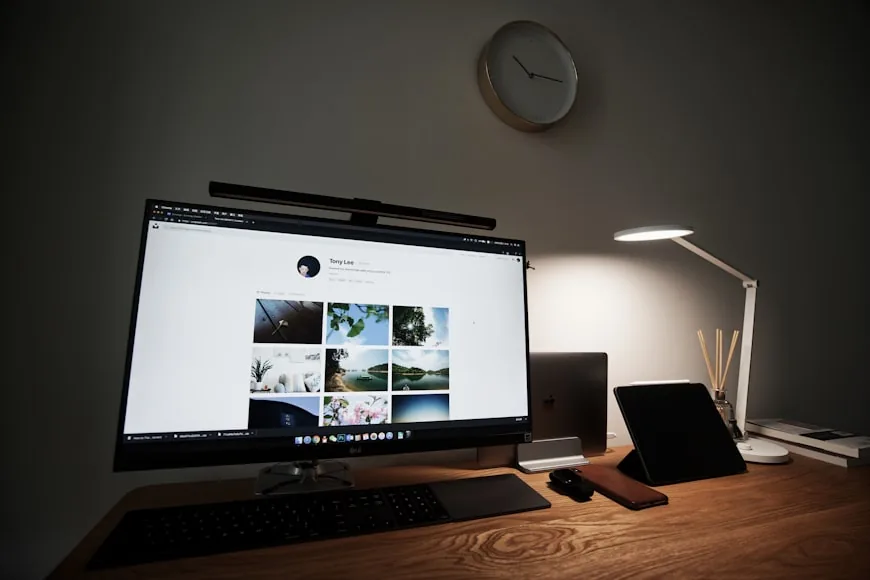
Sometimes the better answer is a monitor light bar, a slimmer task lamp, or lighting that sits higher or farther away from the main working zone.
If lighting still feels unresolved, Desk lamps for eye strain and late-night work and Do you need a monitor light bar if you already have a desk lamp? are the right companions.
7. A comfortable setup supports movement, not a frozen posture
One of the most common myths in home-office content is that comfort means holding the perfect position all day.
That is usually not how real comfort works.
A better setup lets you sit upright when you need focus, recline a little when reading or thinking, rest your shoulders instead of bracing them, and shift posture without the workstation falling apart.
This is why supported recline, chair adjustability, and a calm reach zone matter so much. The goal is not to pin the body into one shape. The goal is to let the body move without leaving support behind every time you change posture.
8. Calm matters too
Not every comfort problem is biomechanical.
Some setups feel tiring because they are visually or functionally chaotic: too many objects are competing for the same space, too many cables are left on the surface, too much gear is asking to be first-class all the time, and there is no obvious working zone.
That kind of clutter forces low-level friction all day.
You keep adjusting around it. You keep making micro-decisions around it. You keep protecting a shrinking amount of actual working space.
That is one reason Why your small desk setup still feels cramped and How to set up a small desk without losing usable space matter even if your question sounds like “comfort,” not “organization.”
If the setup still feels bad, change things in this order
This is the part most people need.
If your home office is uncomfortable right now, do not start by buying randomly across categories.
Start here instead: check chair height and basic chair fit, check monitor height and distance, center the keyboard and mouse in the correct reach zone, look underneath the desk for clearance problems, remove one or two nonessential objects from the main plane, and only then decide whether the desk, lighting, or accessory layer actually needs to change.
That order matters because it separates setup problems, fit problems, room problems, and real product limitations.
Very often the setup feels bad because one foundational condition is wrong, not because the whole workstation needs replacing.
Three comfort failure patterns worth recognizing
Most bad home-office days fall into one of these patterns:
1. The setup looks fine but feels physically tiring
That usually points to chair fit, monitor position, or keyboard-and-mouse reach.
2. The setup feels busy and draining even when posture is not terrible
That usually points to visual clutter, too many objects competing for the same zone, or lighting and cable friction.
3. The setup feels cramped no matter how much you reorganize it
That usually points to the wrong desk depth, the wrong desk width, poor under-desk clearance, or a room that cannot comfortably absorb the workstation footprint.
Recognizing which pattern you are in matters more than buying the next promising fix.
What comfort usually comes down to
If a workspace still does not feel good after a few hours, the problem is usually living in one of a few buckets: the chair fit is wrong, the monitor position is wrong, the input zone is wrong, the desk is wrong for the workflow, the underside is stealing support, the lighting is creating strain, or the setup is too static or too cluttered to stay relaxed.
That is the useful checklist.
You do not need every product category solved at once.
You need the workstation to stop asking your body and attention to keep compensating.
Bottom line
A home office becomes comfortable enough to use all day when the chair, desk, screen, input zone, lighting, and clearance all support the same goal:
working without constant small corrections.
That is why comfort is rarely one product decision.
It is usually the result of a setup where the chair fits, the monitor sits correctly, the keyboard and mouse stay in a natural zone, the desk matches the real workflow, the underside still leaves room for the body, the lighting supports the task, and the space stays calm enough that work does not feel like friction.
Once those are in place, long workdays usually feel very different.
Related reading
- What to fix first when your workspace feels uncomfortable
- Why your desk setup feels tiring even when it looks fine
- Why more desk accessories rarely fix the real problem
- How to choose an ergonomic office chair
- Ergonomic chair settings that actually improve comfort
- How high should your monitor be for good posture?
- How far should a monitor be from your eyes on a small desk?
- How to position your keyboard and mouse for shoulder comfort
- 7 questions to ask before buying a desk for a small room
- How to set up a small desk without losing usable space
- Why your small desk setup still feels cramped