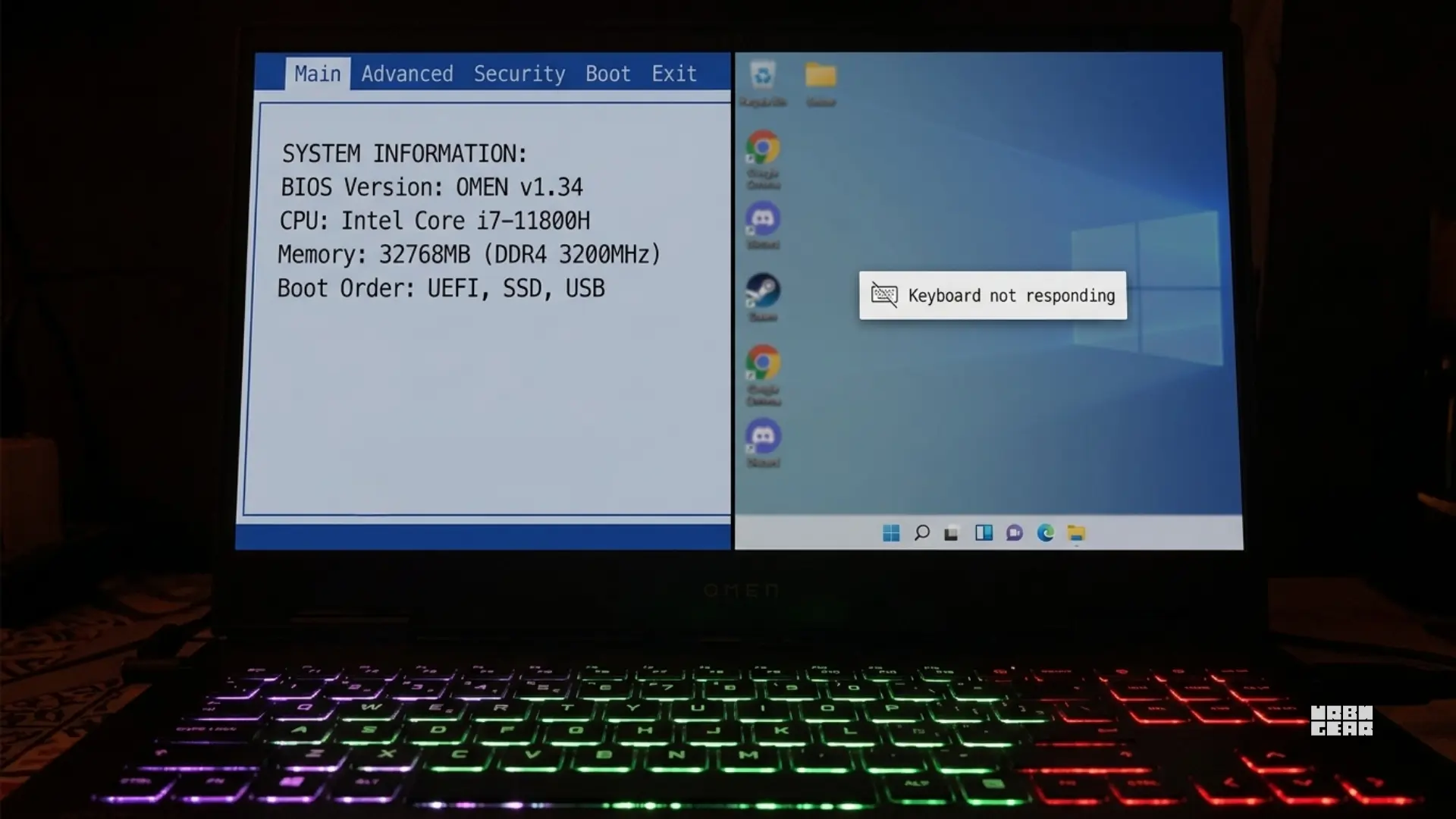

Try this first: Open Control Panel → Power Options → "Choose what the power buttons do" → Turn off Fast Startup. Then restart. This alone fixes the issue in most cases because Windows was carrying a bad device state through hibernation.
The strange part of this problem is that the keyboard is clearly alive.
You can move around BIOS just fine. You can open boot menus. Sometimes the keyboard even works in recovery tools. Then Windows loads and the built-in keyboard suddenly acts like it is not there.
That is why this pattern is worth treating differently from a normal dead-key story. If firmware can still see the keyboard, the first job is not to shop for a replacement. The first job is to work out why Windows is losing a keyboard that the laptop itself still knows exists.
That does not mean hardware is impossible. It means hardware is not where the evidence points first.
The clue that matters
BIOS is simple. Windows is not.
Inside BIOS or UEFI, the laptop only needs the keyboard to behave like a basic input device. That is enough for setup screens, boot selection, and recovery entry. Windows is a different layer entirely. By the time you reach the sign-in screen or desktop, the keyboard is moving through the normal device stack, power handling, and whatever vendor software the machine loads on top.
So when the keyboard works in BIOS but disappears in Windows, the useful reading is usually this:
Windows is losing the keyboard somewhere after firmware hands it off.
That is a much more useful place to start than “the keyboard died.”
The patterns that usually tell the story
This problem feels dramatic, but the pattern behind it is often pretty ordinary once you stop looking at it as one big mystery.
What you notice | What it usually means | Best next check |
|---|---|---|
The keyboard works after restart, but not after shutdown | Windows is probably carrying a bad device state through Fast Startup | Turn off Fast Startup before you touch anything else |
The keyboard works in Safe Mode | Something in the normal Windows session is getting in the way | Look for vendor hotkey tools, remappers, or other keyboard software |
An external keyboard works, but the built-in one does not | The problem is probably staying inside the laptop’s internal keyboard path | Compare the built-in device in Device Manager and reinstall chipset/input-side drivers |
Both the built-in and external keyboard fail in Windows, but BIOS still sees them | The issue is probably broader than the built-in keyboard itself | Stop treating it like a single keyboard failure and check Windows-side drivers, HID state, and firmware handoff settings |
The problem started right after an update or repair | Something changed in firmware, drivers, or the internal connection path | Work backward from the timeline before trying random fixes |
Swipe sideways to compare the full chart.
If restart helps but shutdown does not
This is one of the strongest clues in the whole category.
If the keyboard fails after a normal shutdown but comes back after restart, Windows Fast Startup deserves suspicion immediately. A lot of people waste time here because the keyboard looks random. It is usually not random. The machine is carrying a bad device state from one boot into the next.
That is why a restart can temporarily “fix” the keyboard while a cold boot keeps bringing the problem back.
If Safe Mode brings the keyboard back
That points away from pure hardware failure.
Safe Mode strips the system down. If the keyboard works there but not in a normal Windows session, something loaded during the full boot is probably getting in the way. That can be a vendor hotkey tool, remapping software, a gaming utility, or another filter sitting between the hardware and normal input.
This is one of the cleanest ways to stop blaming the keyboard itself too early.
If an external keyboard works and the built-in one does not
This narrows things fast.
If Windows accepts an external USB keyboard but ignores the built-in one, the issue is probably staying inside the internal keyboard path or the way Windows is handling that specific device. That still leaves room for firmware handoff issues, stale device entries, chipset-side trouble, or real internal hardware trouble. But it is a very different problem from “Windows cannot see any keyboard at all.”
If both the built-in and external keyboard fail in Windows while BIOS still sees them, then the problem gets much broader. At that point, it is harder to keep pretending the built-in keyboard is the only suspect.
If the problem started after an update or repair
This is where context matters more than guesswork.
If the issue started after a BIOS update, Windows update, motherboard service, or an internal repair, keep that timeline in front of you. It does not prove the exact cause, but it changes what deserves suspicion first. The laptop may be dealing with a bad handoff setting, a stale device state, a half-seated internal connection, or a driver path that no longer lines up cleanly with the hardware Windows thinks it is talking to.
That is why “it worked yesterday” is actually useful here. It tells you to pay attention to what changed, not just to the symptom itself.
The checks worth doing in order
This is the part where a lot of articles go bad. They throw ten fixes at the reader and hope one lands. The smarter move is to do the checks that split the problem cleanly.
Start in firmware, not Device Manager.Check the BIOS options that can interfere with handoff: Legacy USB support, USB keyboard support, Fast Boot, Ultra Fast Boot, and anything similar your laptop exposes. You are not trying to “tune” the machine. You are trying to remove the obvious settings that can leave Windows with a keyboard state it does not handle properly.
Then compare built-in behavior with external behavior.If you have an external keyboard, use it. If it works normally in Windows while the built-in one does not, that is one of the fastest clean splits you can get.
After that, compare restart with shutdown.If restart reliably helps and shutdown does not, disable Windows Fast Startup before you do anything more exotic. This is one of the few simple fixes in this whole category that repeatedly earns its place.
Only then rebuild the Windows side.In Device Manager, uninstall the built-in keyboard if it is present, and clear out obviously broken or unknown HID or USB entries tied to the same path. Then reinstall the laptop maker’s chipset and input-related drivers instead of assuming Windows' current generic state is trustworthy.
Use Safe Mode and recovery tools as evidence, not rituals.If the keyboard works there, that is not random good luck. It means the full Windows session is loading something that the keyboard path does not like.
That is also where What to do before replacing a laptop keyboard becomes the right follow-up. Replacement is only the lead story when the software and state clues stop pointing anywhere else.
Where people usually waste time
The biggest mistake is treating one lucky boot as proof that the problem is gone.
A keyboard that comes back after one restart is not automatically healthy. A keyboard that works once after sleep is not automatically fixed. A keyboard that failed after an update is not automatically ruined by the update alone.
Those moments matter because they change the diagnosis. They just do not settle it.
The other common mistake is jumping straight into random driver rituals without asking the simpler question first: does Windows lose every keyboard, or just this one?
That answer saves more time than most “advanced” fixes.
When hardware moves back to the front
If the keyboard keeps failing across every Windows state you can test, keeps misbehaving after the firmware settings are cleaned up, survives driver rebuilds, and an external keyboard stays perfectly normal, then the hardware case starts getting stronger again.
That is the point where loose internal connections, spill history, top-case wear, or a board-level problem deserve real attention.
The BIOS clue still mattered. It got you through the most likely layer first. It just did not guarantee Windows was the whole story forever.
And if the symptom is less “Windows sees nothing” and more “one section of the keyboard keeps dying,” Why some keyboard keys stop working even when the rest still work is the better diagnosis page for that narrower pattern.