
Try this first: If every key repeats, check Filter Keys (Windows Settings → Accessibility → Keyboard) and Slow Keys (macOS System Settings → Accessibility → Keyboard). If only one or two keys repeat, the switch is likely wearing out — test on another device to confirm.
When a keyboard starts producing aa, ss, tt, or double spaces, most people react the same way: they keep typing, hope it goes away, then get increasingly annoyed when it gets worse.
That pattern matters. Random-looking double typing usually is not random at all. It usually points to one of a small number of causes, and if the root issue is hardware, it usually gets worse rather than better.
The important question is not whether there is a fix. It is whether you are looking at a temporary software glitch, a connection problem, or a keyboard beginning to fail.
That is the difference between a five-minute correction and wasting an hour on settings that were never going to solve it.
Fast diagnosis
If every key repeats: Start with repeat settings and accessibility features before assuming the keyboard is failing.
If only one or two keys repeat: Suspect real hardware chatter, especially on high-use keys like E, S, Backspace, or Space.
If it only happens wirelessly: Test the keyboard wired or directly connected before blaming the switch itself.
If it follows the keyboard to another device: Treat it as a keyboard problem, not an app problem.
What this problem is usually called
In plain language, people call it double typing.
On mechanical keyboards, you will also see it called keyboard chatter or switch chatter. That means one key press is being read as two or more presses. Sometimes it looks like ee instead of e. Sometimes it shows up as a spacebar that inserts two spaces or a Backspace that deletes too much.
The key detail is this: either the system is repeating the input when it should not, or the keyboard is sending duplicate input in the first place.
Everything that follows is about separating those two possibilities quickly.
First, rule out software and connection issues
This part should be fast. The goal is not to try twenty tricks. The goal is to remove the easy false alarms.
Check whether it is every key or only a few keys
If every key seems too eager to repeat when held, look at the system repeat settings first. On Windows and macOS, repeat delay and repeat rate can make the whole keyboard feel too sensitive.
That is not true chatter. That is the system doing exactly what it was told.
If the problem is limited to one or two keys, especially keys you use heavily, this is already leaning toward hardware.
Check accessibility settings
Accessibility features can make a healthy keyboard feel broken.
On Windows, Filter Keys can change how repeated input is handled. On macOS, Slow Keys can make typing feel delayed or inconsistent. If those settings were switched on accidentally, the keyboard can start behaving strangely enough that people assume the hardware is failing.
This is worth checking once. It is not worth building your whole diagnosis around it.
Test outside your usual setup
This is the most useful check in the whole process.
Try the keyboard in a different place:
another app
the login screen
another computer
a direct wired connection instead of Bluetooth, a hub, or a KVM
If the issue follows the keyboard, the keyboard is the problem.
If the issue stays with one computer or one setup path, the system, receiver path, or software layer deserves more suspicion.
This matters especially for wireless boards. Bluetooth lag, receiver interference, and flaky hub paths can produce repeated or dropped input that feels like switch failure even when the key itself is fine. If the keyboard is part of a more complicated shared-desk setup, Do you need a KVM switch, a USB switch, or just better monitor inputs? is the better next check.
When it is real keyboard chatter
If one or two keys are the main offenders, the issue gets worse over time, and it happens across apps or machines, you are usually dealing with real chatter.
On a mechanical board, that often means the switch is no longer registering cleanly. The contact does not settle once. It bounces. The keyboard firmware sees more than one transition and sends more than one press.
The simplest way to picture it is a light switch that flickers for a moment before staying on. The press happened once. The signal did not settle once.
That is why chatter often shows up first on familiar high-use keys: E, A, S, T, Backspace, or the spacebar. Those keys simply get more mileage than the rest.
Why it happens
There are a few causes that show up again and again.
Switch wear
This is the big one on mechanical boards.
The switch has been used enough that the contact is no longer behaving cleanly. If the same key keeps duplicating and the problem is slowly getting worse, this is the most likely cause.
Dust or debris
Mechanical switches do not need much debris to start feeling inconsistent. Fine dust, crumbs, or residue can change how the switch moves or how the contact behaves. Cleaning can help here, but only if debris is the real cause.
Moisture and residue
Humidity, light spills, or old residue can make contact issues unstable in a way that feels random. If the board has ever had liquid near it, that history matters.
Firmware or debounce behavior
On enthusiast boards, firmware settings can contribute. If debounce is too aggressive, some boards become more vulnerable to bounce or noise. This is more common on custom and QMK-style setups than on ordinary office keyboards, but it is real.
PCB or controller problems
This is less common, but more serious. If multiple unrelated keys start acting up, or the symptoms change depending on pressure, case flex, or session length, the problem may not be the switch alone.
What to do next
The fix depends on what kind of keyboard you have and how far the problem has already gone.
1.Rule out temporary glitches
These are worth trying because they are fast:
restart the computer
reconnect the keyboard
try another USB port
if the keyboard is wireless, test it wired
if the keyboard is going through a hub, dock, or KVM, connect it directly
These steps do not fix real chatter. They simply clear out the transport and software layer before you start blaming hardware.
2.Clean only if there is a reason to
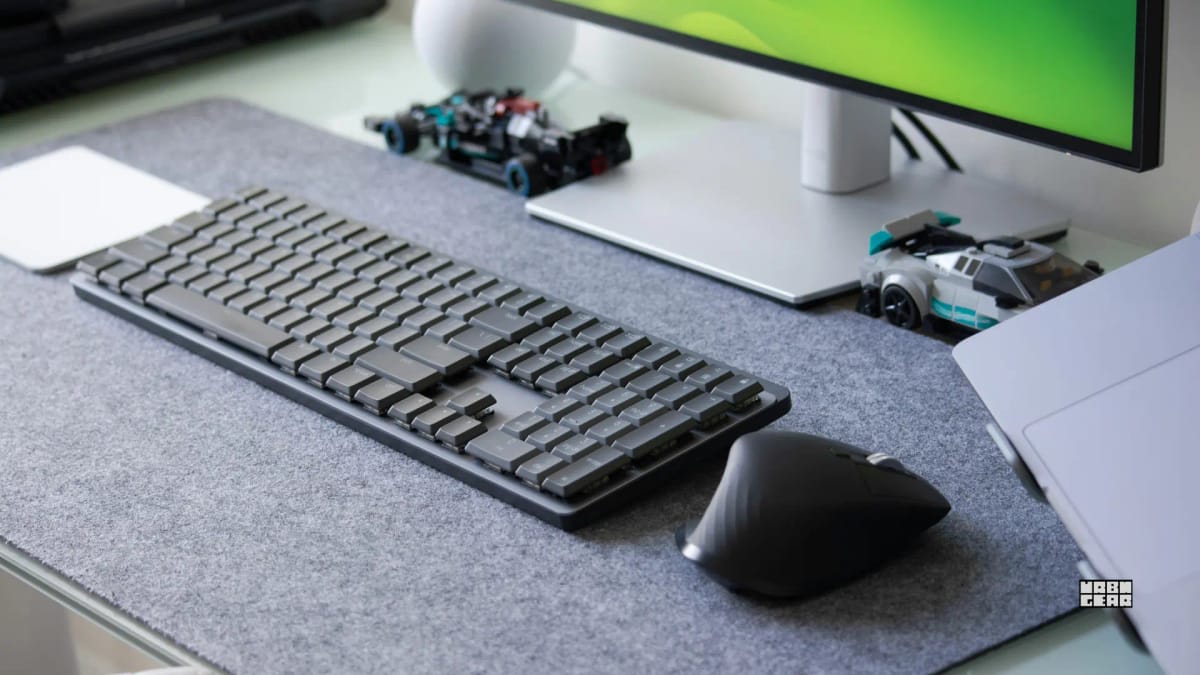
If the keyboard is dusty, has visible debris, or started misbehaving after life happened on the desk, basic cleaning is reasonable.
For desktop boards, remove the keycap if the design allows it, blow out dust with compressed air, and clean around the switch carefully. Do not flood the switch with random liquid and call it maintenance.
Cleaning helps when contamination is the cause. It does not restore a worn switch.
3.Use software workarounds only as a stopgap
There are tools that can ignore very fast repeated input and effectively mask chatter.
That can be useful if you need the keyboard to survive another week or another month. It is not a real repair. If the switch is failing, no filter is reversing that wear. You are just buying time.
4.Replace the switch if the board allows it
On a hot-swappable mechanical keyboard, one bad key is often a straightforward repair. Swap the suspect switch with another one or replace it outright. If the problem moves with the switch, you have your answer.
On a soldered board, this gets less friendly fast. Unless you already do board work, one failing key usually does not justify turning a normal work keyboard into a repair project.
5.Replace the keyboard when the pattern is clear
If the same key keeps failing, the problem spreads, or the keyboard does it on multiple systems, be honest about where this is going.
If it is switch wear, no setting will fix it. You are just delaying replacement.
Laptop keyboards are a separate case
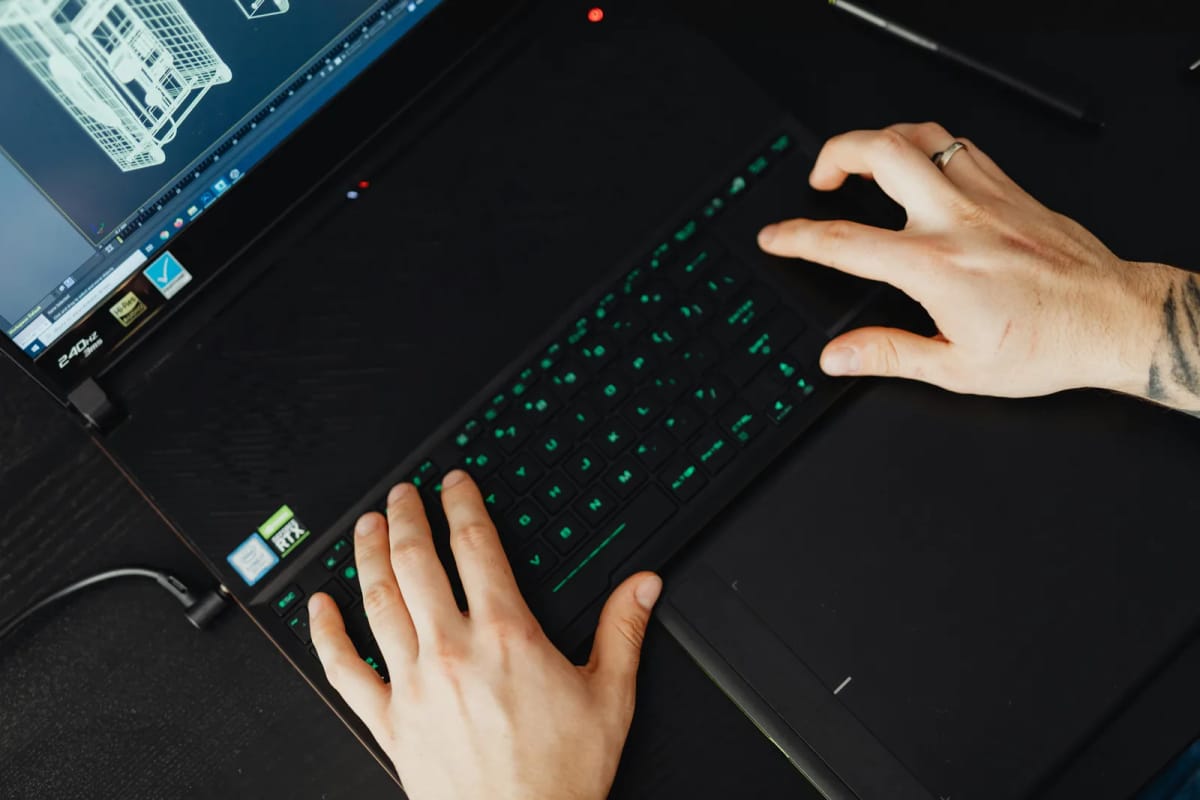
Built-in laptop keyboards usually do not fail like hot-swappable mechanical boards.
When a laptop keyboard starts double typing, dropping input, or forcing hard presses on one area, the likely causes shift toward contamination, membrane wear, ribbon issues, or larger top-case problems. You can still do the fast checks: reboot, test an external keyboard, check accessibility settings, and see whether the issue appears outside the operating system.
But once those easy tests are done, laptop keyboards are usually less repairable in any realistic day-to-day sense.
The practical move is often simple:
use an external keyboard immediately if you need reliable input
stop treating it as a software mystery if the same built-in keys keep failing
move toward repair or replacement once the pattern is stable
If that pushes you toward an external board, Low-profile vs standard keyboard for work: which one actually feels easier to use all day? is the cleanest next decision page.
How to prevent it from getting worse
There is no magic prevention plan, but a few habits do help:
keep food and loose debris away from the keyboard
do not keep typing through spills and hope for the best
avoid forcing keycaps off awkwardly just to “deep clean” for no reason
if a wireless board acts strangely, rule out receiver placement and hub interference early
if you buy mechanical, favor boards and switches with a track record of consistency over hype
The goal is not to baby the keyboard. It is to avoid turning a small input problem into a bigger one.
And if the keyboard itself is fine but the whole input area still feels awkward, How to position your keyboard and mouse for shoulder comfort is the right follow-up.
Quick diagnosis summary
If you only want the short version, use this:
If all keys feel too eager to repeat, check repeat settings first.
If accessibility features were changed recently, undo those before assuming hardware failure.
If only one or two keys are affected, especially common letters or the spacebar, suspect hardware.
If the problem follows the keyboard to another device, suspect the keyboard.
If it only happens over Bluetooth, through a hub, or through a KVM, suspect the path before the switch.
If a laptop keyboard keeps doing it after basic checks, start thinking repair, not endless tweaking.
Double typing is usually not mysterious for long. It is either a settings issue, a connection issue, or the keyboard starting to fail. Once you know which one, the next move gets much simpler.
Related reading
How to position your keyboard and mouse for shoulder comfort
Do you need a KVM switch, a USB switch, or just better monitor inputs?
How to share one keyboard, mouse, webcam, and mic between two computers without friction
Low-profile vs standard keyboard for work: which one actually feels easier to use all day?