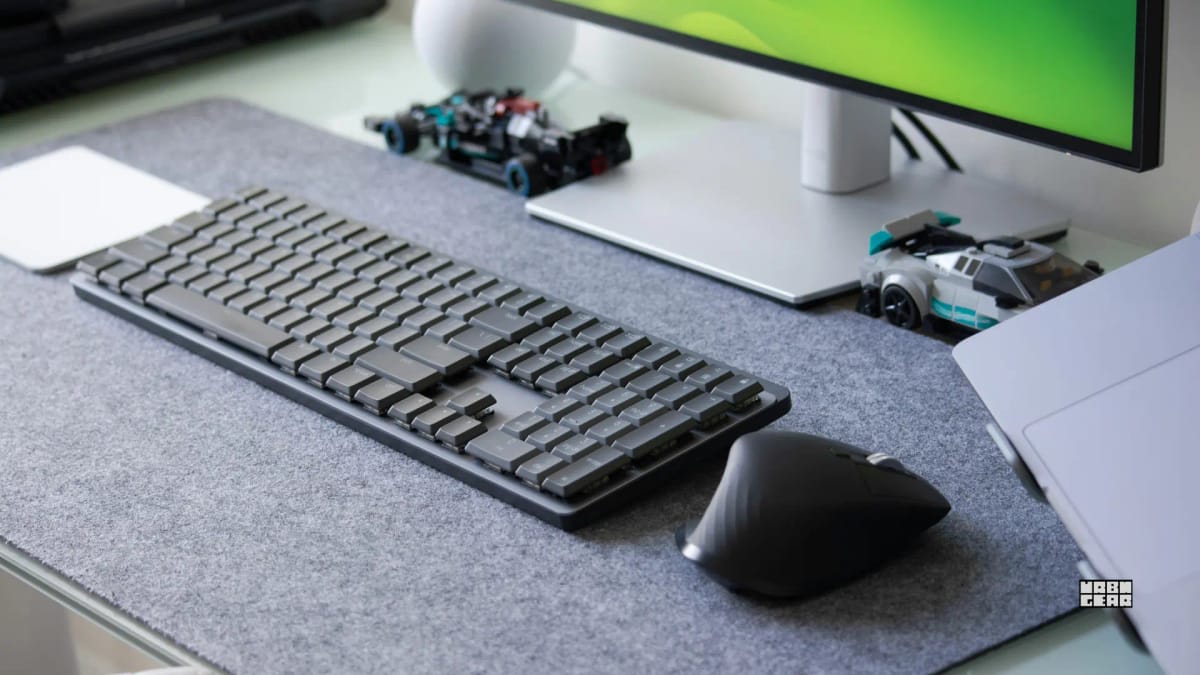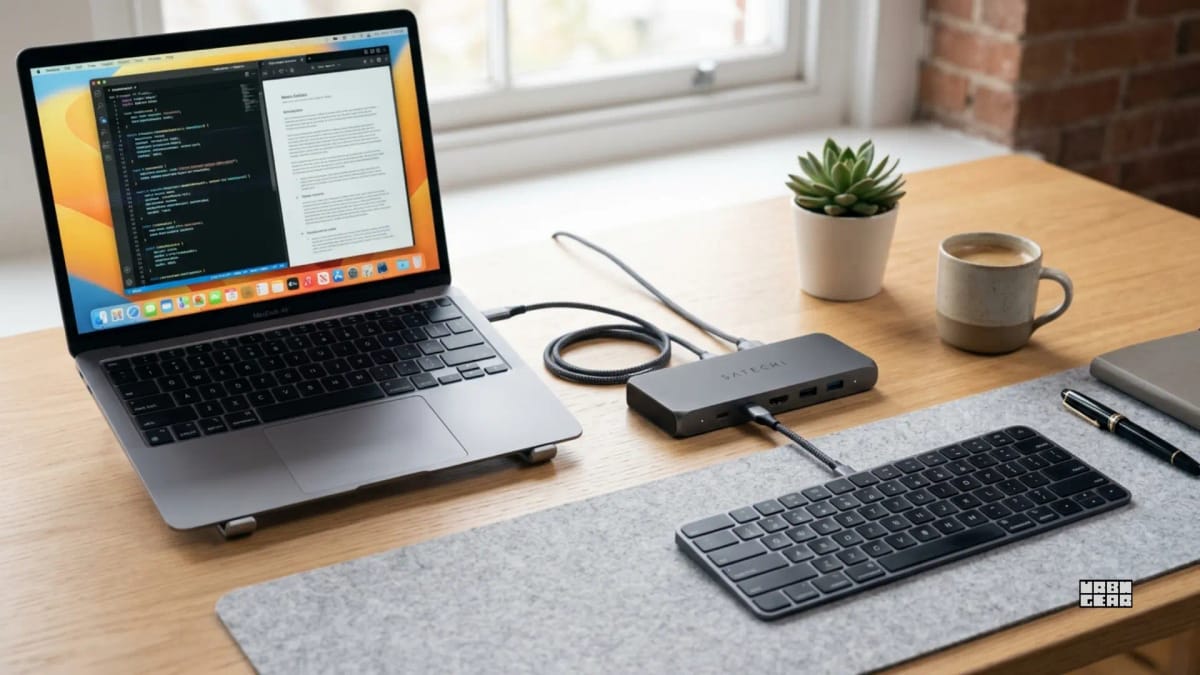

"The keyboard feels perfectly normal when it is plugged straight into the laptop. Then it goes through the dock, hub, or KVM, and suddenly the whole thing feels slightly unreliable."
On the desk, that usually shows up the same way every time. A few letters arrive late. A short burst of typing turns into a stumble. Sometimes the keyboard freezes for just long enough to make you blame the battery, the wireless signal, or the board itself.
Unplug it from the dock and the problem disappears.
Nothing changed except the connection.
That is the whole story.
System-Level Input Engineering
A keyboard's responsiveness is determined by two engineering factors: Polling Rate and USB Bandwidth Allocation.
Polling Rate: Most mechanical keyboards poll at 1000Hz (1ms delay). However, a KVM switch often drops this to 125Hz (8ms delay) or lower to prioritize video signal stability.
Bandwidth Allocation: A USB 3.0 dock allocates bandwidth across all connected devices. If a high-speed external SSD is actively writing data, the "latency budget" for the keyboard's low-priority interrupt signal can be squeezed, causing the "micro-stutters" you feel during a typing burst.
What is actually happening
When the keyboard is plugged in directly, the path is simple. Key press, system, done.
Once you run that same keyboard through a dock, hub, or KVM, the desk gets another layer in the middle. Sometimes that extra layer is invisible. Sometimes it becomes the weak link.
That is why the keyboard can feel rock solid in one setup and slightly unreliable in another without changing anything about the keyboard itself. The board may be fine. The route may not be.
The useful way to think about it is this:
You are adding a middleman between the keyboard and the system, and that middleman is not always fast or stable.
The real causes are usually ordinary
People tend to turn this into a vague “USB problem,” but the real causes usually look a lot more normal once you see them on an actual desk.
KVMs add delay because switching is their job
A KVM is not just passing input through. It is deciding which machine gets it.
That extra decision is why keyboards can feel slightly late through a KVM even when everything is technically working. Right after switching, that delay can be especially obvious. The board feels like it paused for a second before it remembered where it was supposed to send the key press.
That is not random. It is part of what the KVM is doing.
Cheap hubs make too many things share one route
This is where a lot of desk setups quietly create their own problem.
The keyboard is rarely the only thing on that hub. There is usually a mouse there too, maybe a webcam, an external drive, a headset receiver, or whatever else accumulated on the desk over time.
Once all of that shares the same route, the keyboard stops being the only thing asking for a clean connection. If the path gets crowded, input can start feeling late behind everything else.
That is the real version of the issue. Not abstract bandwidth theory. Just too many devices trying to use the same door at the same time.
Some docks are fine for displays and charging, but bad for input feel
This shows up all the time in real setups.
The dock charges the laptop, runs the monitor, keeps the desk tidy, and looks like a clean one-cable answer. Then the keyboard starts freezing for half a second and the whole setup suddenly feels cheap.
That does not always mean the dock is defective. Sometimes it just means the dock was chosen for convenience, display output, or charging first, and responsive input never got much attention.
That is still a tradeoff, even if the product page never says it out loud.
Wireless receivers often get worse inside hubs
This is one of the most common mistakes because it looks like good cable management.
People tuck the receiver neatly into the dock or hub and assume the setup is now more organized and therefore more reliable. Then the keyboard starts lagging.
A wireless receiver inside a hub is often farther from the system, closer to interference, and sitting in a path that is already doing too much. That can create dropped input, brief freezes, or a board that feels vaguely unreliable even though the keyboard itself is perfectly fine.
If the keyboard is wireless and the receiver is in the dock, that should be one of the first things you question.
Power can make the whole thing feel unstable
Some hubs and docks are simply less steady than they look.
If power delivery is uneven, the keyboard can start behaving unevenly too. That often shows up as hesitation, short freezes, or a board that feels off without ever fully disconnecting.
If power is not stable, input is not stable.
How to tell whether it is the dock or the keyboard
This is the point where the guessing should stop.
It is probably the dock, hub, or KVM if:
the keyboard works perfectly when plugged in directly
the lag only appears through the dock or KVM
the mouse also feels a little strange
the problem gets worse when other devices are active
moving the wireless receiver changes the behavior
It is probably not the dock if:
the same lag appears on a direct connection
the keyboard misbehaves everywhere
the board also has dead keys, repeats, or other hardware symptoms across multiple setups
The cleanest rule here is still the best one:
If it only lags through the dock, the dock is the problem.
What actually fixes it
Most of the fake fixes in this category come from treating the keyboard like the problem. The useful fixes all start with the path.
Plug the keyboard directly first
This is the baseline test, and it usually tells the truth faster than anything else.
If the lag disappears on a direct connection, stop blaming the keyboard. You already learned the part that matters most.
Move the wireless receiver out of the hub
If the keyboard uses a receiver, plug it directly into the laptop or desktop. If that is awkward, use a short USB extension and give the receiver a cleaner position.
Distance and interference matter more than people think.
This also connects directly to Why your wireless keyboard misses the first key after sleep, because a weak receiver path can make normal wireless behavior feel much worse than it really is.
Reduce the load on the hub
Move heavy devices off the same route if you can.
External drives, webcams, and other busy devices are far more likely to make the path messy than the keyboard itself. If the keyboard becomes more responsive after that change, the switches were never the problem. The traffic was.
Use a better path, not just a tidier path
This is where desk setups get honest.
Some hubs are built for convenience. Some docks are built for displays and charging. Some KVMs are built for switching first and everything else second. None of that guarantees good keyboard feel.
If the lag matters enough, using a better dock or a simpler route is sometimes the real fix.
That does not always mean buying something expensive. Sometimes it just means admitting that the cleanest-looking path was not the best path for the keyboard.
Accept KVM tradeoffs when they are small
This part matters because it keeps the article honest.
Small delays are normal with KVM setups, especially right after a switch. If that is the only time the lag appears, you may just be seeing the cost of convenience.
These setups are built for convenience, not perfect input timing.
USB switch, dock, and KVM do not behave the same way
This part is worth keeping simple.
A USB switch is usually the cleanest of the three because it only has one real job: move USB devices between systems.
A dock is less predictable because it is trying to do several jobs at once.
A KVM is the most complex because it is actively switching control between systems while often handling both input and display.
That is why the failure pattern changes as the setup gets more ambitious.
If the desk only needs shared keyboard and mouse, Do you need a KVM switch, a USB switch, or just better monitor inputs? is still the better decision page. This article starts after that decision, when the hardware is already in the chain and the keyboard still feels wrong.
Quick diagnosis summary
Works direct: the dock, hub, or KVM is the issue.
Receiver plugged into the hub: very likely a path problem.
Multiple busy devices on the same route: input may get delayed.
Small lag right after switching on a KVM: often normal.
Same problem everywhere: stop blaming the dock first.
The useful takeaway
When a keyboard only starts lagging or freezing through a dock, hub, or KVM, the problem usually is not the keyboard. It is the connection path.
That is why direct testing matters so much. The keyboard may be fine. The desk route may just be doing more than it handles well.
These setups are built for convenience, not perfect input timing. Once you add layers between your keyboard and your system, a small delay is often part of the deal.