
I went looking for a KVM switch much earlier than I should have.
The setup felt messy, switching between machines felt annoying, and "buy a KVM" sounded like the grown-up answer. One desk, one keyboard, one mouse, one monitor, two computers. Problem solved.
Except that is not always the problem you actually have.
Sometimes the real pain is video switching. Sometimes it is keyboard and mouse switching. Sometimes it is both. If you do not separate those three cases, you can end up buying a bigger box than you needed, then building your whole desk around it.
That is the mistake I would avoid now.
The first question is not what to buy. It is what annoys you most
If your monitor already has multiple inputs and switching between them is easy, then video may not be your real issue. If your keyboard, mouse, webcam, and mic are the annoying part, a USB switch may be enough.
If the keyboard and mouse already move between machines cleanly but you keep digging through monitor menus, then your real problem may be poor input switching on the monitor, not missing desk hardware.
And if you want one button to move the display, keyboard, mouse, audio, and a few USB devices together, that is when a true KVM starts making sense.
People often use "KVM" as shorthand for any desk-switching problem. But a KVM solves a specific version of that problem: keyboard, video, and mouse switching as one system. If your pain only lives in one layer, the full KVM can be overkill.
Better monitor inputs solve more than people think
This is the part people skip because it feels too boring to be the answer.
If your monitor has two or more usable inputs, and it lets you switch between them without turning it into a daily ritual, you may already have half the solution sitting in front of you. Some monitors also let you assign shortcuts or include built-in KVM features, which changes the answer even more.
That matters because many one-monitor desks do not need a separate box for video at all. They need a cleaner way to move from work laptop to personal PC without crawling behind the display or stabbing through six OSD clicks.
If your current monitor input switching is fast, stable, and easy enough to live with, I would not buy a KVM just to duplicate a job the monitor already does. That is especially true on a smaller desk, where every extra box becomes one more thing that needs space, power, and cable discipline.
A USB switch is the sweet spot for a lot of desks
If your main frustration is sharing the keyboard, mouse, webcam, headset, or mic between two computers, a simple USB switch is often the cleaner answer.
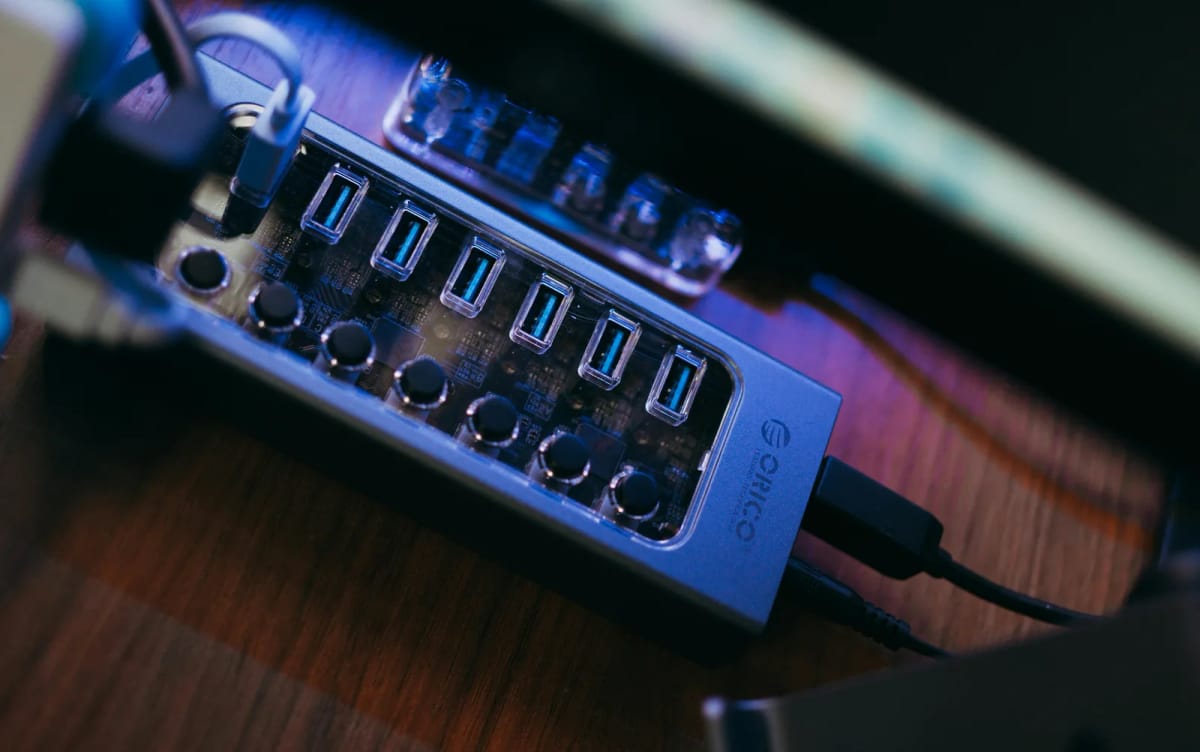
A USB switch does one job: it moves your USB devices from one machine to the other. It does not pretend to manage video too. For a lot of one-monitor desks, that is enough.
You leave both machines connected to the monitor on separate inputs. You press the monitor input button when you want to change screens. You press the USB switch button when you want the keyboard, mouse, and maybe a couple of other devices to follow. That is two actions, yes, but in real life it can still be the least annoying and least expensive setup.
If your desk is handling one monitor, two computers, and a few shared peripherals, this is the first route I would test.
A real KVM earns its keep when the switching needs to feel unified
I would only step up to a real KVM when I want the whole desk to change over together.
That usually means one of three things. First, you want one button to move both video and USB devices at the same time. Second, you are running two monitors and want both displays to switch cleanly between machines. Third, you switch constantly enough that the extra hardware is worth it.
The better ones also solve annoyances that matter more than people expect. Some handle EDID so your windows do not reshuffle every time you switch. Some offer better hotkey support. Some are built for higher refresh rates or more demanding monitor setups.
The tradeoff is real, though. A KVM adds another powered device, more cables, more compatibility variables, and usually more desk planning.
The locked-down work laptop changes the answer
This is where a lot of desk advice falls apart in real life.
On paper, software-based switching sounds great. In practice, many people cannot install anything on their work laptop. Once that happens, the setup usually needs to rely on hardware you control: monitor inputs, USB switches, or a real KVM.
If the work machine is locked down, I would lean harder toward hardware that works without software helpers or custom scripts.
What I would choose now
If I had one monitor, two computers, and the real pain was just sharing keyboard and mouse, I would start with the monitor inputs I already have and add a USB switch only if needed.
If I had one monitor and hated doing two separate actions every time I switched, I would start looking at a single-monitor KVM.
If I had two monitors and wanted them both to move with the keyboard and mouse, I would skip the half-measures and go straight to a proper dual-monitor KVM. That is exactly the kind of setup where trying to save money first often creates more friction later.
And if my monitor already had built-in KVM support, I would test that before buying anything else. Sometimes the cleanest answer is the feature you forgot the monitor already has.
Do not buy based on the name of the category. Buy based on which layer of switching is actually making your desk annoying to use. If the pain is video, fix video. If the pain is peripherals, fix peripherals. If the pain is both and you want one clean handoff, then the KVM has finally earned its keep.
Hotkey-capable keyboards change the calculus
Some keyboards support Bluetooth multi-device pairing or wireless dongles that allow switching between two computers with a single keypress. Logitech's MX Keys and several other productivity keyboards work this way.
If your keyboard already supports multi-device switching, and the monitor handles video, you may already have most of a two-computer solution without any additional hardware at all. The mouse would need the same capability — which Logitech's MX Master series and similar mice do support.
This is not a universal answer. Bluetooth switching has latency on reconnect, does not always work cleanly on locked-down corporate machines, and requires both devices to be awake and visible. But for a home desk where both machines are always on, it can eliminate the KVM and USB switch entirely.
The cable count problem
KVMs solve a switching problem but can introduce a cable complexity problem in exchange.
A full KVM with dual-monitor support, USB hub ports, and audio switching can require six to ten cables just to set up: two video runs per display, upstream connections to each computer, audio, power. On a clean desk that was working well before, that cable overhead can feel like a poor trade.
Before buying a KVM, trace the cable path on paper. If the required cables can be routed cleanly — behind a monitor arm, under the desk, through a tray — the KVM becomes easier to live with. If the routing means a visible bundle across the desk surface, the simpler approach (USB switch plus monitor inputs) may produce a calmer daily result even if switching takes two presses instead of one.
Our switching picks
If you have decided which layer of switching you need, these are the options worth considering.
Multi-device keyboard that switches between three computers with a keypress. Pair with an MX Master mouse and you may not need any switching hardware at all.
- Connects to 3 devices via Bluetooth
- Easy-Switch button for instant pairing
- USB-C rechargeable
Simple 2-port USB switch for sharing a keyboard, mouse, and webcam between two computers. No software required.
- 2 computers, 4 USB devices
- One-button switching
- Plug and play, no drivers
Two-computer HDMI KVM with EDID emulation, keyboard hotkey switching, and USB hub ports for peripherals.
- HDMI 2.0 + USB 3.0 switching
- EDID emulation prevents window reshuffling
- Hotkey or button switching