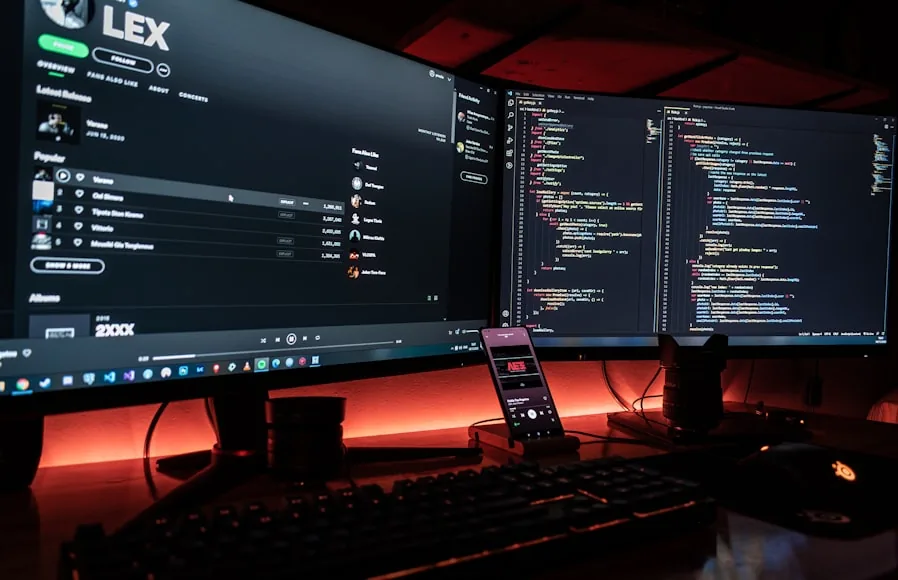

I used to think sharing one desk between two computers was mostly a screen problem.
It looked like a screen problem because that is the part you notice first. Which input is the monitor on? Why is the wrong machine still on screen? Why does switching feel slower than it should?
But once I started trying to share the whole desk properly, I realized the screen was only half of it.
The keyboard and mouse were usually easy enough to move. The webcam and mic were where the setup started getting annoying. That was the point where a desk stopped being a clean two-computer setup and started turning into a small pile of compromises.
That is the useful way to approach this.
Do not start by asking what gadget category you need. Start by asking which devices actually need to follow you when you switch computers.
The keyboard and mouse are usually the easy part
If all you want to share is a keyboard and mouse, the answer is often much simpler than people expect.
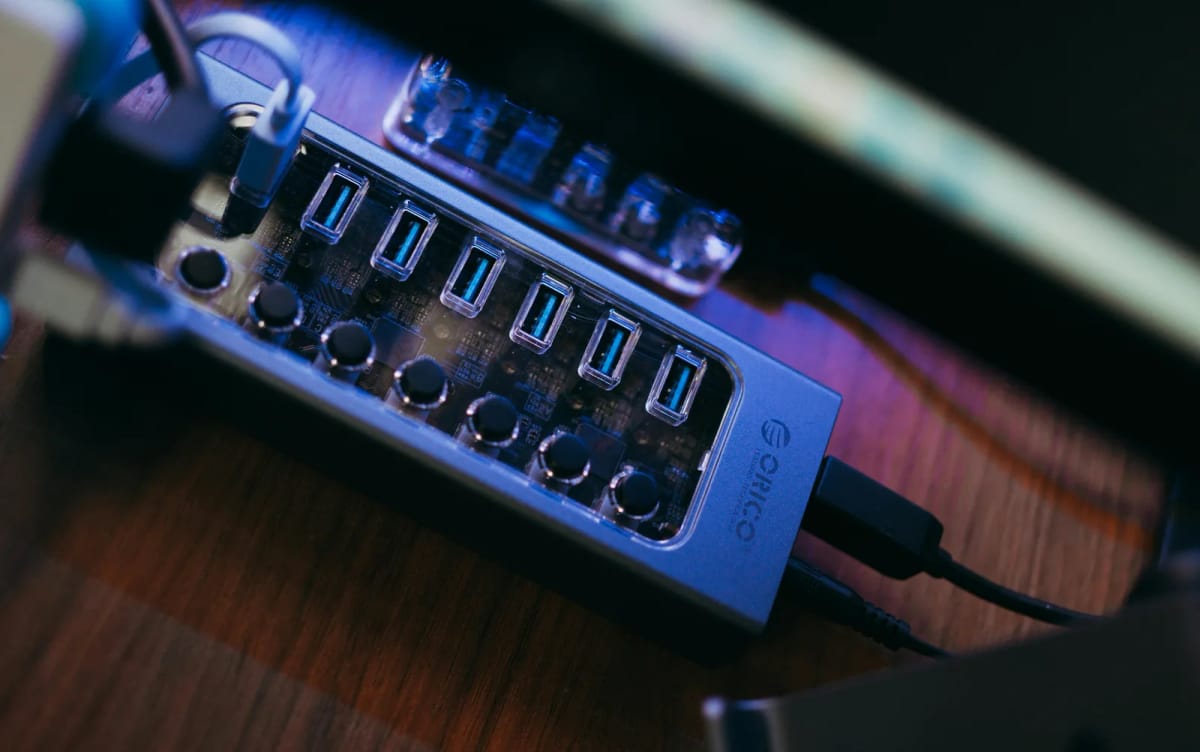
A plain USB switch can already solve that cleanly on a lot of desks. The official UGREEN specs for its 2-computer USB switch are refreshingly blunt about the point of the product: it lets two computers share keyboards, mice, headphones, printers, and USB cameras, but it is not a KVM and it does not carry monitor video. That is useful because it keeps the job narrow instead of pretending to solve everything at once.
That narrowness is often a good thing.
If your monitor already has two decent inputs, or if you do not mind switching the video separately, a USB switch handles the most touched part of the setup without adding a lot of extra desk drama. One button changes the keyboard and mouse. The monitor input handles the screen. For a lot of one-monitor desks, that is already good enough.
It also keeps the layout lighter than a full KVM. Less hardware. Fewer cables. Less chance of building the whole desk around one more box.
This is basically the simpler sibling to Do you need a KVM switch, a USB switch, or just better monitor inputs?.
The webcam and mic are where it stops being simple
This is where most “just share the peripherals” advice starts getting fuzzy.
A keyboard and mouse do not ask much from the connection. A webcam does. A mic can, too, especially once you add calls, monitoring, mute buttons, or one more audio device into the chain. That is why people build a setup that looks solved on paper, then still end up unplugging one thing by hand before every meeting.
Dell’s own KVM guide for monitors makes this limitation very clear in a way many desk articles do not: on its built-in monitor KVM flow, the downstream monitor ports do not support sharing a webcam. That is a useful reminder that “shared USB” is not always the same as “shared everything.”
That is also why I would separate desk devices into three groups:
things that must follow every switch: keyboard, mouse
things that might follow: headset receiver, speaker DAC, USB mic
things that often break the clean fantasy: webcam, mixed audio setups, anything power-hungry or temperamental
Once you think about the desk that way, the right setup gets much easier to see.
A multi-device keyboard and mouse are not the same as a shared setup
This is another trap that sounds smarter than it feels in real use.
Multi-device keyboards and mice are great for light switching, but they do not solve the whole desk. Logitech says this plainly in its Easy-Switch support docs: one Easy-Switch button cannot move both keyboard and mouse together at the same time. It can work if you are patient, and Logitech Flow can smooth some of that out, but Flow depends on software. That is exactly where locked-down work laptops start ruining the clever version of the plan.
So I would treat multi-device input gear as convenience, not infrastructure.
It is good when the keyboard and mouse are the only things you care about. It is not the answer when you also need the webcam, mic, and screen flow to feel clean.
What I would actually do on a real desk
If I wanted one keyboard, mouse, webcam, and mic to serve two computers without turning every switch into a ritual, I would keep the setup boring.
First, I would decide whether the webcam and mic truly need to be shared. If calls only happen on the work machine, I would stop trying to make those devices follow both computers. That one decision often removes half the friction immediately.
Second, if the webcam and mic really do need to move, I would use a proper USB switch that can handle more than just keyboard and mouse, and I would give it external power if the device mix starts getting heavier. UGREEN’s own docs recommend external power when multiple devices are connected at the same time, which matches real desk behavior. The more devices you pile onto the switch, the less clever it is to pretend power never matters.
Third, I would only step up to a full KVM if the video also needs to move with everything else in one clean action. If not, I would let the monitor handle video and let the USB switch handle the desk devices. That split is often the calmest version of the setup.
And finally, I would be honest about the work laptop. If the company machine blocks software, background tools, or fancy cross-computer switching apps, I would stop fantasizing about a seamless software setup and build around hardware I actually control.
That is usually the difference between a desk that sounds elegant and a desk that actually works on a Tuesday morning.
The cleanest rule
The cleanest two-computer setup is not the one that shares everything. It is the one that only shares what needs to move.
If the keyboard and mouse are the only daily switch, keep it simple. If webcam and mic truly need to follow, build for that on purpose. If the screen, USB devices, and calls all need to move together, stop fighting it and use a real KVM.
The friction usually starts when people try to make every device behave like the keyboard.
It almost never does.