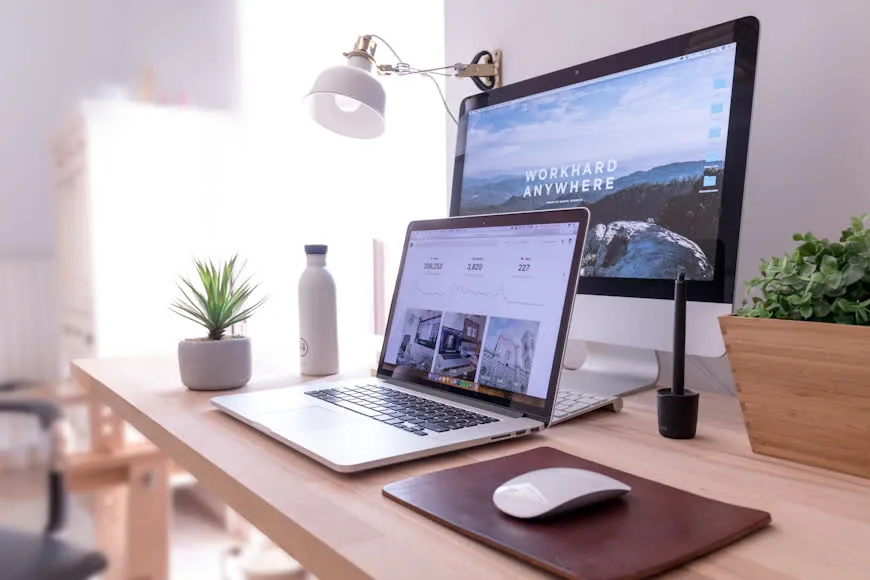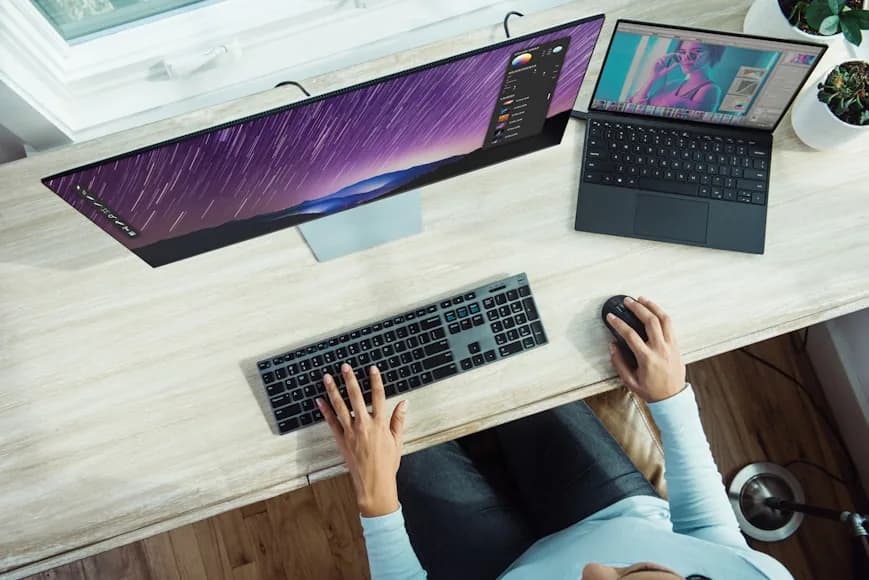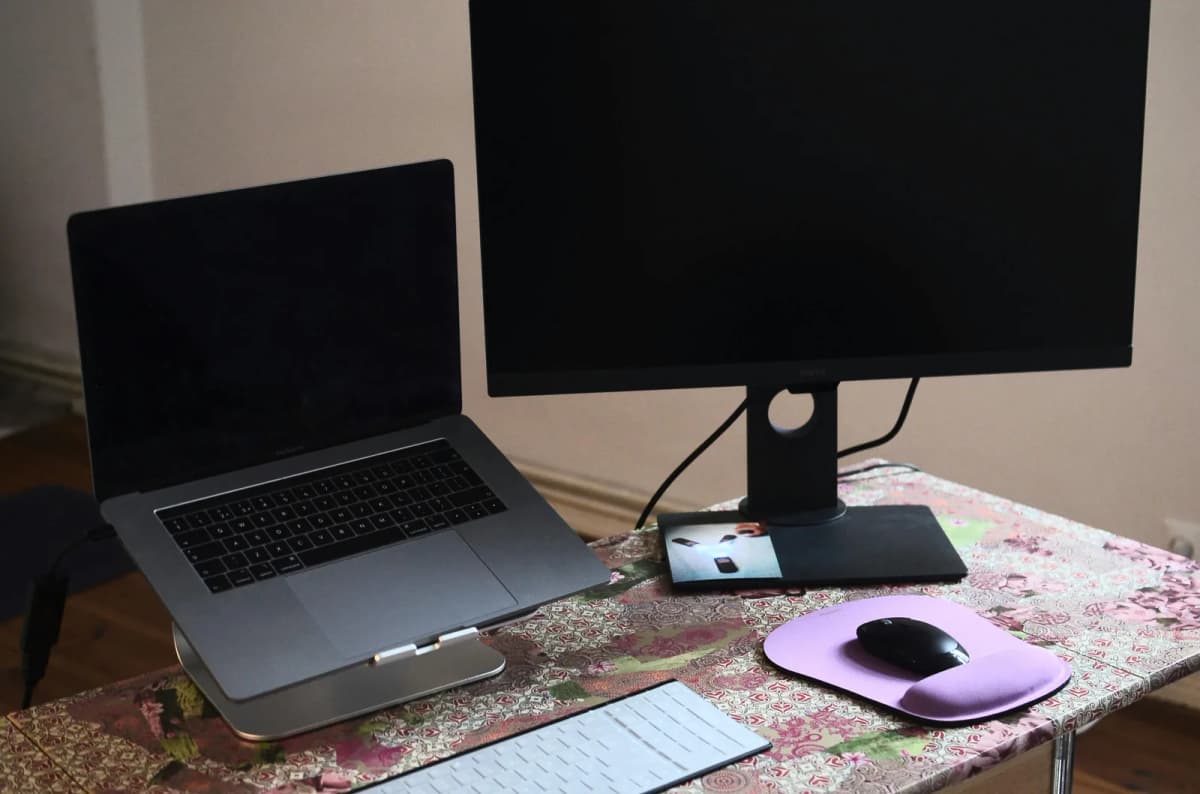

A monitor-and-laptop setup can look perfectly normal and still ask your body to work in a crooked position all day.
That is what makes this setup tricky. The problem is not usually that you have two screens. The problem is that a two-screen layout on a smaller desk often turns one of those screens into a posture trap. Your head keeps rotating, your shoulders drift off-center, or your torso starts following whichever screen quietly stole the middle of the desk.
That is why this is less a "dual-screen" problem and more a body-position problem.
The official workstation guidance is actually clearer on this than most setup advice online. OSHA says the monitor should be directly in front of you so you do not have to twist your head or neck, and its workstation materials say the primary monitor belongs directly in front when multiple monitors are used. CCOHS makes the same point for multi-monitor setups: if one screen is used more often, that screen should be treated like a single monitor and placed directly in front, while the secondary screen sits beside it at an angle. A laptop-and-monitor setup goes wrong when it breaks that logic while still looking visually tidy.
The fast diagnosis
If you keep turning toward the laptop, the laptop is doing too much work for a secondary screen.
If you keep turning toward the monitor, the monitor is probably too far off-center.
If your torso rotates instead of just your eyes, the desk is usually too narrow, the screens are competing for the middle, or the keyboard-and-mouse zone is no longer centered with your body.
OSHA goes one step further here: its monitor guidance says screens should not be farther than 35 degrees to the left or right. Once a laptop or monitor lives beyond that range, the setup starts demanding repeated head turning instead of quick eye movement.
That is the real pattern to watch:
which screen keeps pulling your body away from the centerline?
1.Your setup has no clear primary screen
This is the most common reason the whole layout feels awkward.
If both screens are treated like equal bosses, the middle of the desk stops belonging to either one. The monitor shifts off-center, the laptop spreads too far into the main work zone, and your body keeps negotiating between them.
For most people, the external monitor should be the primary screen and should sit directly in front of the body. The laptop should sit off to one side as a support screen for chat, notes, reference material, or secondary windows. That is not just a styling preference. It is how OSHA frames multi-monitor use, and CCOHS gives the same advice when one display is used more often than the other.
If the laptop is actually doing the main work, then reverse that logic. But one screen still needs to own the center. If nothing owns the center, your neck and shoulders pay for it.
This is exactly where How to set up one monitor and a laptop on a small desk becomes useful. That page is about arrangement. This one is about what the bad arrangement is doing to you.
2.The laptop is staying too low and too active
A flat laptop is one of the easiest ways to create a twisting setup.
When the laptop sits low beside a monitor, your eyes keep dropping toward it while your head keeps turning toward it. That combination is worse than most people realize because it creates both rotation and downward tilt.
If the laptop is open beside the monitor every day, it should usually be raised on a stand and treated like a secondary display, not left flat like a half-desk and half-screen compromise. OSHA's laptop guidance pushes in the same direction: if laptops are used as a primary computer, they should follow the same ergonomic principles as desktop computers and be paired with a separate keyboard and input device. OSHA's purchasing guide also explicitly recommends a docking station so the monitor can be placed in the best possible location.
If the laptop screen is not important during focused work, the cleaner answer is often closing it and going clamshell instead. On many small desks, that solves more posture trouble than trying to make two active screens coexist gracefully.
Vertical laptop stands for clamshell setups and Laptop stands that fit small desks are the right follow-ups depending on which way your workflow actually goes.
3.The keyboard and mouse are no longer centered with your body
This is where the setup starts twisting more than people expect.
Even if the screens look acceptable, the whole layout fails once the keyboard and mouse drift away from the middle of the body. If the laptop steals part of the desk and forces the keyboard off-center, your shoulders stop working symmetrically. If the mouse gets pushed too far out to clear the laptop, the whole upper body starts reaching and rotating instead of settling.
That is why a monitor-and-laptop setup can hurt even when the screens do not look that extreme.
The screen layout may not be the direct cause. The real cause may be that the input zone is no longer centered or calm.
OSHA's workstation checklist is very direct here: the input device should be as close to the midline of the body as possible and at the same level as the keyboard. Once the laptop steals that zone, the screens may look like the issue while the real strain is coming from an off-center keyboard and a reaching mouse.
How to position your keyboard and mouse for shoulder comfort is the best next page if this is the part that feels most familiar.
4.The desk is wide enough to fit the gear, but not wide enough to fit the posture
This is a big distinction, and it gets missed constantly.
People often measure whether the monitor and laptop can both physically sit on the desk. That is not the same thing as checking whether both screens can sit there while the primary screen stays centered and the input zone stays directly in front of you.
A desk can fit the devices and still force a crooked setup.
That usually happens when the laptop is open full-time, the monitor is larger than the desk can comfortably support, or the desk width looks fine online but collapses once you add the keyboard, mouse, and breathing room the body actually needs. OSHA's purchasing guide is useful here because it separates "fits on the desk" from "fits ergonomically": the work surface should be large enough to accommodate the monitor, keyboard, and input device directly in front of the user, and deep enough to keep the monitor at least about 20 inches away.
If you are still unsure whether the desk itself is setting the limit, go next to How wide should a desk be for one monitor and a laptop? and Why your small desk setup still feels cramped.
5.The setup is making your eyes work in one direction and your body work in another
This is the subtler version of the problem.
Sometimes the screens are not wildly misplaced, but the monitor angle, laptop angle, and seating position do not line up. Your eyes can glance between the screens, but your body is never really settled. By the end of the day, your neck feels busy, your shoulders feel uneven, and you notice yourself sitting diagonally instead of square to the desk.
That is usually the sign that the body is compensating for a layout that never truly centers around the way you work. CCOHS notes that wider monitors may need to sit farther away to reduce the amount of neck rotation required to view the screen, and NIH's workstation guidance adds another overlooked factor: glare. If one screen catches window or overhead glare more than the other, people often start leaning, tilting, or rotating just to see clearly.
If your upper back and neck complain more than your wrists, check monitor height, distance, and glare next. How high should your monitor be for good posture? and How far should a monitor be from your eyes on a small desk? are the right next reads.
What to fix first
Do not start with accessories.
Start by deciding which screen is primary. Then center that screen. Then get the keyboard and mouse directly in front of your body again. Then raise or remove the laptop if it keeps dragging your head and shoulders off-line. Only after that should you decide whether the desk itself is too narrow or too shallow for the workflow.
That order matters because people often buy stands, trays, or organizers before they fix the geometry that is actually twisting the body. The research-backed version of this is simple: center the primary screen, keep the input zone close to your midline, use separate peripherals if the laptop is doing serious work, and only then decide whether the desk itself is the limiting factor.
When simplifying is the better move
Some monitor-and-laptop setups should not be preserved.
If the desk is too small, the monitor is too dominant, or the laptop is only being kept open out of habit, the better setup may be one centered screen with the laptop closed or moved aside. A simpler layout that your body can stay square to is usually more productive than a two-screen layout that constantly pulls you off-center.
This is one of those cases where "more screen" is not always more useful.
Related reading
- How to set up one monitor and a laptop on a small desk
- How wide should a desk be for one monitor and a laptop?
- How to position your keyboard and mouse for shoulder comfort
- How high should your monitor be for good posture?
- How far should a monitor be from your eyes on a small desk?
- Vertical laptop stands for clamshell setups