
I used to treat "monitor with USB-C" and "dock" like they were almost the same thing.
From a distance, it makes sense. One cable goes into the laptop. The screen lights up. The laptop charges. A few USB ports on the monitor suddenly start feeling like a built-in docking station. For a simple desk, that can look like the end of the problem.
Sometimes it is.
But once you start adding real desk needs like Ethernet, more USB devices, a second display, heavier charging, or switching between two computers, the difference shows up fast. A monitor hub and a dock can overlap, but they are not the same job.
Do not ask whether a USB-C monitor is "as good as" a dock. Ask whether the monitor already covers the exact jobs you were about to buy a dock for.
When the monitor hub is already enough
If your setup is one laptop, one monitor, a keyboard, a mouse, and maybe one or two small USB devices, a good USB-C hub monitor can absolutely be enough.
Dell’s own USB-C docking monitor page is basically built around that promise: one cable for video, power, and connected desk devices, with less cable clutter around the laptop. LG’s USB-C monitor guidance says the same thing more directly. On supported models, the USB-C connection can handle display output and laptop charging at the same time.
You arrive with one cable. The laptop charges. The display wakes up. The keyboard and mouse attached to the monitor come alive. If that is all your desk needs, a separate dock can start looking like one more brick, one more box, and one more thing to hide.
That is the version of the setup where I would not buy a dock just because docks sound more serious.
The monitor hub usually stops being enough when the desk gets heavier
This is where the simple answer starts breaking.
A monitor hub is often excellent at being a clean endpoint. It is not always great at being a full desk brain.
The weak spots show up in predictable places. Sometimes the monitor does not provide enough power for the laptop you actually use. Sometimes it has only a few USB ports and they are all in the wrong place. Sometimes it gives you one clean display path but not the second display you need. Sometimes the Ethernet, audio, or upstream USB behavior is more limited than a real dock. And sometimes the moment you try to involve two computers, the whole "one cable" dream stops being a one-computer story and becomes a switching story.
That is where a dock starts earning its place.
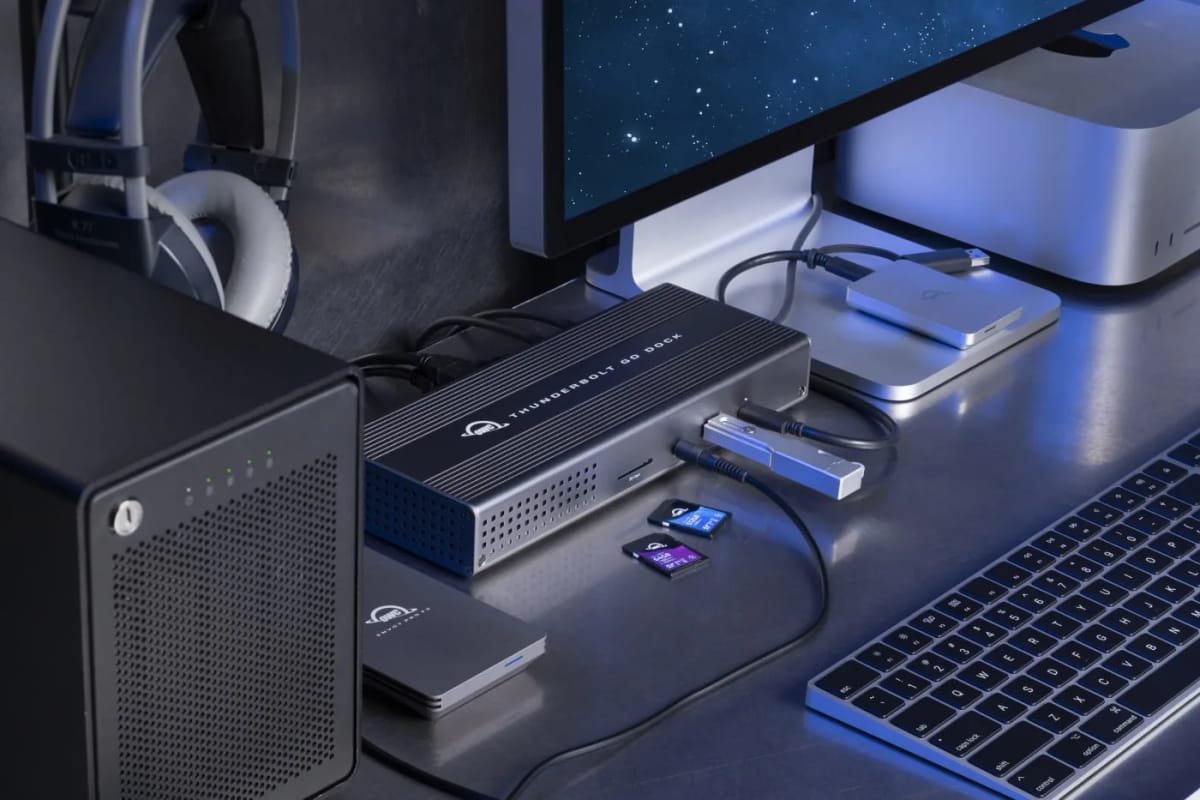
CalDigit’s dock lineup makes that tradeoff pretty clear without trying to hide it. The point of a real dock is not just that it has more ports. It is that it becomes the dedicated connection point for a heavier workflow: more USB, more display options, more network, more charging, and fewer compromises once the desk grows past a basic one-laptop arrangement.
A dock makes more sense when you need flexibility away from the monitor
Monitor hubs feel neat because the connection lives where the screen already lives. Docks feel better once the desk needs more freedom than the monitor can reasonably provide.
If you want ports closer to your hand instead of hidden behind the display, a dock can be better. If you need to hide the whole connection brain behind the monitor arm or under the desk, a dock can be better. If you swap laptops often, use fast storage, need full Ethernet, or rely on more than a couple of USB devices, a dock can be better.
That does not make the monitor hub bad. It just means the monitor hub is strongest when the desk is simple and stable, while a dock is stronger when the desk has grown into a real system.
That is why this article sits next to Laptop docks that keep small desks cleaner, not on top of it. The roundup is about which docks make sense. This decision page is about whether you need a dock at all.
Two computers change the question completely
The moment one desk starts serving two computers, the monitor hub versus dock decision stops being only about ports. Now it is about switching.
Some monitors do have built-in KVM support, and when they do, they can be a much better answer than people expect. Dell’s KVM guide explains that clearly: on supported monitors, one keyboard and mouse can control two computers through the monitor’s KVM flow. BenQ’s setup guide shows the same basic logic. Two video sources come into the monitor, the keyboard and mouse connect to the monitor, and the monitor handles the switch.
But it only stays cleaner if the monitor actually supports the way you work. As soon as the switching gets more demanding, or the peripherals get trickier, or the monitor’s built-in KVM limitations show up, the answer shifts again. That is exactly where Do you need a KVM switch, a USB switch, or just better monitor inputs? and How to share one keyboard, mouse, webcam, and mic between two computers without friction become the more honest next reads.
What I would choose now
If I had one laptop, one monitor, a keyboard, a mouse, and no serious port demands, I would absolutely try the monitor hub first.
If the monitor gave me enough power, enough USB, and a clean one-cable routine, I would stop there.
If I needed more than that, I would stop pretending the monitor should be the whole docking strategy. I would add a real dock when the missing pieces were obvious: more ports, more charging headroom, more display flexibility, or better device placement on the desk.
And if the desk had to handle two computers cleanly, I would stop treating it like a hub-versus-dock question only. At that point, switching becomes part of the answer too.
A USB-C monitor with a hub is often enough when the desk is simple. A dock becomes worth it when the workflow stops being simple. The mistake is buying either one before you know which jobs it actually needs to do.
Power delivery is where the gap usually shows first
USB-C monitors vary widely in how much power they deliver through the cable. Many monitors top out at 65W or 90W, which is enough for a MacBook Air or lightweight ultrabook but may not sustain a larger laptop under load.
If your laptop draws more power than the monitor can supply, the laptop will still charge — just slowly, or not enough to keep up under heavy workloads. You may not notice the gap during light tasks, but over a long video call or a sustained CPU-heavy session, the battery can still drain even with the cable connected.
A standalone dock with a dedicated power supply does not have this limitation. Most quality docks supply 96W or more to the connected laptop, which covers the full range of laptops likely to be on the desk. If power delivery is a daily variable for you, a dock eliminates that uncertainty.
Desk placement changes the practical answer
The monitor hub approach is strongest when you want the connection logic to live at the monitor. That makes sense if the desk has a clean cable run to the display and you want one cord to run to the laptop from there.
A standalone dock gives you placement flexibility. It can sit beside the desk, behind the monitor arm, under the desk on a tray, or anywhere cable length allows. If the monitor's USB ports are awkwardly positioned — facing the user, hidden behind a thick bezel, or simply hard to reach — a dock with a shorter travel distance to your hands can be more practical.
Neither placement is universally right. The better question is which one keeps the desk feeling calmer when everything is plugged in.