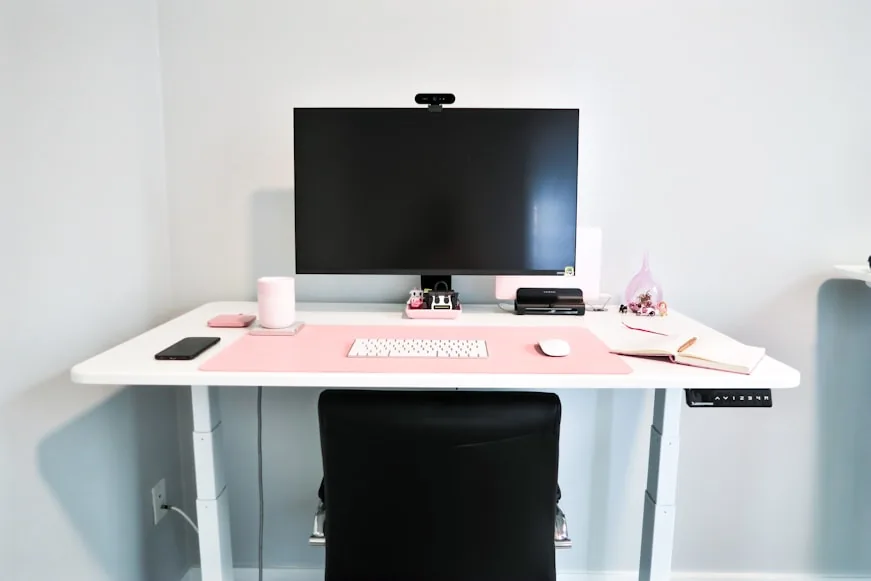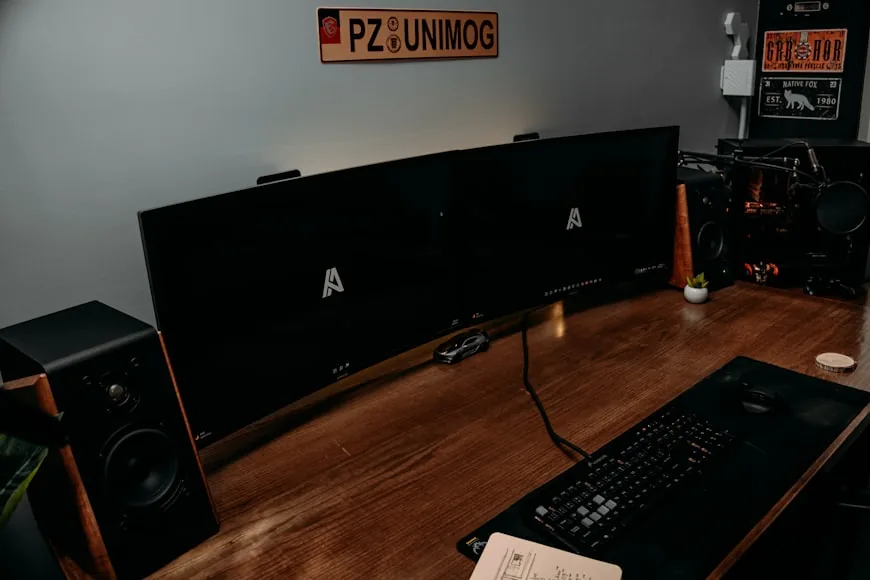

This page is the fast reference version of URBNGEAR's monitor ergonomics cluster.
If you do not want the long explanation first, start here:
the top of the screen should usually land at or slightly below eye level; the center of the screen should usually sit in a gentle downward gaze; the monitor should usually be at least 20 inches away; and on a small desk, 20 to 30 inches is the range that most often feels workable in real life.
That summary lines up with the core guidance from OSHA, Mayo Clinic, and CCOHS. The chart below simplifies those ideas into a quick setup reference, then points you to the right deeper guide when one variable starts changing the answer.
At a glance
- Best default: Top of screen at or slightly below eye level, with your eyes landing around the upper portion of the screen.
- Small-desk distance: Usually about an arm's length away, with roughly 20 to 30 inches making the most practical sense on tighter desks.
- Big-screen adjustment: Larger or taller monitors usually need to sit a little lower and a little farther back than smaller screens.
- Glasses exception: Bifocals and progressive lenses often feel better when the monitor is lowered slightly below the usual starting point.
Monitor ergonomics chart
| Situation | Height | Distance | Common mistake | Next guide |
|---|---|---|---|---|
| 24-inch monitor on a small desk | Top of screen at or slightly below eye level | 20 to 24 inches can work if the stand is compact | crowding the keyboard area to make the screen fit | Monitor distance guide |
| 27-inch monitor on a small desk | Usually a touch below eye level feels better than dead even | 24 to 30 inches usually feels calmer | keeping the same distance that worked for a smaller screen | Monitor height guide |
| 32-inch or taller monitor | Lower than people expect so the upper corners do not pull the chin up | As much distance as the desk can honestly provide | using a tall screen on a shallow desk and blaming posture alone | Desk depth guide |
| Laptop as the main screen | Raise the screen, not your neck | Distance only matters after the laptop is high enough | choosing between a good screen height and a usable keyboard position | Laptop + monitor guide |
| One main monitor plus one secondary screen | Main monitor straight ahead; secondary close beside it | Primary screen still gets the normal distance target | letting the secondary screen become the real center of the setup | Second monitor guide |
| Two equal-use monitors | Shared center line in front of you; both angled slightly inward | Distance still needs to feel easy, not merely possible | spreading the pair too wide and building neck rotation into every task | Desk depth guide |
| Bifocals or progressives | Lower than the usual recommendation | Only adjust after the monitor is low enough to avoid head tilt | keeping the screen at the standard height and tipping the head back to see clearly | Monitor height guide |
| 24-inch-deep desk with a bulky stand | Height is secondary until the screen stops feeling cramped | Measure from your eyes to the panel, not just the desk depth | buying a riser when the real problem is distance | Monitor riser guide |
Swipe sideways to compare the full chart.
How to use the chart without overthinking it
Use the chart in this order:
- Set the chair and keyboard position first.
- Check whether the monitor feels too close before you obsess over height.
- Lower the monitor before raising it if the setup feels ambiguous.
- Change one variable at a time and read for a few minutes before judging it.
That order matters because people often try to fix a distance problem with height or a desk-depth problem with an accessory.
The rules that stay true most of the time
The core monitor rules are surprisingly stable:
- keep the monitor directly in front of you
- keep the top of the screen at or slightly below eye level
- keep the monitor at least 20 inches away
- keep the center of the screen in a comfortable downward gaze rather than a lifted-chin posture
OSHA says the monitor should be directly in front of you, at least 20 inches away, with the top line of the screen at or below eye level. Its workstation guidance also notes that the center of the screen normally lands about 15 to 20 degrees below horizontal eye level. Mayo Clinic uses a very similar starting point and frames it more simply: your eyes should be level with the top of the screen, and you should move the monitor closer or farther away until it is easy to read. CCOHS adds a useful nuance: slightly too low is usually easier to tolerate than too high.
That last point is why many setups improve faster when the screen comes down a little instead of going up.
What changes on a small desk
A shallow desk changes the answer because monitor distance has to share the same surface with:
- the stand footprint
- the keyboard and mouse zone
- some front-edge space for the forearms
- any laptop, lamp, riser, or organizer you are also asking the desk to hold
That is why a monitor can be "technically within range" and still feel wrong.
On a small desk, the useful question is not whether the monitor fits. It is whether the monitor fits without stealing the calm working zone in front of it.
If the screen only feels comfortable when the keyboard is pushed to the edge, the setup is not actually solved.
Special cases that change the answer quickly
Large or tall screens
As screens get taller, more of the usable panel rises above your comfortable downward gaze. That usually means larger screens need a slightly lower placement and a little more viewing distance.
If the upper corners keep pulling your eyes upward, lower the display before you assume you need more screen time discipline.
Bifocals and progressives
Mayo Clinic says bifocal users may need to lower the monitor another 1 to 2 inches. OSHA and CCOHS make the same practical point in different language: the wrong lens angle makes people tip the head backward to find the usable part of the lens.
If you wear progressives or bifocals and your neck feels busy even when the screen looks "correct," try lowering the monitor slightly before changing anything else.
Laptop plus external monitor setups
This setup goes wrong when both screens try to act like the primary view at once.
If the external monitor is the main screen, center it in front of you and demote the laptop to a supporting screen. If the laptop is the only screen, use a stand plus external keyboard and mouse. Otherwise you usually end up choosing between neck comfort and arm comfort.
Dual monitors
Two monitors only work well when your screen hierarchy is honest.
If one monitor gets most of the work, center that monitor and keep the second one close beside it. If both get equal use, center the gap between them and angle both displays slightly inward. What you do not want is a setup that makes your head live turned to one side all day.
When the chart points to a hardware fix
The reference chart does not mean you always need more gear.
But it does help you tell which category would solve the real problem faster:
- choose a monitor riser when the monitor mainly needs more height and the distance already feels okay
- choose a monitor arm when you need to control both height and depth on a tighter desk
- choose a smaller screen when the desk is too shallow to support the current panel honestly
- choose a deeper desk when every other adjustment still leaves the screen too close
The wrong hardware decision is usually the one that solves the visible symptom while leaving the geometry unchanged.
Where to go deeper
Use this page as the quick-reference layer, then go deeper on the part that actually changed your answer:
- Proper monitor height: how high should your monitor be?
- How far should a monitor be from your eyes on a small desk?
- How deep should a desk be for one monitor vs two?
- How to set up one monitor and a laptop on a small desk
- Do you need a monitor riser on a 24-inch deep desk?
- Monitor arm vs monitor riser: which is better for posture?
- Monitor arms that work on small desks