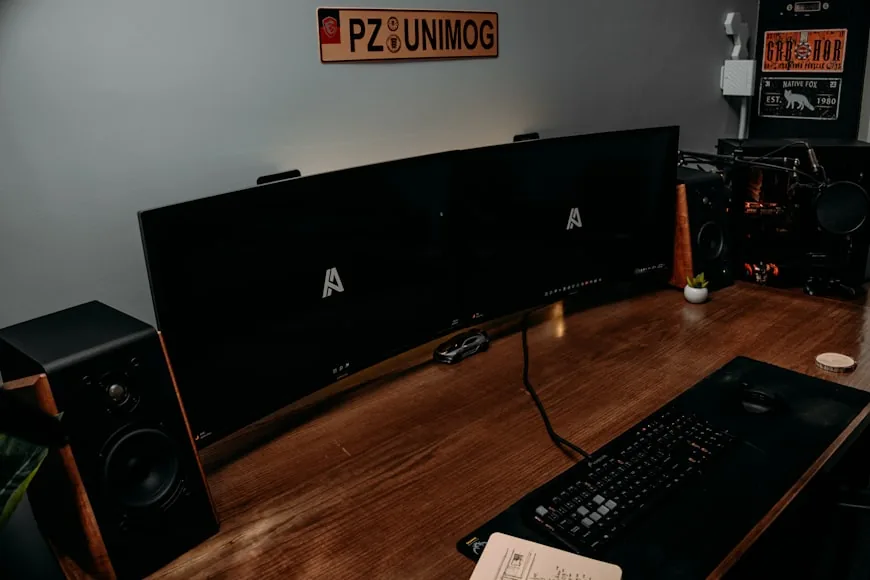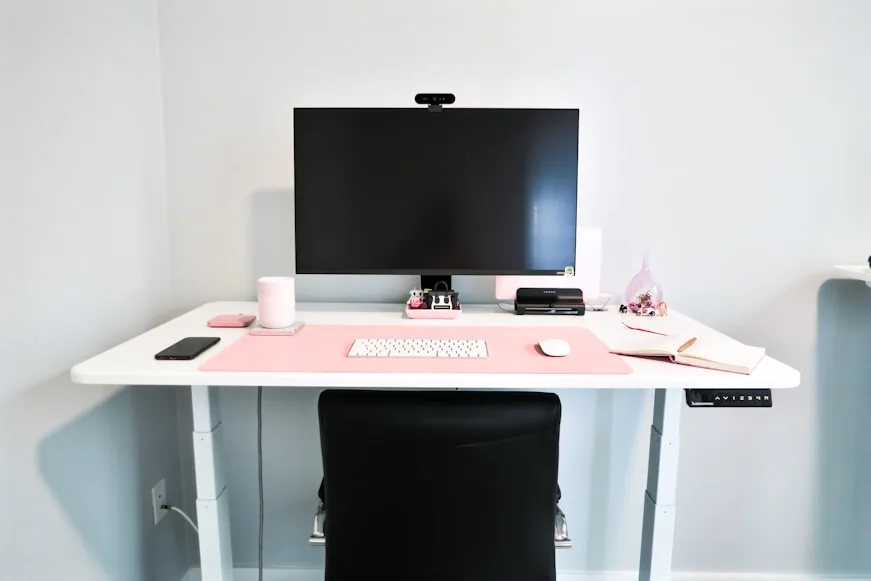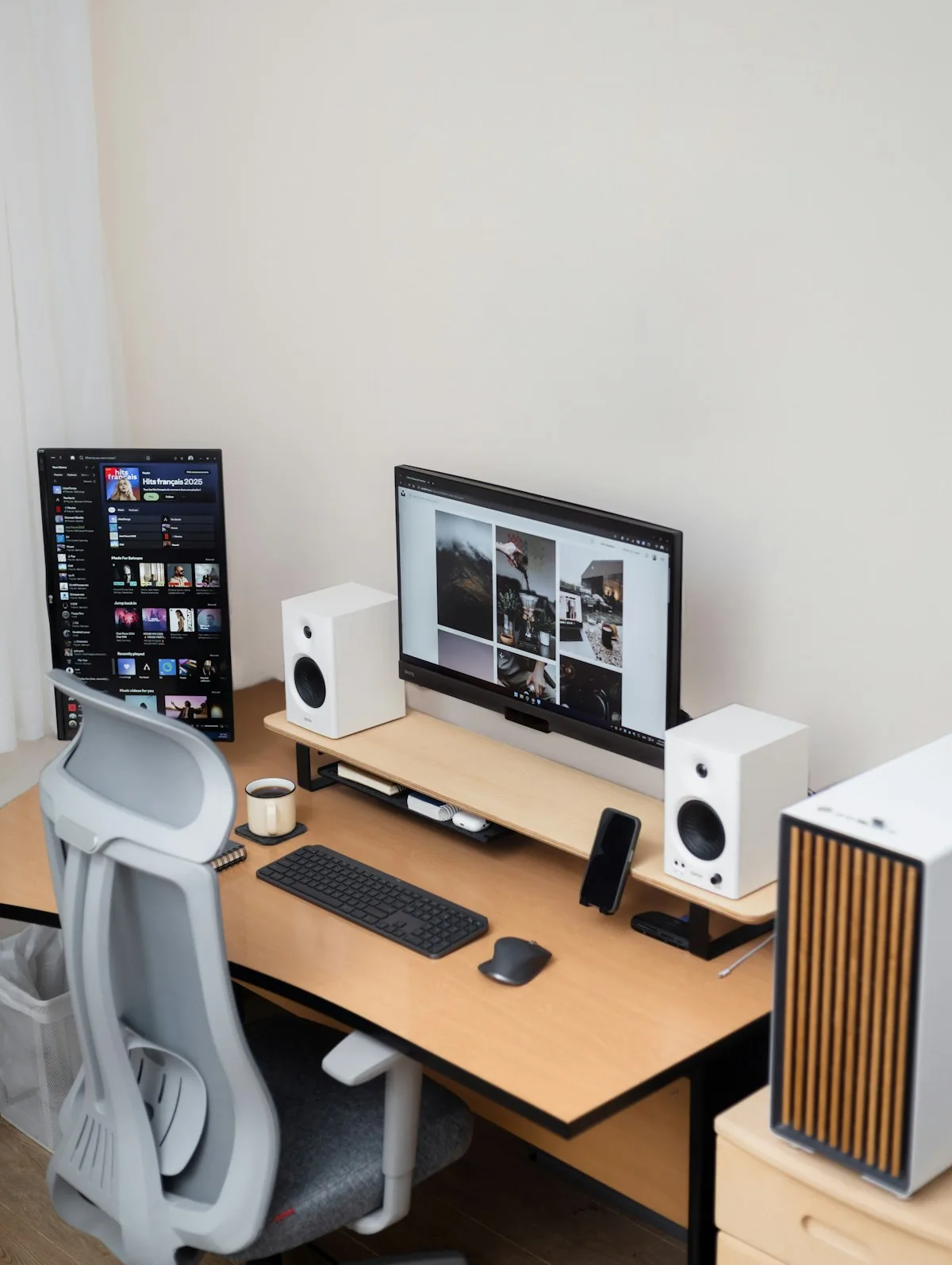

A second monitor should feel like a relief. Mine felt worse. I was turning my head more, nudging my keyboard off‑center, and reaching farther just to make the desk feel usable.
The fix wasn’t a new stand or a different screen. It was the layout.
Key takeaway
If dual screens feel worse, it's almost always layout. Center the primary screen, close the gap, and match heights before buying anything else.
The real problem: the desk turns into two workstations
Most people drop a second monitor onto the desk and treat it like two separate stations. That looks good in photos, but it makes daily work harder. Your body ends up twisting between two centers instead of working from one clear zone.
The moment I treated the desk like one station again, the setup started to feel like an upgrade.
Center the screen you actually use
If one screen carries the majority of your work, that screen needs to be directly in front of you. It sounds obvious, but most dual‑monitor setups put the “nice” screen off to the side and the laptop in front, which means your head is always turned during the hours that matter.
If you truly use both screens evenly, place the seam between them in front of you and angle them inward so the edges face you. That keeps your head movement small and your hands centered.
The gap is doing more damage than you think
When the monitors are spaced like two separate desks, the setup feels worse than a single screen because your head keeps traveling. The gap becomes a dead zone you’re forced to look past.
Bring the screens close enough that your eyes can move between them without a full head turn. A slight V‑shape pulls the outer edges closer and makes the setup feel like one continuous work surface instead of two islands.
Mismatched heights create constant micro‑adjustments
If one screen is higher or lower, your eyes keep resetting. It’s subtle, but after a few hours you feel it.
Align the top edges of both panels so your gaze stays consistent. If you’re using a laptop plus a monitor, lift the laptop to the same height or close it and run the external display as the main screen. The “laptop off to the side” layout is the fastest way to make two screens feel worse than one.
Desk depth makes or breaks dual screens
Two screens need enough depth to sit back without forcing the keyboard into your lap. On a shallow desk, the monitors creep forward and your working zone collapses.
If your desk is shallow, try to reclaim depth by pulling the screens back and centering the keyboard again. A monitor arm can help, but even a small shift backward changes how the desk feels.
When one monitor is genuinely better
If your desk is narrow, your work lives inside one app, or you keep ignoring the second screen, a single centered monitor will feel calmer and faster. The upgrade isn’t always more screen — it’s less friction.
If you want more space without the second panel, an ultrawide can be the simpler option because it keeps one centered focal point.
A fast reset you can try today
Start with five minutes and a tape measure if you have one. Clear the front edge. Put the main screen directly in front of you. Bring the second screen close enough that the inner edges almost touch. Align the top edges. Then move the keyboard and mouse to the centerline of the primary screen.
Open the two apps you use most and work for ten minutes. If you’re still turning your head constantly, something is still off — usually the centerline or the gap.
The cable mess problem
Dual monitors almost always mean more cables. Two power cables, two video cables, potentially two USB connections — and if you have not planned for it, they end up draped across the desk or tangled behind it.
The cable situation is worth solving before you call the setup finished. A cable tray under the desk, or at minimum a few cable clips along the back edge, keeps the visual noise from making the setup feel cluttered even after the layout is fixed.
When the screens do not match
Mixed panels — a primary monitor and a secondary with a different size, resolution, or color profile — create a subtle friction that shows up every time you drag a window between them. Text renders differently, whites do not match, and the UI feels slightly wrong on one side.
If the mismatch is significant, consider whether the second screen is worth keeping. A single well-chosen monitor often produces a calmer, more consistent workspace than two screens with different panels trying to share one desk.
What to do if the desk is the real constraint
Some desks simply do not have enough depth or width for two monitors to sit correctly. The monitors end up too close, the keyboard gets pushed to the front edge, and no amount of arm adjustment fixes it.
If this sounds familiar, it is worth reading compact desks that work for dual monitor setups before spending more on stands or arms. The desk itself may be the constraint that gear cannot solve.
The check before you buy anything
Before adding a monitor arm, a riser, or a new stand, spend five minutes with the current setup:
Push the primary screen directly in front of your chair. Bring the second screen in close enough that the bezels almost touch. Align the top edges. Then move the keyboard back to a neutral position directly below the primary screen.
If the setup already feels significantly better after that, the problem was layout, not equipment. If it still feels wrong, the constraint is more likely the desk depth or the screen sizes — and the fix is different.
How refresh rate and resolution mismatches make it worse
Two monitors with different refresh rates or resolutions create a subtle but persistent cognitive friction.
Moving a window from a 144Hz display to a 60Hz panel makes the motion feel heavier. Moving content from a 4K screen to a 1080p panel makes text look softer. Neither effect is dramatic on its own, but after a full day of moving content across the boundary, the setup accumulates small moments of wrongness that add up to fatigue.
If the mismatch is significant — different panel technologies, very different color profiles, or a gap of more than 60Hz in refresh rate — it is worth asking whether the second screen is adding more friction than it is removing. A well-matched pair of monitors tends to feel like one workspace. A mismatched pair tends to feel like two separate pieces of equipment sharing the same desk.
The productivity case for going back to one screen
Dual monitors are associated with productivity, but the evidence for them is context-dependent.
For tasks that genuinely require reference material beside a working document — coding with documentation open, video editing with a timeline and preview split across screens, trading with multiple data feeds — two monitors often do improve throughput. For tasks that mostly live in one application at a time, the second screen can become a distraction engine that reduces focus without adding useful information.
Before assuming dual monitors are always the more productive configuration, spend a day with only the primary screen and track whether the work itself slows down or speeds up. Some people find the forced focus of a single screen is worth more than the extra space.